
Plugable Thunderbolt™ and USB4 devices generally offer plug-and-play functionality on Windows, but older systems may require specific driver updates, firmware updates, or manual device authentication to function correctly. These steps are not required on macOS systems. Understanding your system's specific Thunderbolt capabilities is key to resolving most display, charging, and connectivity issues.
How to Update and Authenticate Thunderbolt Devices
While Windows should install necessary drivers automatically, there are exceptions that require manual intervention:
- Firmware and Drivers: Many early Thunderbolt 3 and some early Thunderbolt 4 PCs (Intel 11th Gen) require NVM (Non-volatile memory) firmware, UEFI BIOS, and software utility updates directly from the system manufacturer before devices will work properly. The latest Thunderbolt firmware must be customized by your original system manufacturer and cannot be downloaded directly from Intel.
- Authentication: Unlike standard USB devices, Thunderbolt 3 devices must be manually authenticated (approved) by the user before the system will recognize them. (Thunderbolt 4 and newer systems typically authenticate automatically via Secure Connect). Click here for the authentication process.
- DisplayLink Drivers: If your Thunderbolt or USB4 device offers additional DisplayLink USB graphics capabilities, you will need to install the newest DisplayLink drivers found here.
Why Certain Thunderbolt Features May Be Limited
System manufacturers have substantial discretion in how they implement Thunderbolt technical elements, which can lead to physical hardware limitations that cannot be fixed with software updates:
- Display Limitations: Dual display support is optional for Thunderbolt 3 PCs. Some older Thunderbolt 3 systems are equipped with only a single DisplayPort (DP) Alternate Mode line to the Thunderbolt controller, limiting them to a single display output regardless of a docking station's capabilities.
- Charging Limitations: Support for charging (USB Power Delivery) on Thunderbolt 3 systems is also optional. Many do not accept a charge over USB-C, or only charge with their own branded power adapters. Note that most Thunderbolt 4, Thunderbolt 5, and USB4 systems do support PD charging.
How to Resolve Common Thunderbolt Issues
Q: Can a Thunderbolt dock or adapter work in any system with any USB-C (USB Type-C) port?
A: It depends. Many Thunderbolt devices will only work with Thunderbolt USB-C computers and ports. Connecting to a standard USB-C port without Thunderbolt capability will not work. Look for the Thunderbolt icon on both sides of the connection to ensure compatibility: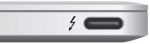
However, some Thunderbolt docking stations, like our TBT4-UDZ, are backwards compatible with standard USB-C systems (with limitations).
Q: How can I identify if my system has the necessary two DisplayPort lines to provide dual display output through the Thunderbolt 3 port?
A: Unfortunately, this information is very hard to discern based on manufacturer-published specifications. Please contact your system manufacturer for confirmation of how many DisplayPort lines are routed to your Thunderbolt 3 port. (Note: Thunderbolt 4 and newer systems do not have this limitation, though some USB4 systems might).
Q: I connected my Thunderbolt dual display dock and am only getting a single output.
A: Depending on what Thunderbolt-equipped system you have, it may only support a single output because of a physical DP Alt Mode line configuration limitation.
Q: I connected my Thunderbolt device for the first time and my system crashed (hard lock).
A: Check to see if your system is running the latest Thunderbolt software, NVM, UEFI BIOS, and all other updates from your system manufacturer. If everything is updated, unplug the adapter, reboot the system, and then reconnect.
Q: I connected my Thunderbolt dual display dock and am not getting any output to either display.
A: If your system supports Thunderbolt and also offers hybrid graphics (a combination of built-in Intel GPU and AMD or NVIDIA discrete graphics, such as Nvidia Optimus/Advanced Optimus), make sure the Intel GPU is set to be the primary GPU in the UEFI BIOS.
Q: What if a newer compatible NVM firmware is not available from my system manufacturer?
A: Unfortunately, the only option is to contact your system manufacturer and ask when a newer version will be available. Let them know that certain accessories will not work until the update is provided.
Alternative Options and Support
If you have any questions or continue to experience issues after updating your system, please feel free to contact our support team; we’re more than happy to help!
Applicable To
- Plugable Thunderbolt 3, Thunderbolt 4, Thunderbolt 5, and USB4 devices
