
Before you begin
Unsure which version of macOS you have installed on your Mac? Click on the ‘Apple’ icon within the menu bar located at the top of your macOS desktop and select ‘About this Mac’. A new window will open and display the host system’s macOS version.
Please note, this guide describes the process using macOS 26 Tahoe. The process is very similar when using macOS 15 Sequoia, and macOS 14 Sonoma, however there may be slight differences due to the specific operating system version in use.
Guided Video Demonstration
For those who prefer, we have a video demonstration of the installation procedure available (an embedded link is below). The video demonstrates the process on macOS 26 Tahoe, however the process is virtually identical in macOS 15 Sequoia and macOS 14 Sonoma.
For those who prefer, a detailed text-based description of the installation process (including screenshots) is available within the following sections.
How to install the DisplayLink Manager application
IMPORTANT NOTE - The screenshots in this article (and the demonstration video) were produced using macOS 26 Tahoe however the process and appearance is virtually identical in macOS 15 Sequoia and macOS 14 Sonoma
1. Download the correct version of the DisplayLink Manager Application for your version of macOS from here → https://plugable.com/pages/displaylink
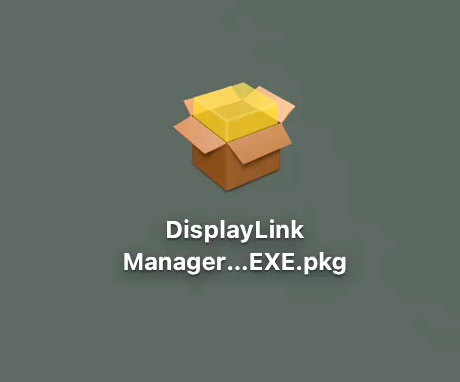
2. Double-click on the file you downloaded to start the application installer:
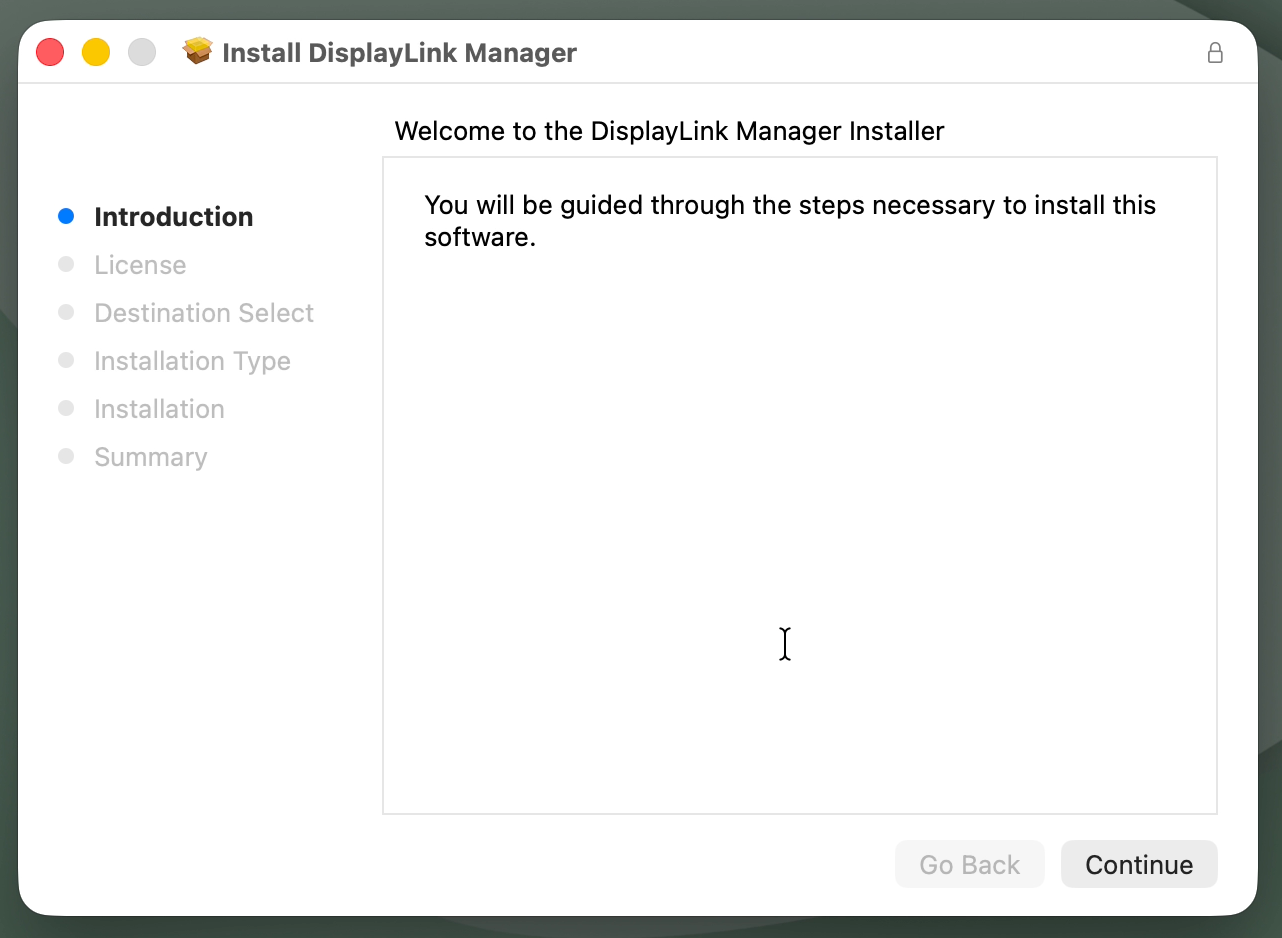
3. From within the ‘Introduction’ section of the application installer, click on the ‘Continue’ button to start the installation process:
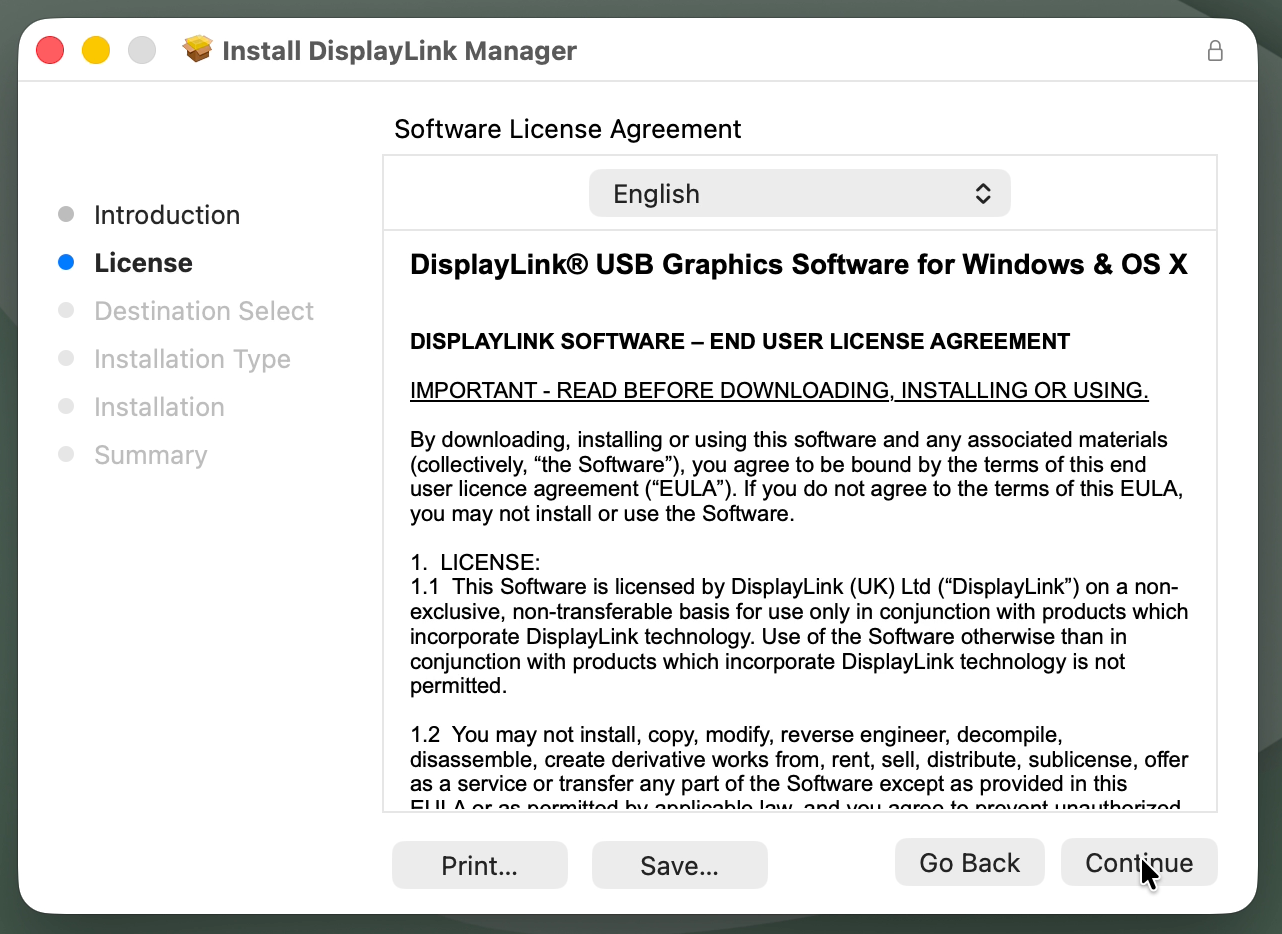
4. After having read the license information from within the ‘License’ section of the application installer, click on the ‘Continue’ button
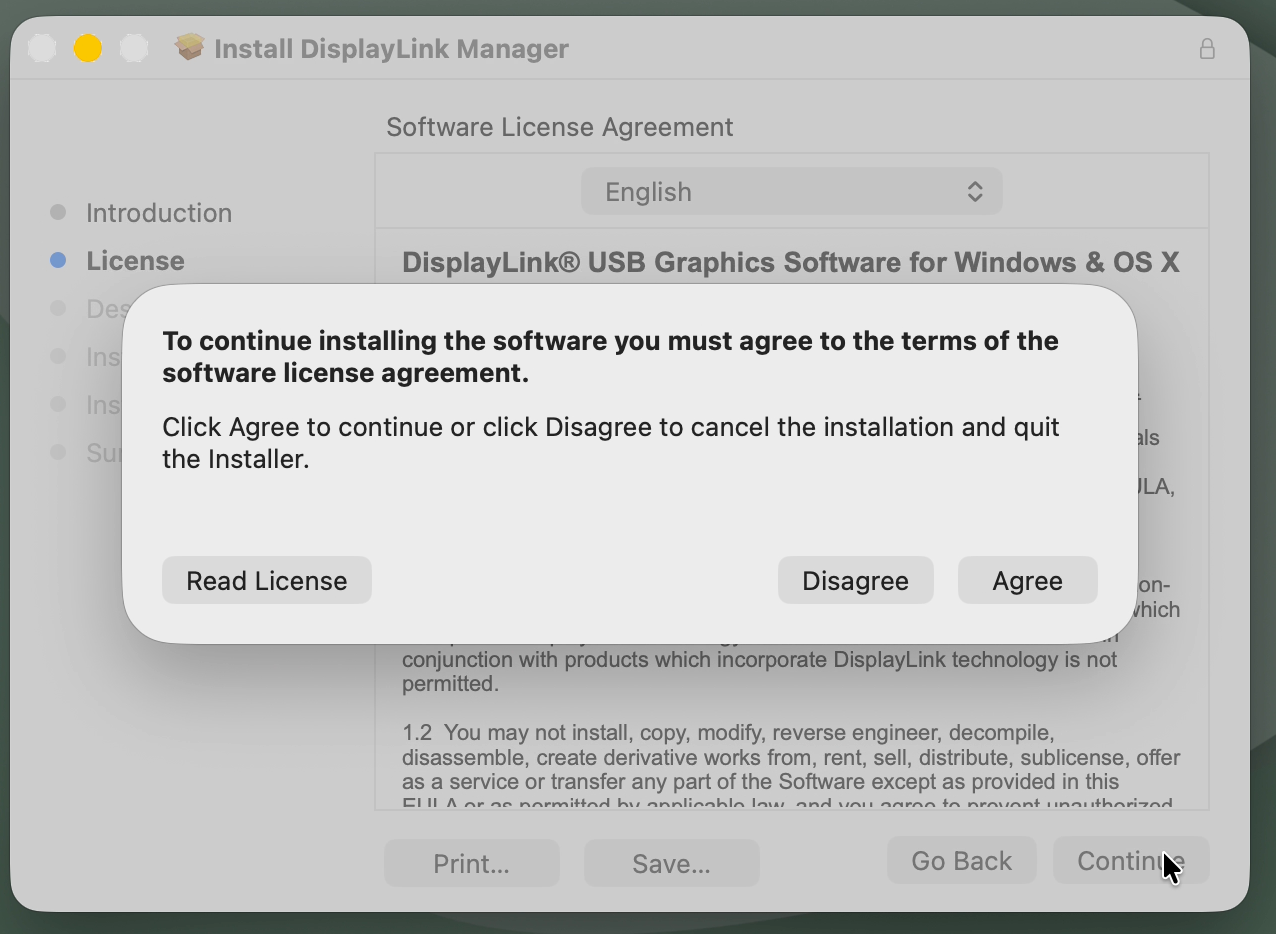
5. Click on the ‘Agree’ button in order to agree to the software license agreement.
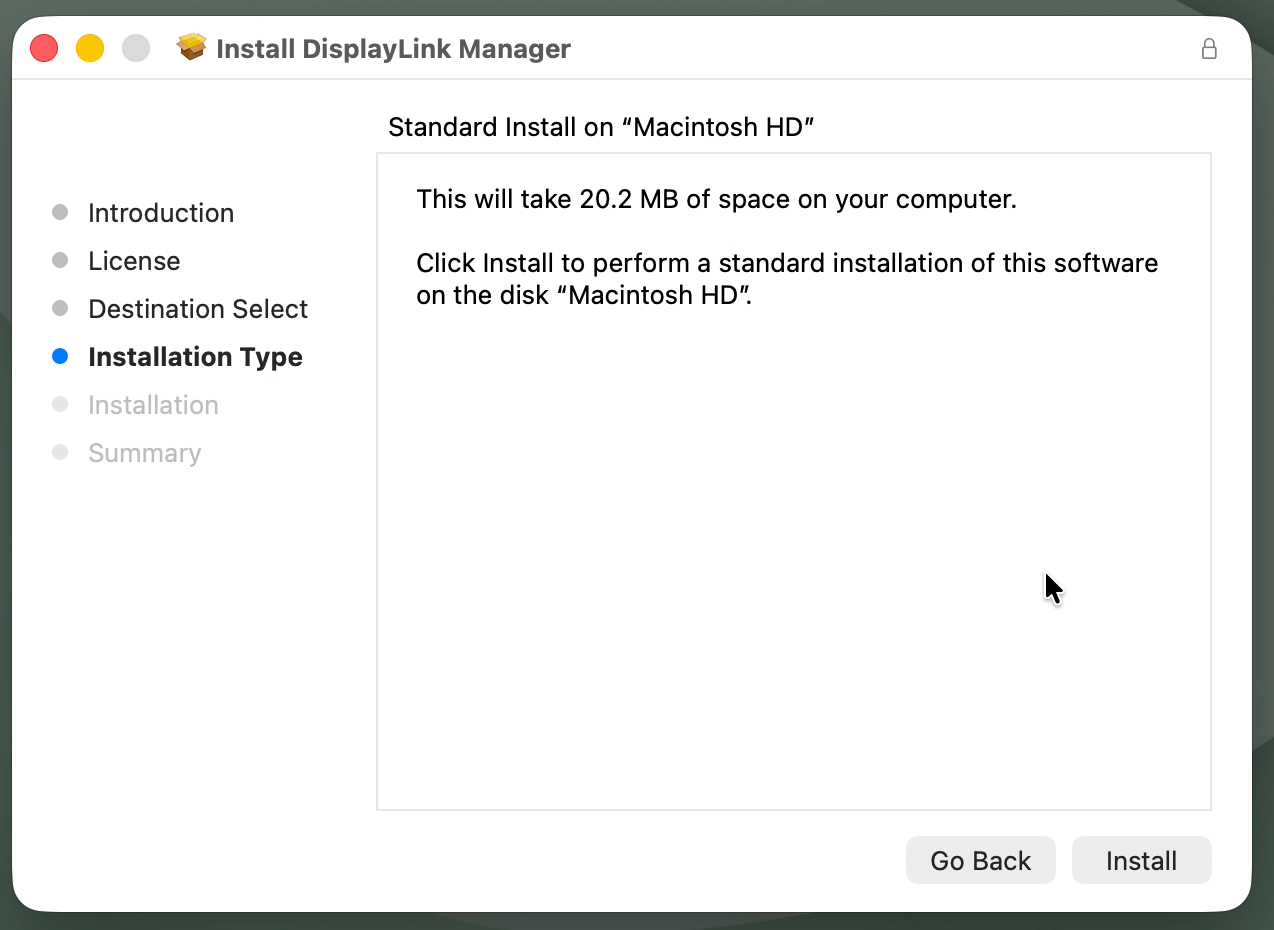
6. From within the ‘Installation Type’ section of the application installer, click on the ‘Install’ button:
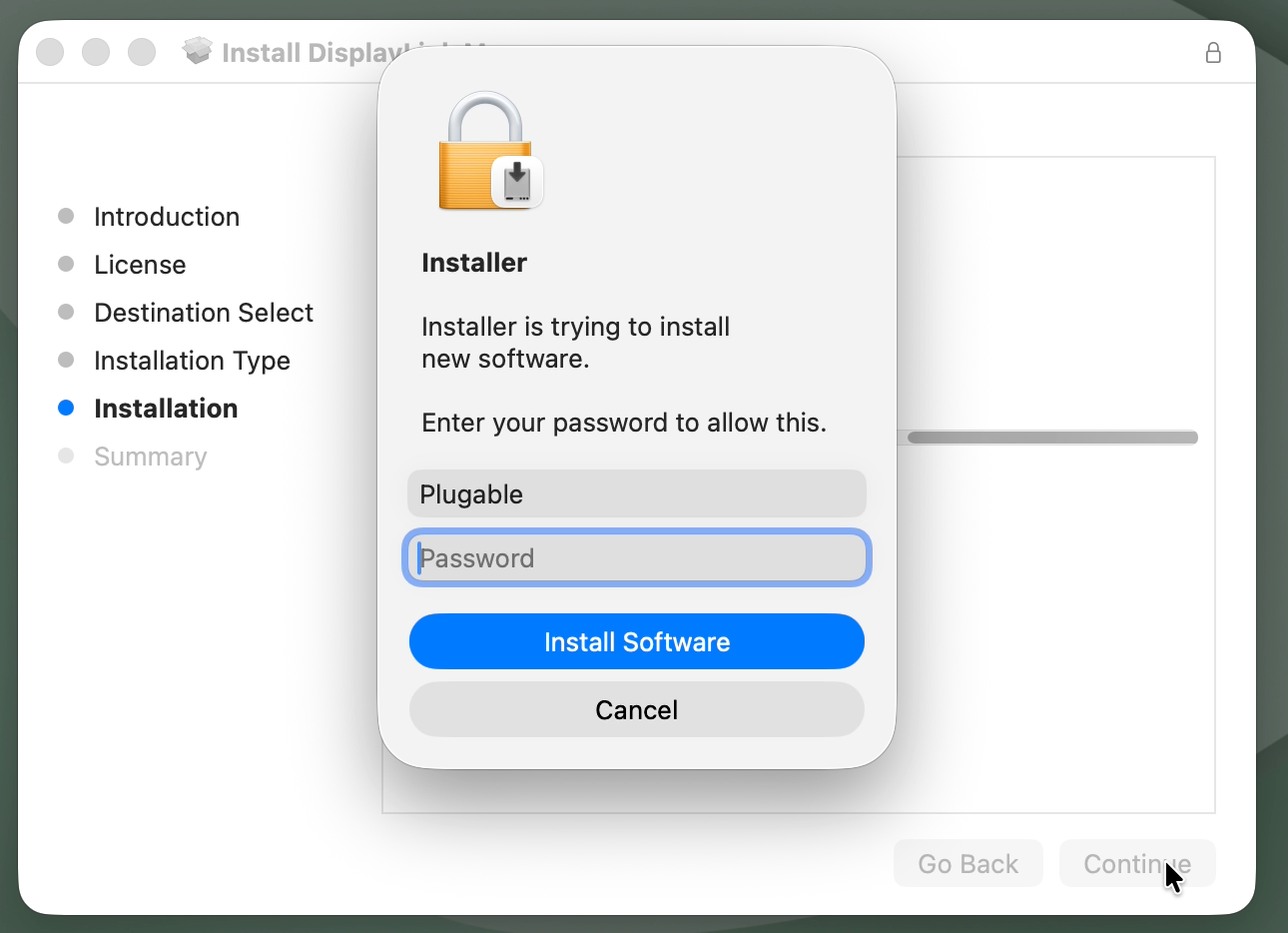
7. When prompted, please enter your system password and click on the ‘Install Software’ button to start the installation. The installation process will begin:
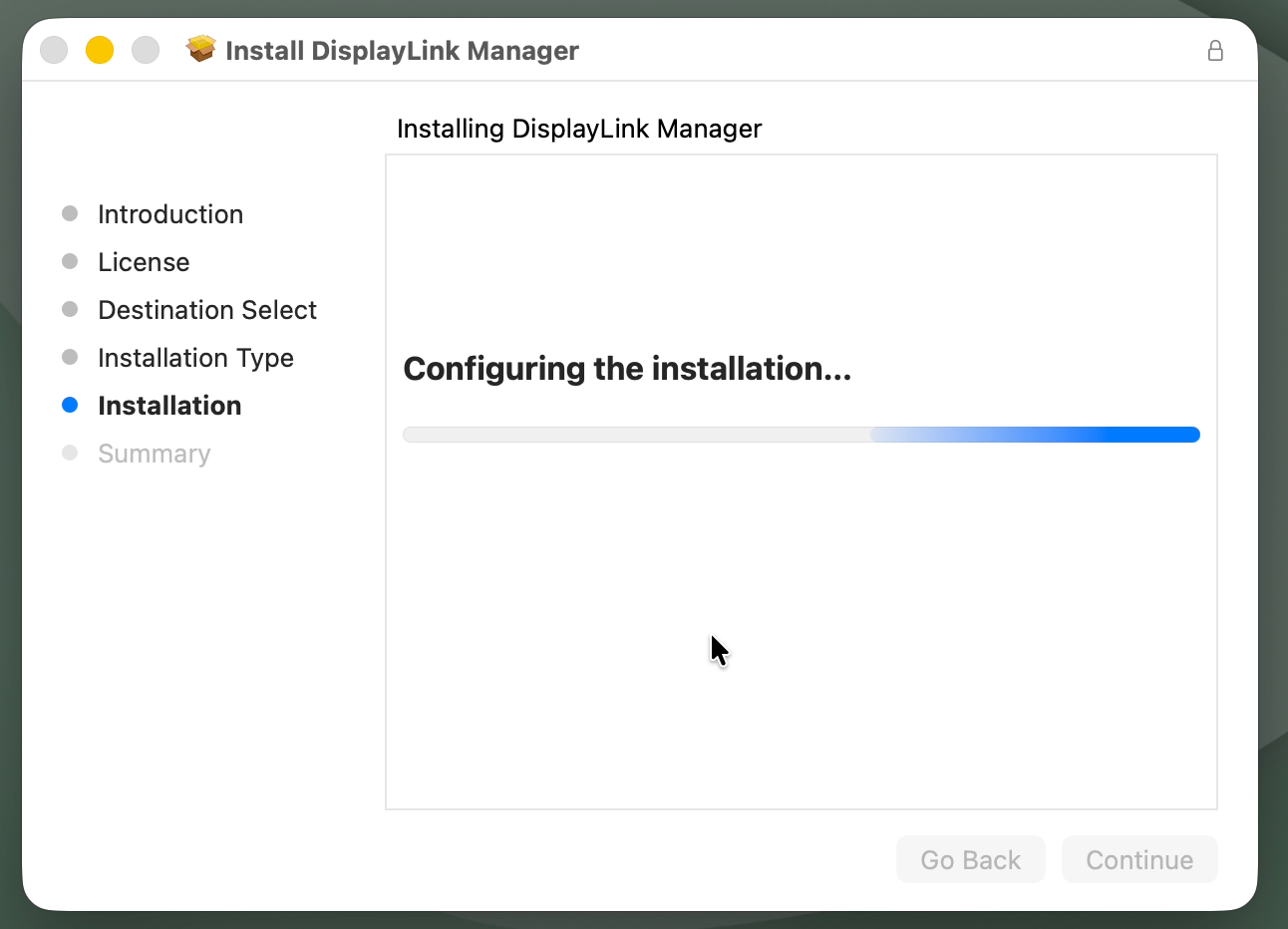
8. The application installer will notify you when the installation process has been completed. Please click on the ‘Close’ button in order to close the application installer.
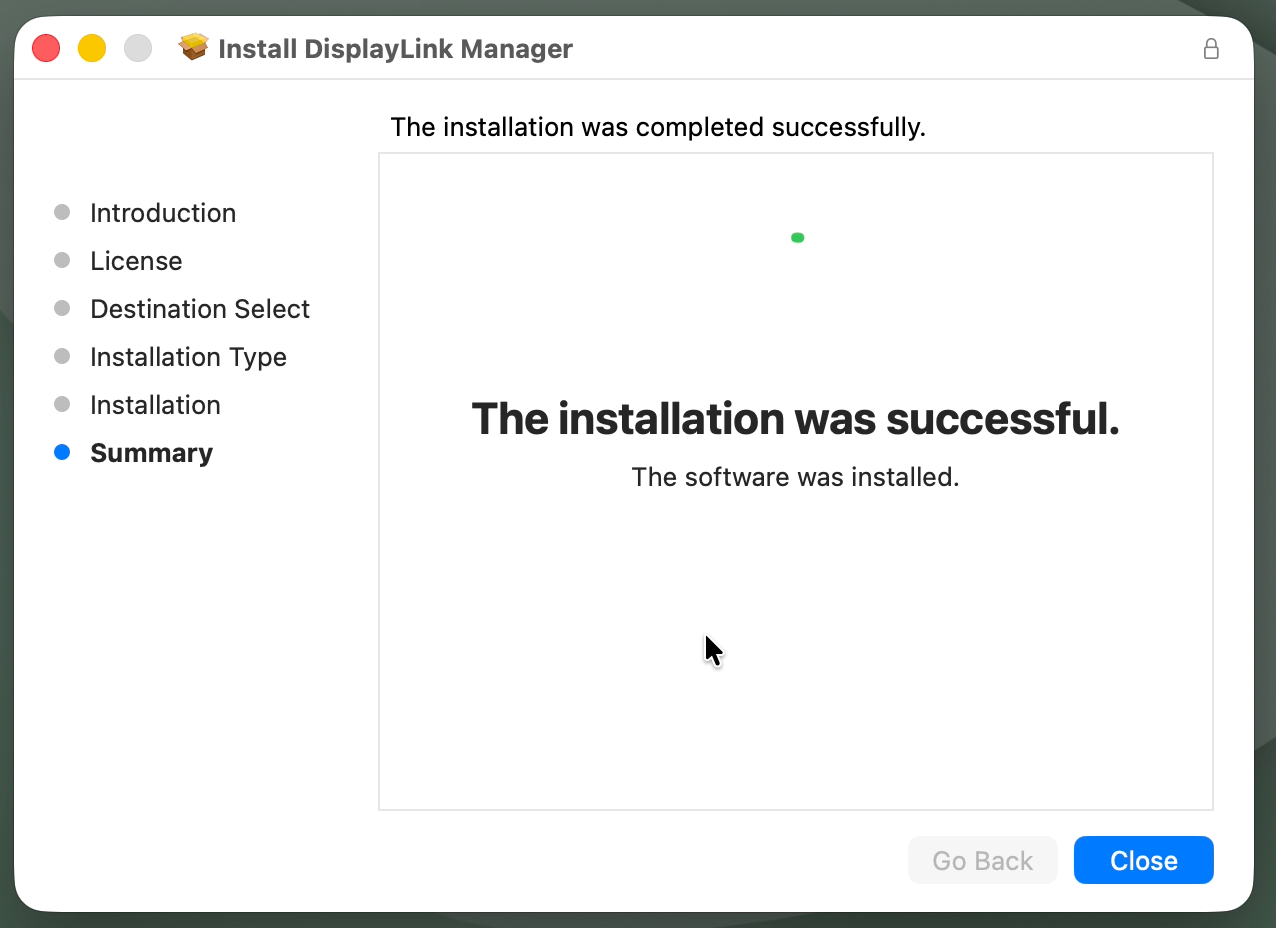
IMPORTANT NOTE - If the installation process does not complete successfully, please see this knowledge base article --> https://kb.plugable.com/question/1807081 for a list of potential causes and possible solutions.
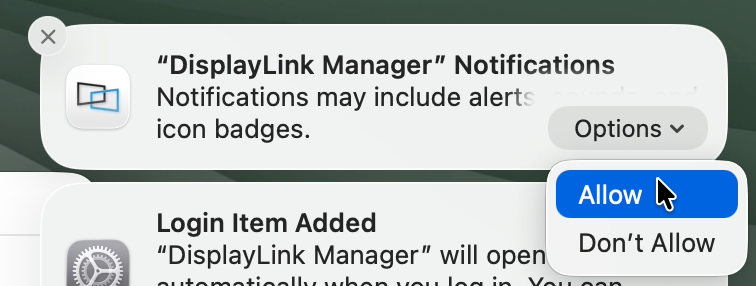
9. Once the initial installation process has been completed, you should see a request from the DisplayLink Manager Application to allow the application to display notifications, when necessary. Click on the ‘Options’ button within the request and click the ‘Allow’ option
Note, we have more information in regard to notifications while using DisplayLink on macOS here → https://kb.plugable.com/question/3137440
10. You should also see two notifications from macOS:
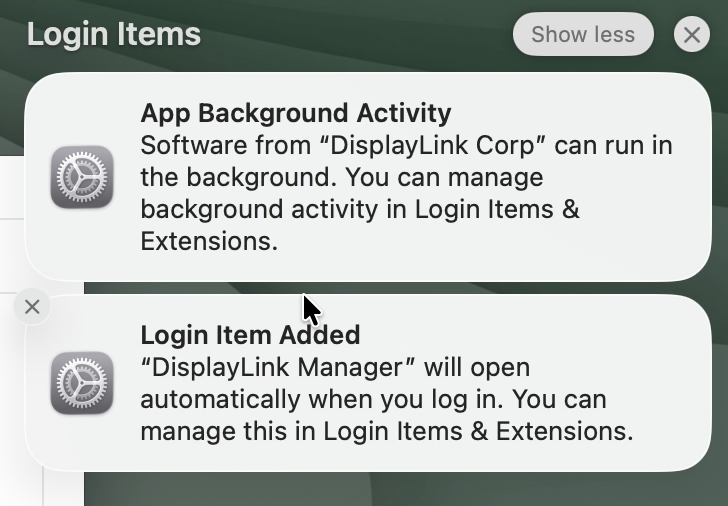
The ‘Login item added’ notification informs you that the DisplayLink Manager Application will open/start automatically when you log in to your Mac.
IMPORTANT NOTE - The DisplayLink Manager Application must be running in order for any monitors powered by DisplayLink technology to function.
The ‘App Background Activity' notification informs you that the DisplayLink Manager Application can run in the background.
These notifications are informational only, and can be freely dismissed.
11. macOS will notify you that the ‘DisplayLink Manager’ application would like to record the computer’s screen and audio. Click the ‘Open System Settings’ button in order to grant this permission.
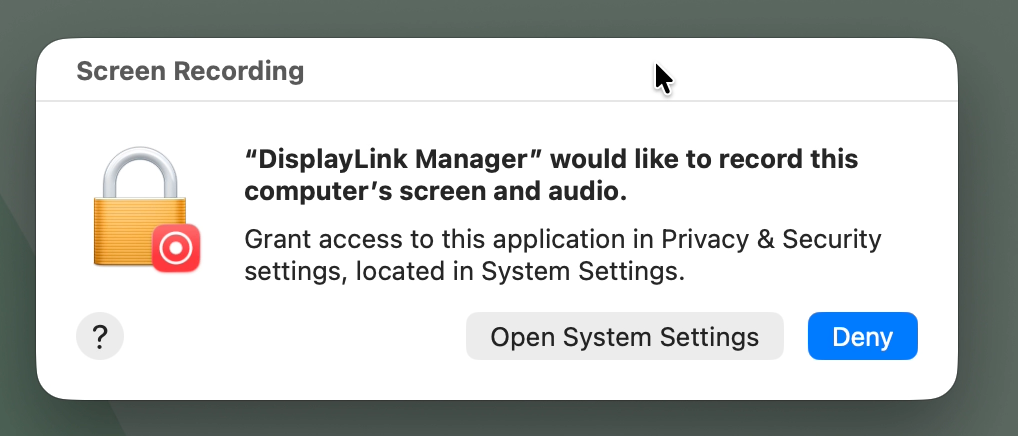
12. The ‘System Settings’ application will open, and the ‘Screen & System Audio Recording’ section (contained within the ‘Privacy & Security’ category) will automatically be visible on the right side of the application window:
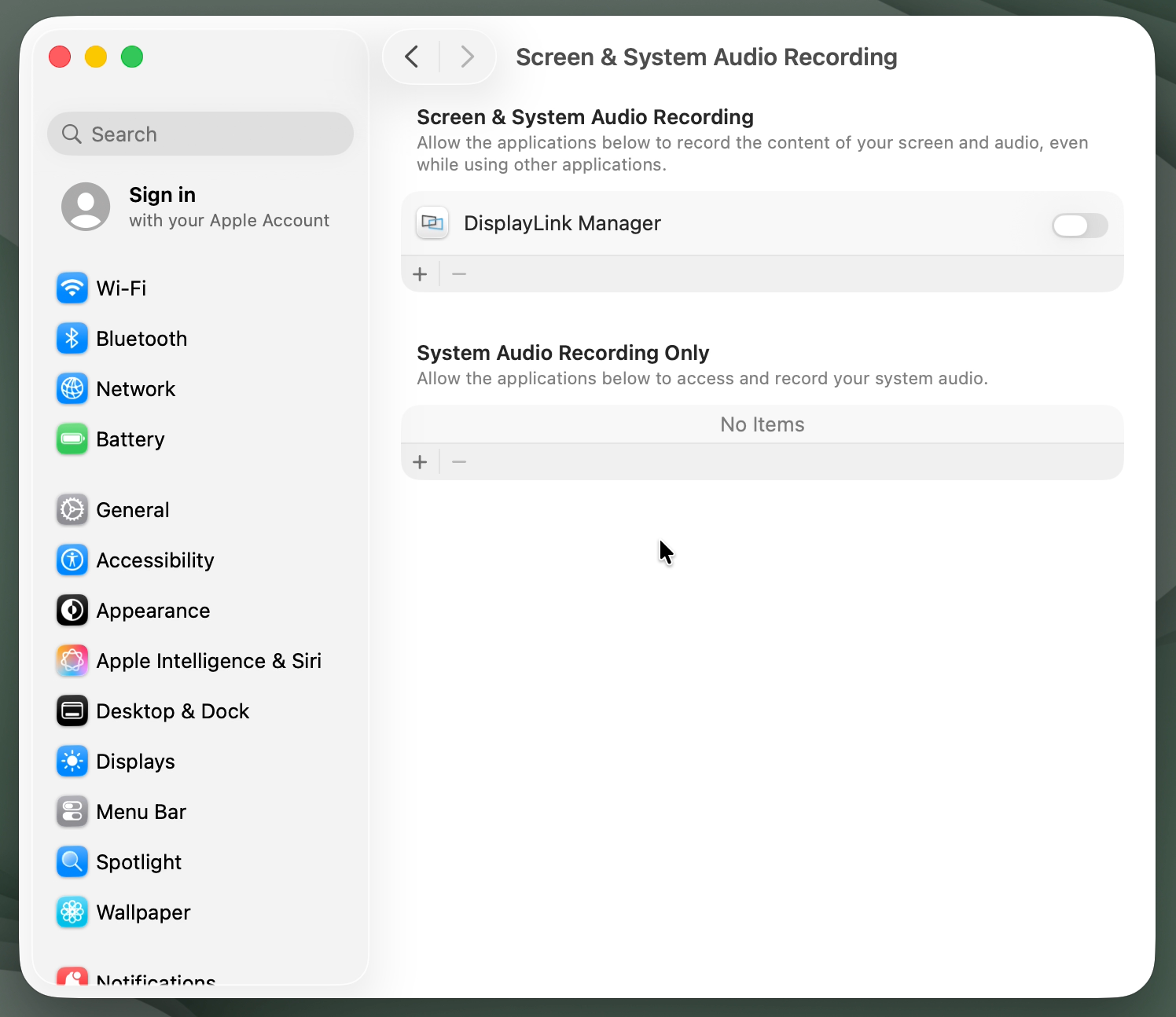
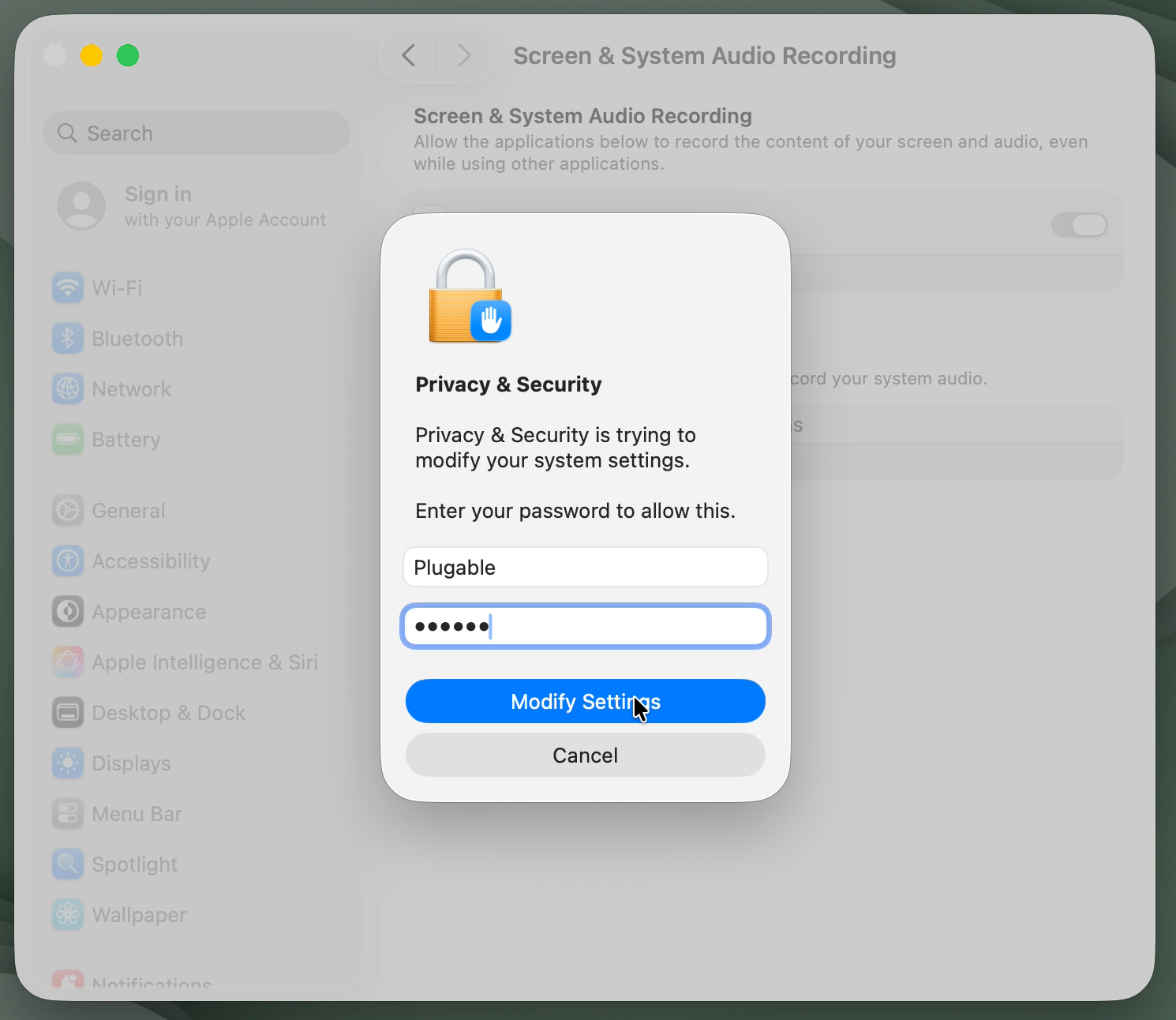
13. Click the toggle switch next to the ‘DisplayLink Manager’ entry in order to grant the required permission. When doing so, you will be prompted to enter your password. Enter your password and click the ‘Modify Settings’ button to continue:
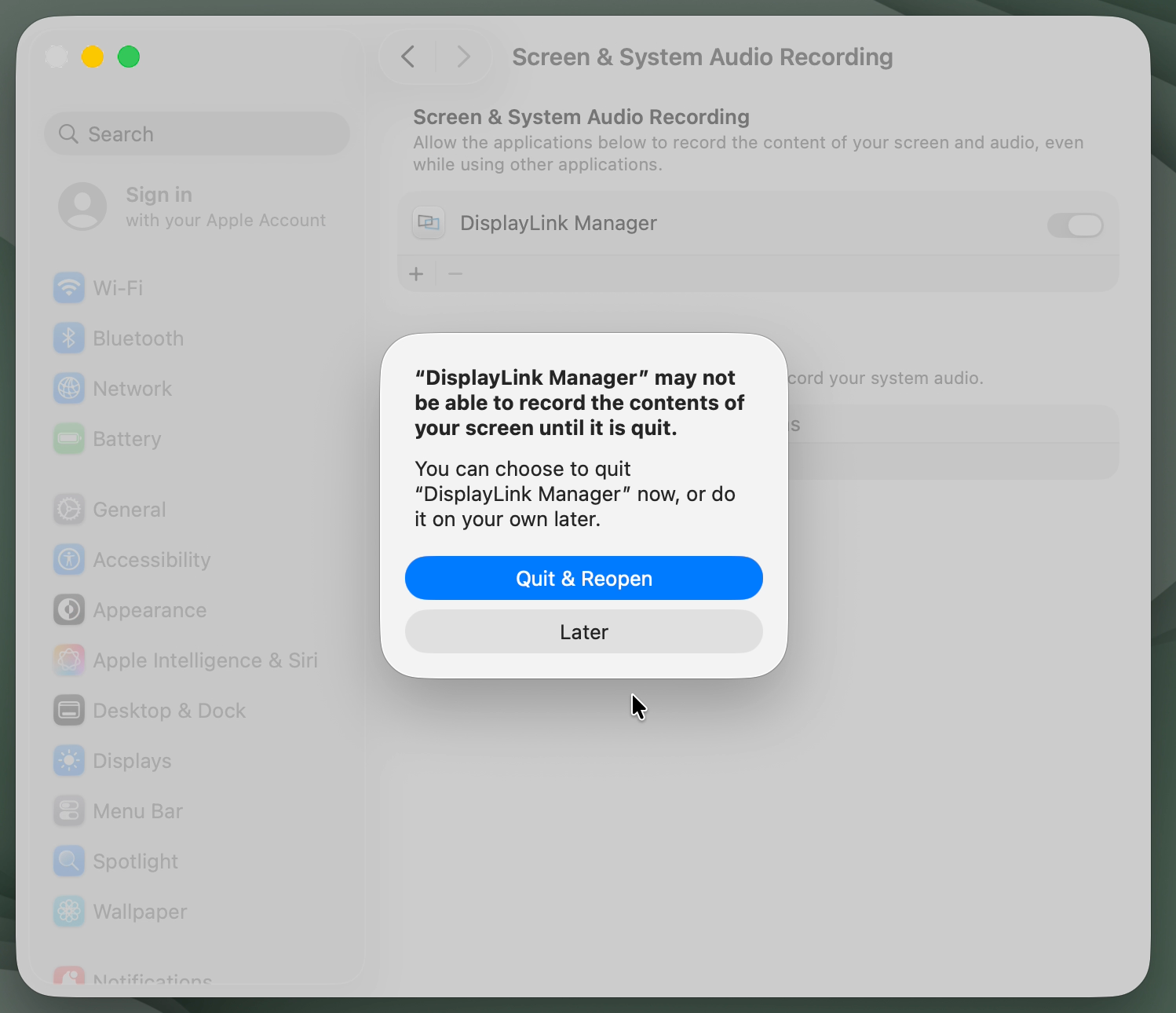
14. You will be prompted to ‘Quit and Reopen’ the DisplayLink Manager application in order for the change to take effect. Please do so:
IMPORTANT NOTE - The DisplayLink Manager Application does NOT in fact record, store or transmit any information. This permission must be granted in order for the DisplayLink Application to access the information it needs in order to generate the image shown on the DisplayLink-connected displays.
15. Once complete, the ‘DisplayLink Manager’ application toggle switch will indicate that the permission has been granted. The ‘System Settings’ application window can now be closed.
IMPORTANT NOTE - In macOS 26 Tahoe, macOS 15 Sequoia and macOS 14 Sonoma, whenever the DisplayLink Manager Application is running and a DisplayLink device is connected to your computer you will see a notification within the Apple Menu bar that the DisplayLink Manager Application is capturing your screen. This is both normal and expected behavior.

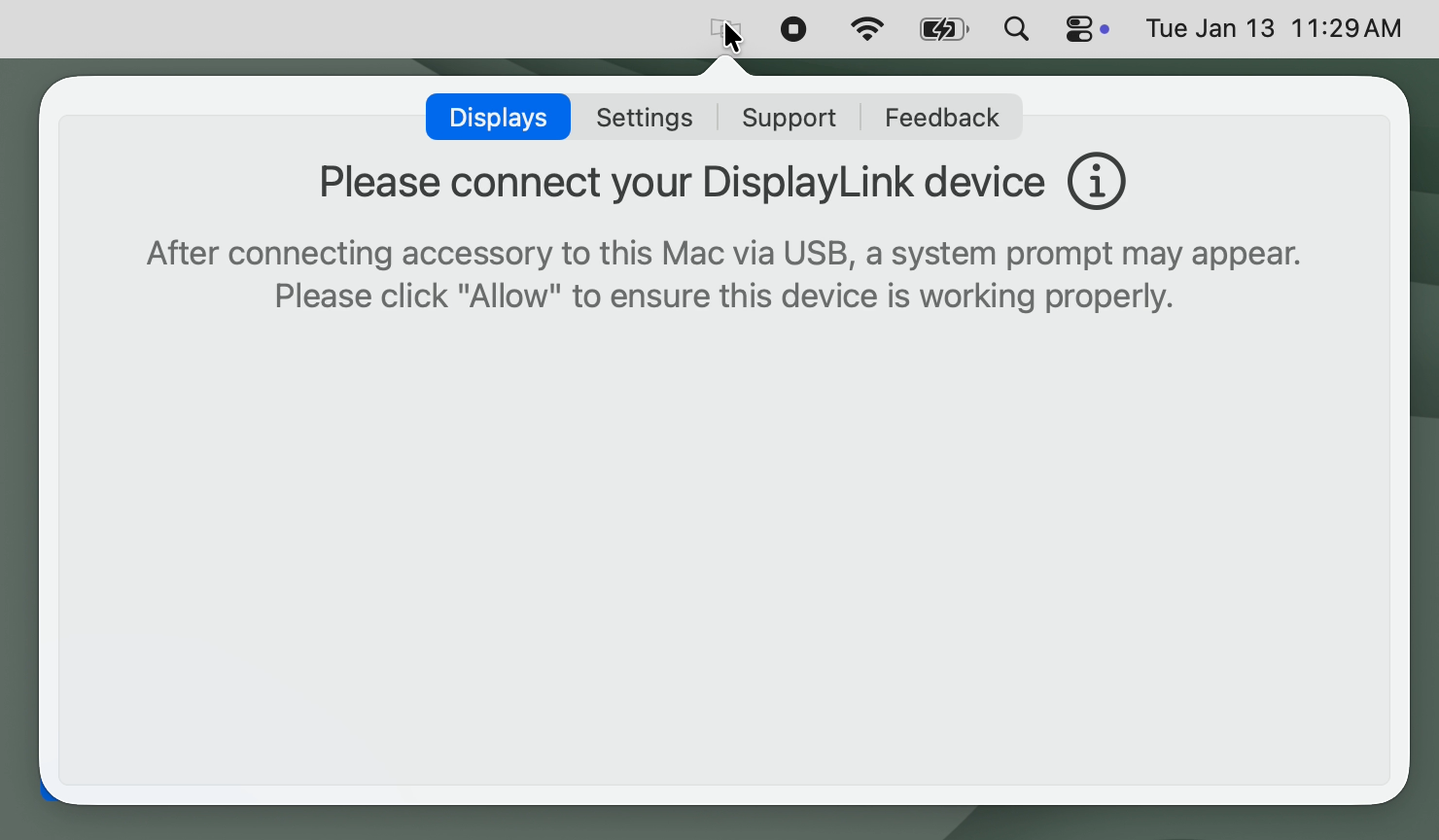
16. Click on the DisplayLink Manager Application icon that is now present within the Apple Menu bar at the top of your screen. This will reveal the DisplayLink Manager Application status window:
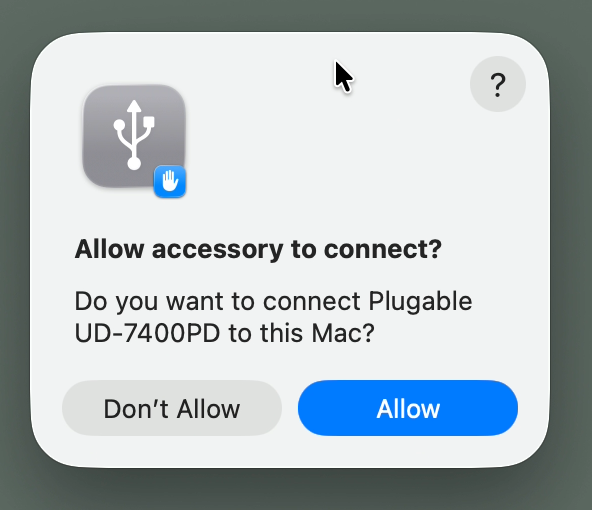
17. Connect your DisplayLink-based product to your Mac. On portable Macs based on an Apple processor, you may be prompted to allow the accessory to connect. If you are prompted in this manner, please click the ‘Allow’ button in order to allow the accessory to connect:
For reference, more information about this process is available from Apple here → https://support.apple.com/en-us/102282
And from DisplayLink here → https://support.displaylink.com/knowledgebase/articles/1995952-displaylink-manager-app-usb-restricted-mode-prot
IMPORTANT NOTE - This process will ONLY occur on portable Macs (such as Mac laptops) that have an Apple processor. This will NOT occur on desktop Macs or Macs that have an Intel processor.
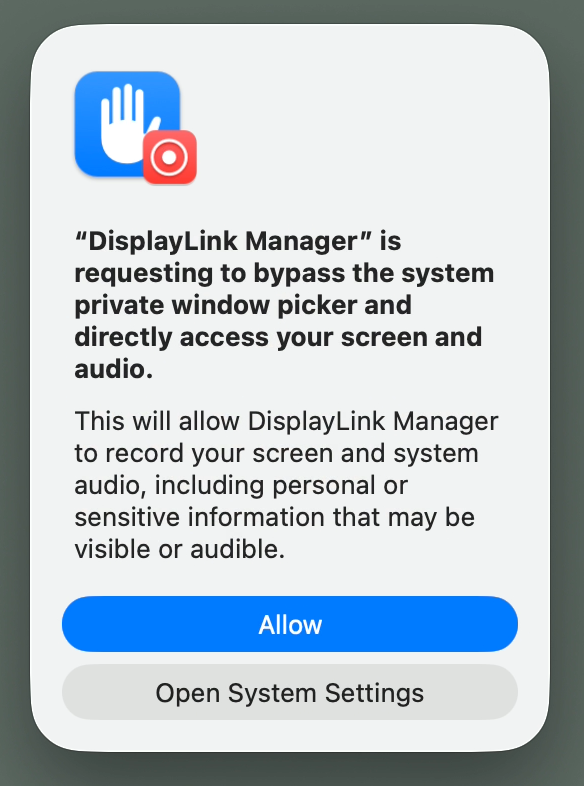
On Macs running macOS 26 Tahoe and macOS 15 Sequoia, upon initial connection of your DisplayLink device you may receive a prompt asking for you to ‘Allow’ the DisplayLink Manager application to bypass the system private window picker and directly access your screen and audio.
This prompt is part of a new security feature Apple introduced with macOS 15 Sequoia.
In order to use your DisplayLink-based product, you must click the ‘Allow’ button within the prompt you received.
An example of this prompt is included inline below:
Once the DisplayLink product is connected to the computer, the ‘Displays’ tab within the DisplayLink Manager Application status window will update with information about the DisplayLink driven displays that are connected:
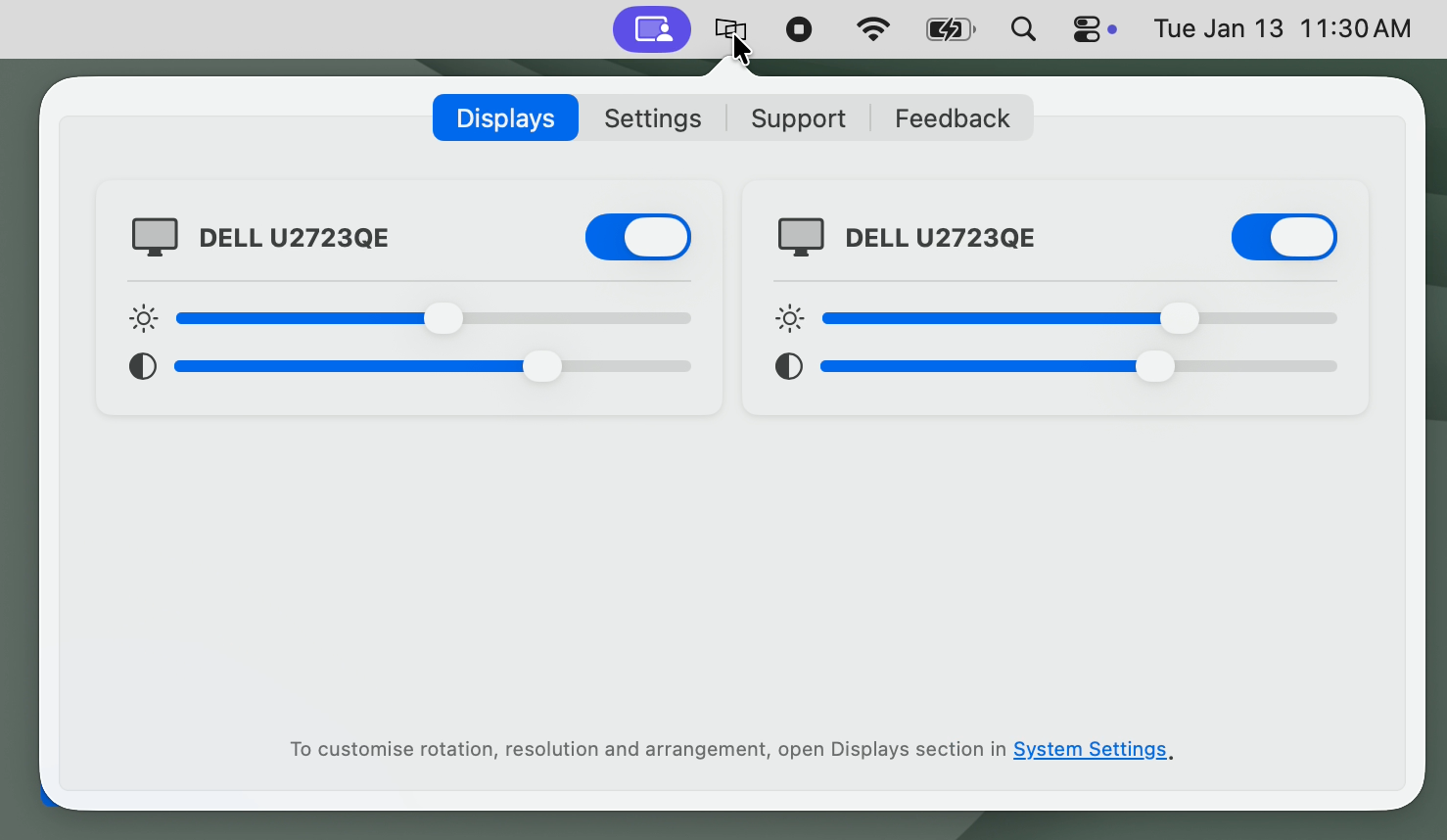
IMPORTANT NOTE - Displays that are NOT driven by DisplayLink technology will NOT appear within the ‘Displays’ tab. For example, displays that are driven by the host computer’s USB Type-C or Thunderbolt video output.
18. Within the DisplayLink Manager Application status window, click on the ‘Settings’ tab:
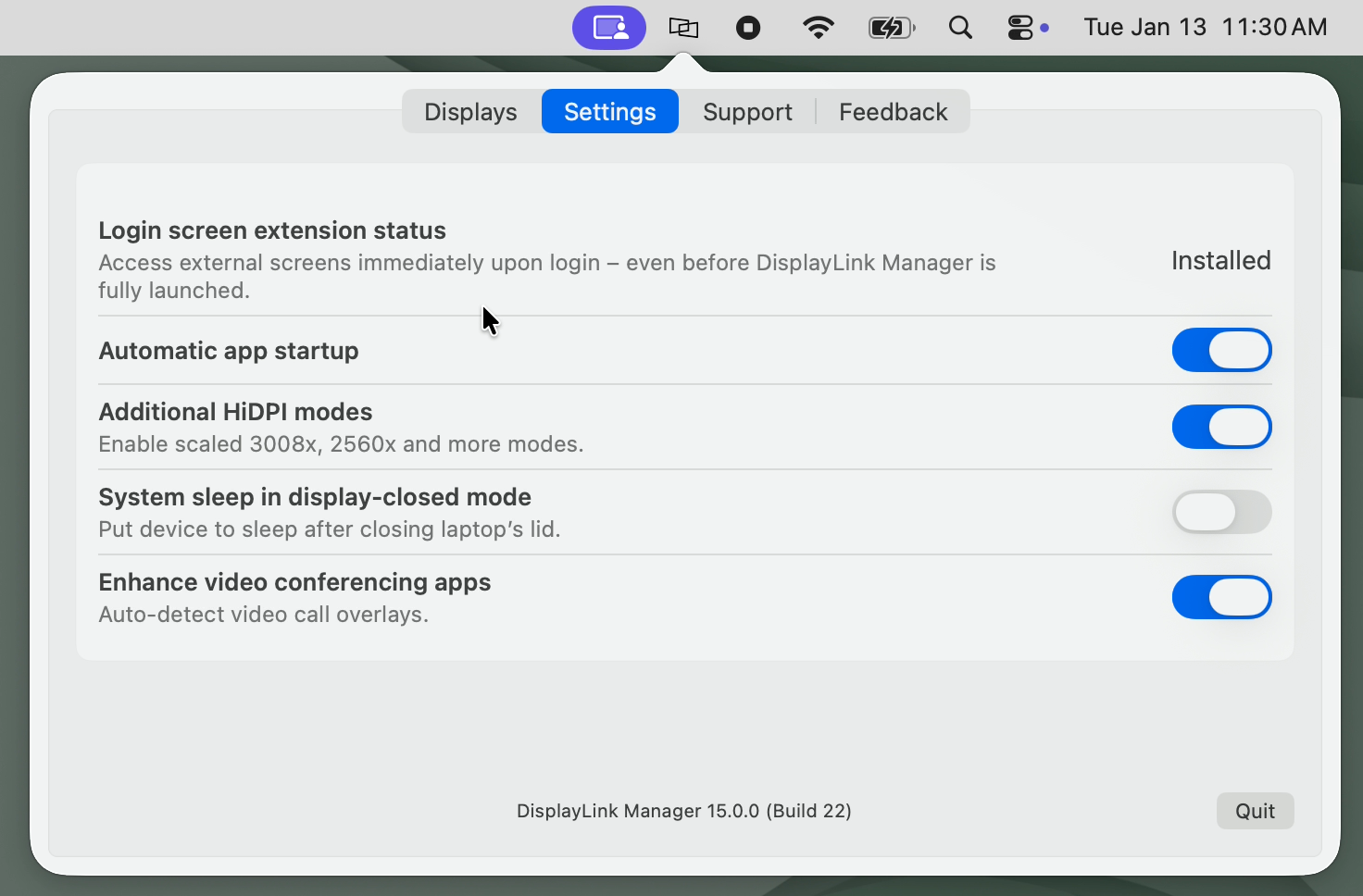
If not already active, please click the toggle next to ‘Automatic app startup’ to On. This will help ensure that the DisplayLink Manager Application is running each time you login to your Mac.
IMPORTANT NOTE - If the DisplayLink Manager Application is not running, the displays connected to the DisplayLink driven outputs of your DisplayLink-based product will not work.
19. The installation process is now complete. The DisplayLink Manager Application download file can now be moved to the Trash. Please see the following section entitled, ‘How to use DisplayLink Manager for macOS’ for information on using the DisplayLink Manager Application.
How to use DisplayLink Manager for macOS
Once the DisplayLink Manager Application is installed, the application can be accessed via the DisplayLink Manager application status icon located within the Apple Menu Bar at the top of your screen.
IMPORTANT NOTE - If the DisplayLink Manager Application status icon is not visible within the Menu Bar, then the application has not been started. Please open a new ‘Finder’ window and navigate to the ‘Applications’ folder. Within the ‘Applications’ folder, double-click on the DisplayLink Application icon in order to start the application.
Displays Tab
The first tab of the DisplayLink Manager Application status window is the ‘Displays’ tab. As the name implies, all of the DisplayLink driven displays that are connected to your Mac will be displayed here, similar to the example below:
IMPORTANT NOTE - only displays driven by DisplayLink technology will be shown here. Displays driven by other methods (such as USB Type-C or Thunderbolt) will NOT be displayed.
Next to each display is a small ‘toggle’ switch that will allow you to selectively toggle a display off or on as desired.
Below each display name will be two sliders that allow you to control the brightness or contrast of that display, according to your preference.
If multiple displays with identical names are present, you can differentiate between each display by hovering the mouse pointer over each display name. When doing so, a red identification box will appear on-screen within the selected display.
Settings Tab
Within the ‘Settings’ tab of the DisplayLink Manager Application, there are several items listed. The items listed will vary depending upon which version of the DisplayLink Manager Application that is installed and the type of processor within the host Mac (Intel processor or Apple processor).
An example of the ‘Settings’ tab from DisplayLink Manager version 15.0 is provided below:
The following list describes the features present in DisplayLink Manager version 15.0 and later versions when used with a Mac with an Apple processor:
Login screen extension status
When an Apple Mac system is first powered on and reaches the login prompt, 3rd-party applications (such as the DisplayLink Manager application) are not yet running. As a result, DisplayLink-connected displays will not function.
The Login screen extension (which is installed automatically when DisplayLink Manager is installed) will allow the DisplayLink-connected displays to function prior to logging in.
This option is useful in certain situations, such as when only DisplayLink-connected displays are connected to the host Mac.
Automatic app startup
As the name suggests, toggling on the ‘Automatic app startup’ option allows the DisplayLink Manager Application to start automatically each time you log on to your Mac. This option should be enabled by default during a standard installation. If not already enabled, we recommend doing so in the interest of efficiency.
Additional HiDPI modes
In brief, HiDPI mode is a feature of macOS that can make images within a display appear sharper.
In some cases, the host Mac will not enable HiDPI mode for the displays connected to a DisplayLink-based product.
Clicking the toggle to enable the ‘Additional HiDPI modes’ option will create new resolution choices for the DisplayLink-connected displays within the ‘Displays’ section of the ‘System Settings’ application that may help improve the sharpness of the image.
Synaptics (the creators of DisplayLink technology) have more information on this feature here → https://support.displaylink.com/knowledgebase/articles/1993915-displaylink-manager-app-experimental-hidpi-modes
System sleep in display-closed mode
Mac laptops running macOS 26 Tahoe, macOS 15 Sequoia, macOS 14 Sonoma, and macOS 13 Ventura can be used in one of two ways when used in conjunction with a DisplayLink-based product.
The first way is with the laptop lid open, with the laptop's built-in internal display enabled.
The second way is with the laptop lid closed, with the laptop's built-in internal display disabled. This is known as closed display mode or 'clamshell' mode.
In order to enter closed display mode while connected to a DisplayLink-based product, the host Mac must have an external power source connected and an external keyboard and mouse connected.
Clicking the toggle to enable the 'System sleep in display-closed mode’ option changes this behavior, in that closing the laptop lid will cause the host Mac to go to sleep.
This feature is of course optional, and its use is a matter of personal preference.
Enhance video conferencing apps
The ‘Enhance video conferencing apps’ option, which is enabled by default, helps ensure that screen sharing or content controls while using the Microsoft Teams application appear as expected.
DisplayLink has more information about this feature here → https://support.displaylink.com/knowledgebase/articles/2022489-how-to-fix-missing-screen-sharing-controls-in-micr
