
The Plugable Thunderbolt 5 AI eGPU Enclosure and Dock with Plugable Chat and Microsoft Foundry Local provides a framework for running local and secure LLM models. This is achieved by downloading the model to the local computer and running all LLM tasks locally.
However, both large models or many smaller models can take up a significant portion of the system's internal storage. Also, it may be beneficial to share cached models between multiple computers that use the TBT5-AI to minimize repeated downloads.
In this article we will discuss the pros and cons, and provide the steps to use an external drive for storing Foundry Model Cache files.
Pros
- External storage is easier to upgrade than a notebook's internal storage allowing for more dedicated storage space for models and RAG data sets
- External storage allows for easier sharing of models between multiple computers, when left connected to the TBT5-AI enclosure any computer also connected to the TBT5-AI will have access to the same models without requiring a separate download
- Models on external storage helps to quickly boot-strap new computers connected to the enclosure as they do not have to download the model again and allows for isolating the enclosure off the network or without internet access
Cons
- Requires connecting external SATA HDD or NVMe SSD to the TBT5-AI or directly to the host computer
- Reduced bandwidth compared to the computer’s internal drive may cause longer model load times This is most relevant for USB storage, Thunderbolt drives provide more similar performance to the computer's internal storage
- May require switching cache locations to run local models on the computer's NPU or iGPU (if desired) - for example if you intend to run a small 0.6b model on the system for code generation but also need a 12b model when connected to the enclosure you may need to have to manually switch between the local and external cache locations
Configuration
In this example we will describe setting up a Thunderbolt NVMe enclosure with the TBT5-AI, it is assumed that both the Plugable Chat software is installed and working and the Thunderbolt NVMe is partitioned and formatted, if you need help formatting the drive check out our step-by-step formatting video on YouTube linked at the bottom of this article.
- Connect the Thunderbolt NVMe enclosure to the downstream Thunderbolt port on the TBT5-AI and connect the host computer to the upstream "Host" port on the TBT5-AI with the provided Thunderbolt 5 data cable
- Open Windows File Manager and note the drive letter for the external enclosure ( from This PC on the left column ) - in my example this is the second drive and will be 'd:'
- Open a Windows Terminal (Right-click on the Start Menu and select Terminal from the pop-up menu).
- Select the external drive type the following into the terminal followed by the [Enter] key:
d: - Create a new top-level directory for the cache files, type the following into the terminal followed by the [Enter] key:
mkdir d:\foundry-cache - Change the Foundry Local cache file location, type the following into the terminal followed by the [Enter] key:
foundry cache cd d:\foundry-cache
Here is what the process looks like in terminal:
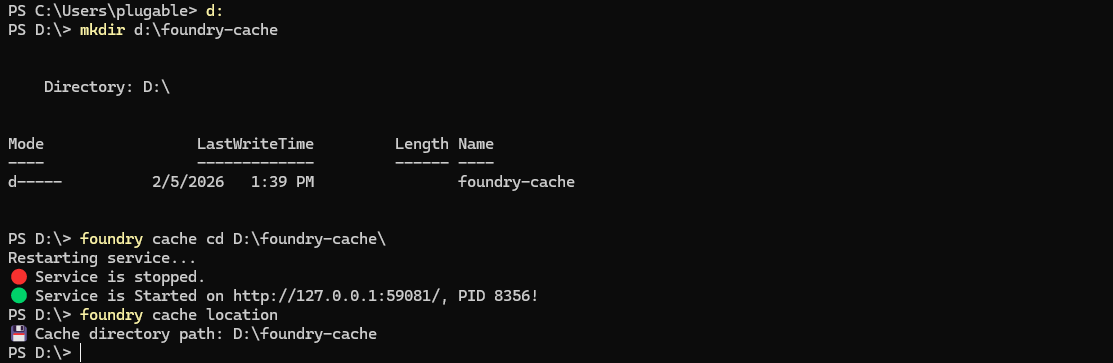
Foundry Cache Tool
The default file location is c:\Users\
The foundry cache tool provides the following commands
Commands:
    location            Print the directory path of the model cache
    list, ls            List models on the local cache (disk)
    remove, rm <model>  Delete model from the local cache (disk)
    cd <path>           Change directory path of the model cache
Other useful commands:
-
foundry service restart- restarts the foundry service -
foundry service status- displays the status of the foundry service -
foundry model ls- displays the models available for download - this may include models incompatible with the computer and graphics hardware and we recommend confirming compatibility through Microsoft’s website (https://www.foundrylocal.ai/)
Partition and Format an External Drive
Check out our step-by-step formatting video on YouTube (https://www.youtube.com/watch?v=1oI9qNn8mQQ) If you have any questions, or if there is anything else we can do to help, please contact our support team via email at support@plugable.com and we will be happy to help!
