
Applicable To
- USB2-MICRO-250X
If Digital Viewer continually takes pictures at regular intervals, the Time Lapse mode is most likely enabled. Turning off Time Lapse should stop the automatic image capture.
Troubleshooting Steps
- Open the Digital Viewer software.
-
Hover your mouse over the camera icon with a clock inside it and check whether the message Stop Time Lapse appears.
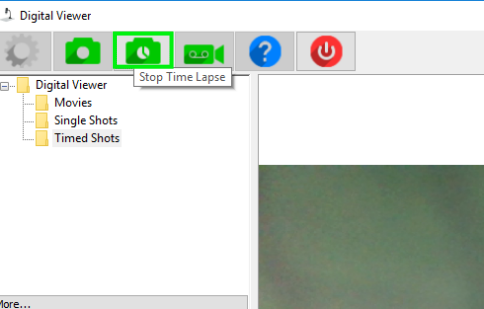
- Select the Stop Time Lapse button.
Expected Result
Digital Viewer should stop taking pictures automatically. You can continue using the microscope and manually capture images as needed.
If the Issue Persists
If Digital Viewer continues taking pictures after you stop Time Lapse, close and reopen the Digital Viewer application, then check the Time Lapse setting again.
If the issue continues, contact Plugable Support at support@plugable.com.
