
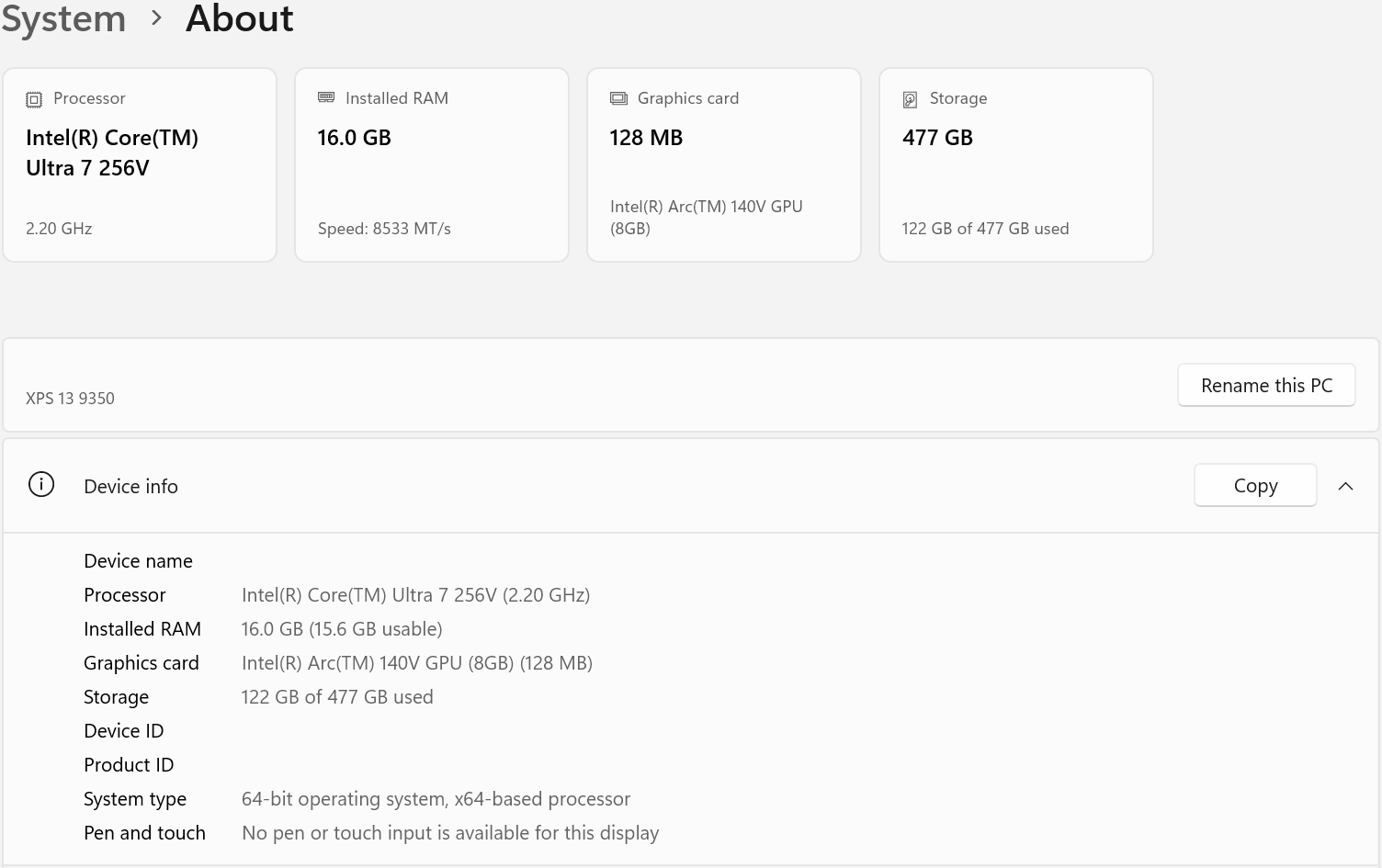
Intel makes a wide range of processors with embedded graphics controllers, for the most part these have supported four total displays ( the built-in and three externals ) since Intel’s 11th generation processors, with a few exceptions. However Intel’s Arc 130V and Arc 140V graphics can only support three total displays. The Intel processor and graphics hardware can be identified by right-clicking on the Start Menu and selecting Settings from the pop-up menu, then selecting System and About. The top of the page shows brief specifications, with more details under Device info.
Check the processor and graphics models
Here is an example from a Dell XPS 13
Enable Three External Displays
With the UD-MSTH3 docking station this will cause the “HDMI 3” connected display to be non-functional while the notebook’s built-in display is enabled, we can manually disable the built-in display to enable the three external displays:
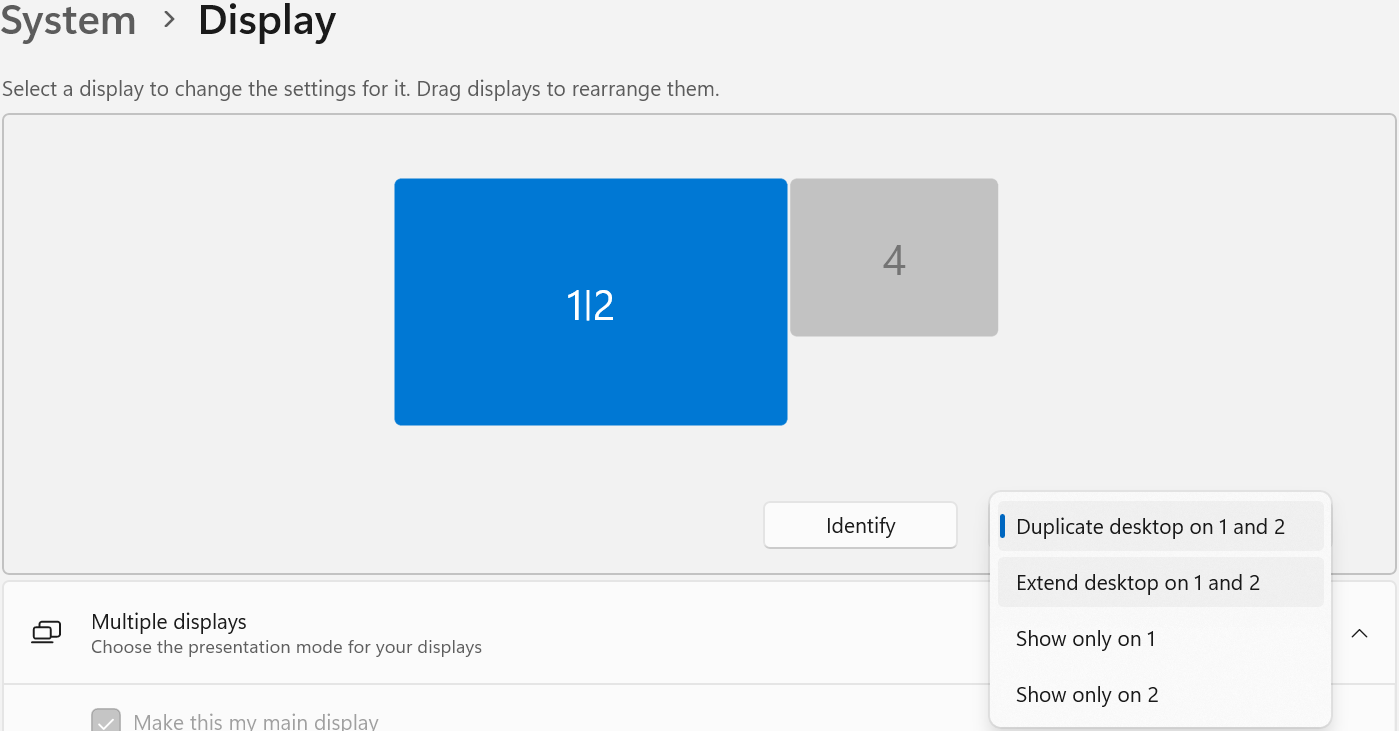
When you first connect the docking station to the computer, Windows may mirror the displays, where each shows the same desktop background, applications, and mouse cursor. The first step is to extend the displays. Right-click on the Desktop and select Display Settings from the drop down menu, from the Display Settings menu, left-click to select the Mirrored display [1|2], then from the drop-down in the lower right of the display diagram, select the “Extend” option.
After extending the displays, only two of the three external displays will be enabled, select the #2 display and under Multiple displays check to box to "Make this my main display", this will move the desktop icons over to the #2 display.
Select the #1 display, and from the drop down menu in the lower right of the display diagram, select the "Disconnect this display" option.
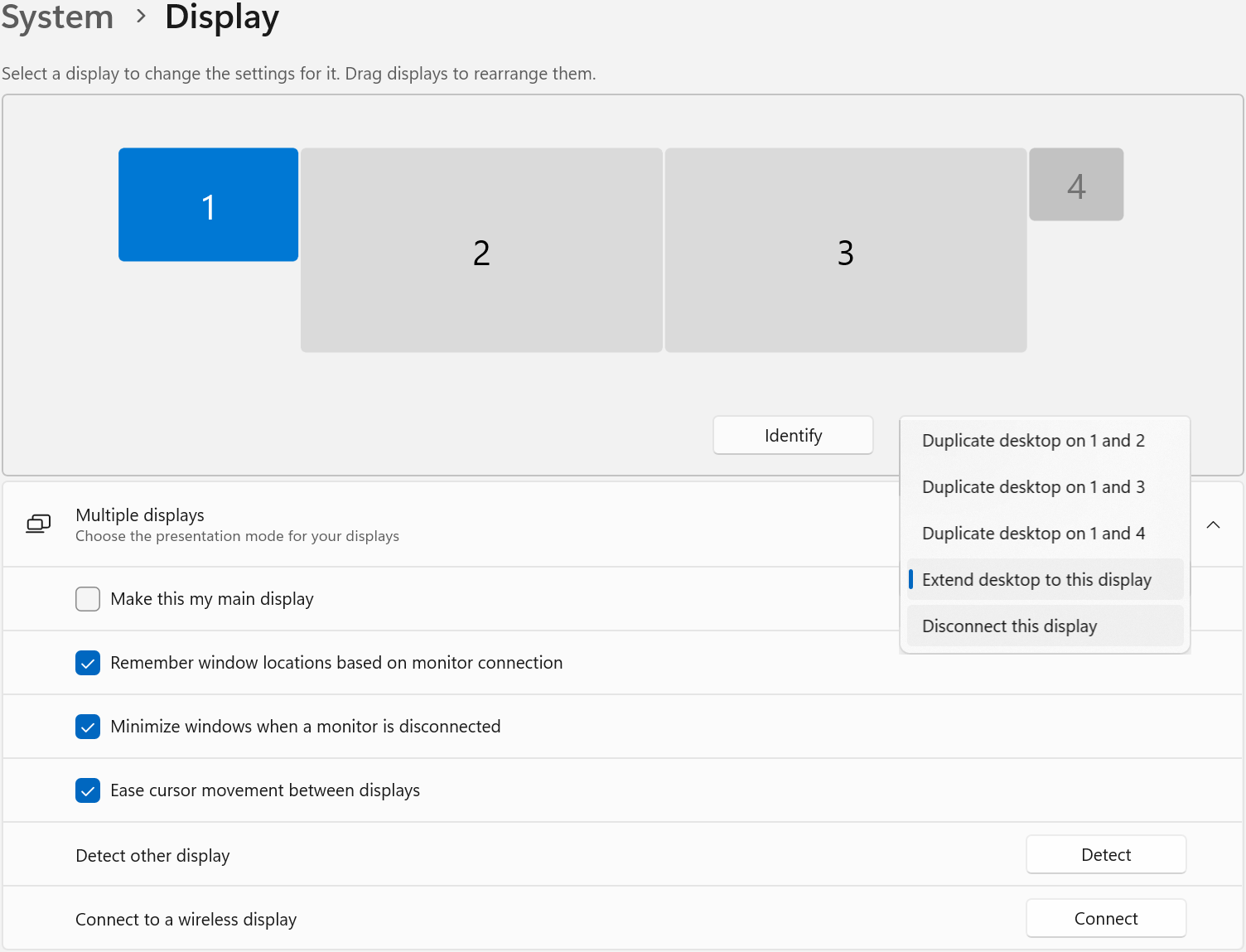
Select the #4 display, then from the same drop down menu select the "Extend" option.
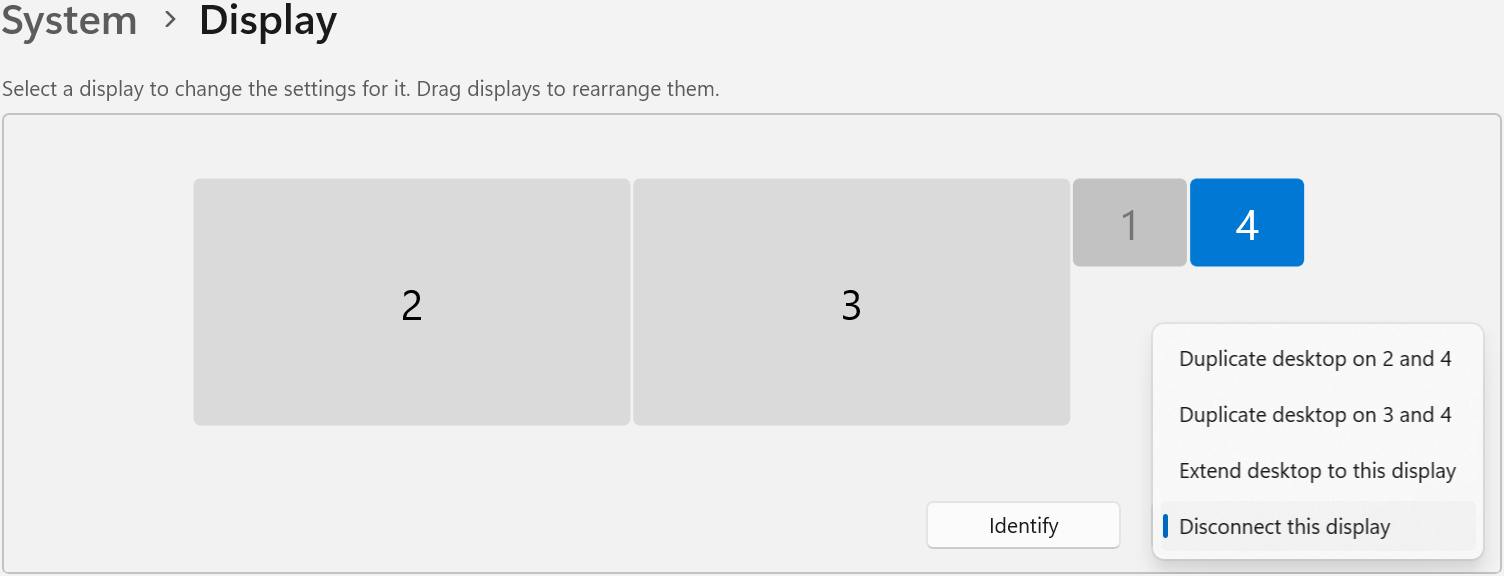
Now all three external displays should be enabled, and the built-in display will be disabled, you can rearrange the displays in the diagram to match the physical display positions.
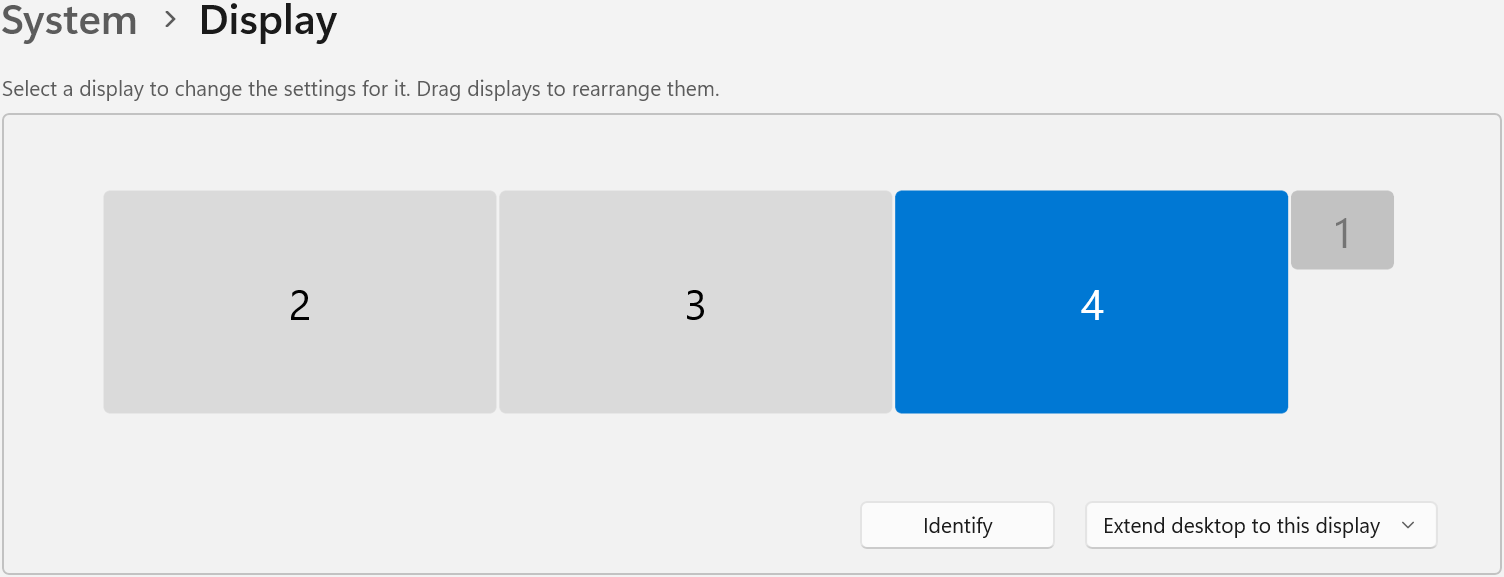
Windows will retain the display configuration, including which displays are enabled or disabled, the display position, orientation, resolution, and scale factor. When the computer is unplugged from the docking station the built-in display will be enabled until reconnecting to the docking station where it will be disabled automatically restoring the three external displays.
Applicable to
If you have any questions please feel free to contact us at support@plugable.com and we'll be happy to help!
