
Summary
Many modern displays support refresh rates higher than 60Hz. In some cases, the desired refresh rate may need to be selected manually in Windows 11. The resolutions and refresh rates available depend on the capabilities of the display, computer, graphics hardware, docking station or adapter, and the connection between them.
Applicable To
Windows 11 computers using built-in or external displays, including displays connected through compatible Plugable docking stations, video adapters, and cables.
Setting the Display Refresh Rate in Windows 11
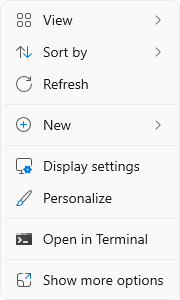
1. Right-click on the desktop and select Display Settings from the drop-down menu
2. Scroll down to the Related settings subsection and select Advanced display

3. At the top of the Advanced display window, select the display you want to configure from the drop-down menu.

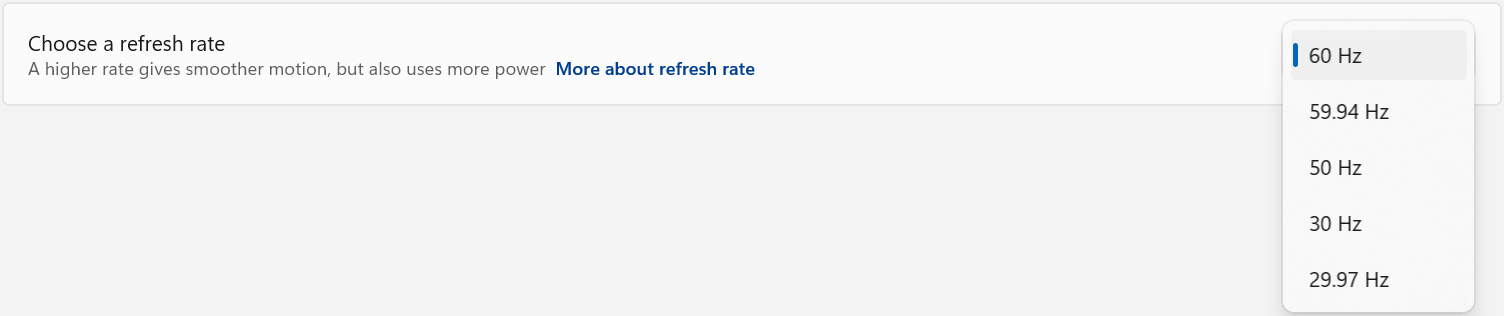
4. From the Choose a refresh rate drop-down menu select the desired refresh rate
If the Desired Refresh Rate Is Not Listed
If the desired refresh rate is not available, confirm that the display, computer or graphics hardware, docking station or adapter, and video cable all support the desired resolution and refresh rate combination.
Some devices may support a higher refresh rate only at a lower display resolution. Check the specifications for each component in the display connection to confirm the supported resolution and refresh rate combinations.
Refresh Rate Limitations
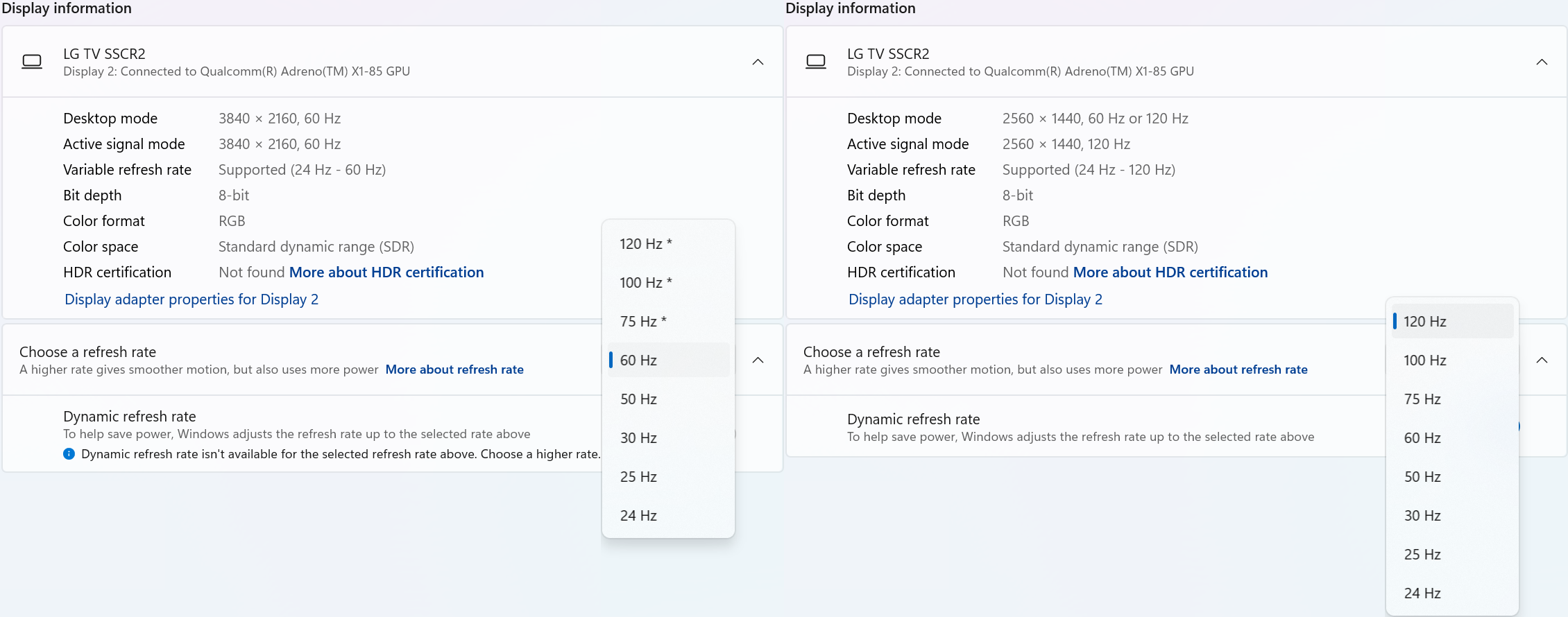
Windows 11 may display an asterisk (*) next to certain refresh rates in Settings > System > Display > Advanced display. The asterisk indicates that the selected refresh rate is not supported at the display's current resolution. Selecting one of these refresh rates will cause Windows to change the display resolution in order to achieve the selected refresh rate.
In the example below, the display supports 3840 × 2160 (4K UHD) at 60Hz and 2560 × 1440 (1440p) at 120Hz through the connected hardware. After selecting “120 Hz*”, Windows changes the display resolution from 3840 × 2160 to 2560 × 1440 so that the higher refresh rate can be used. Because the display is now operating at a lower resolution, the image may appear less sharp than when using the display's native 4K resolution. After selecting a lower refresh rate, Windows may retain the reduced display resolution. If the original resolution is not restored automatically, return to Settings > System > Display and manually select the desired resolution.
Dynamic Refresh Rate
Windows 11 also supports Dynamic Refresh Rate (DRR) on compatible hardware. When enabled, Windows can automatically adjust the display refresh rate based on what you are doing to provide smoother motion when needed while helping reduce power consumption at other times.
DRR requires a display that supports Variable Refresh Rate (VRR) and a refresh rate of at least 120Hz. If supported by the computer and display, DRR can be enabled or disabled under Settings > System > Display > Advanced display.
Need Assistance?
If the desired refresh rate is still unavailable after following the steps above, please contact Plugable Support at support@plugable.com.
When contacting support, please include:
- The Plugable product model
- Your computer model
- Your display model
- The resolution and refresh rate you are trying to use
- How the display is connected to the Plugable product
- The output from Plugable's diagnostic tool, PlugDebug
