
Apple's macOS Network Settings can identify the network link rate - this isn't necessarily the Internet speed, but the link rate negotiated between the computer's Ethernet adapter and the first network switch.
How is the link rate helpful?
When troubleshooting a network performance issue, or when purchasing new network equipment it can help to ensure the computer, Ethernet adapter, and Ethernet switch are negotiating the correct data rate.
In this example, we will be analyzing our USBC-E2500, which is a 2.5Gbps Ethernet adapter. This method applies to all of our Ethernet adapters, such as:
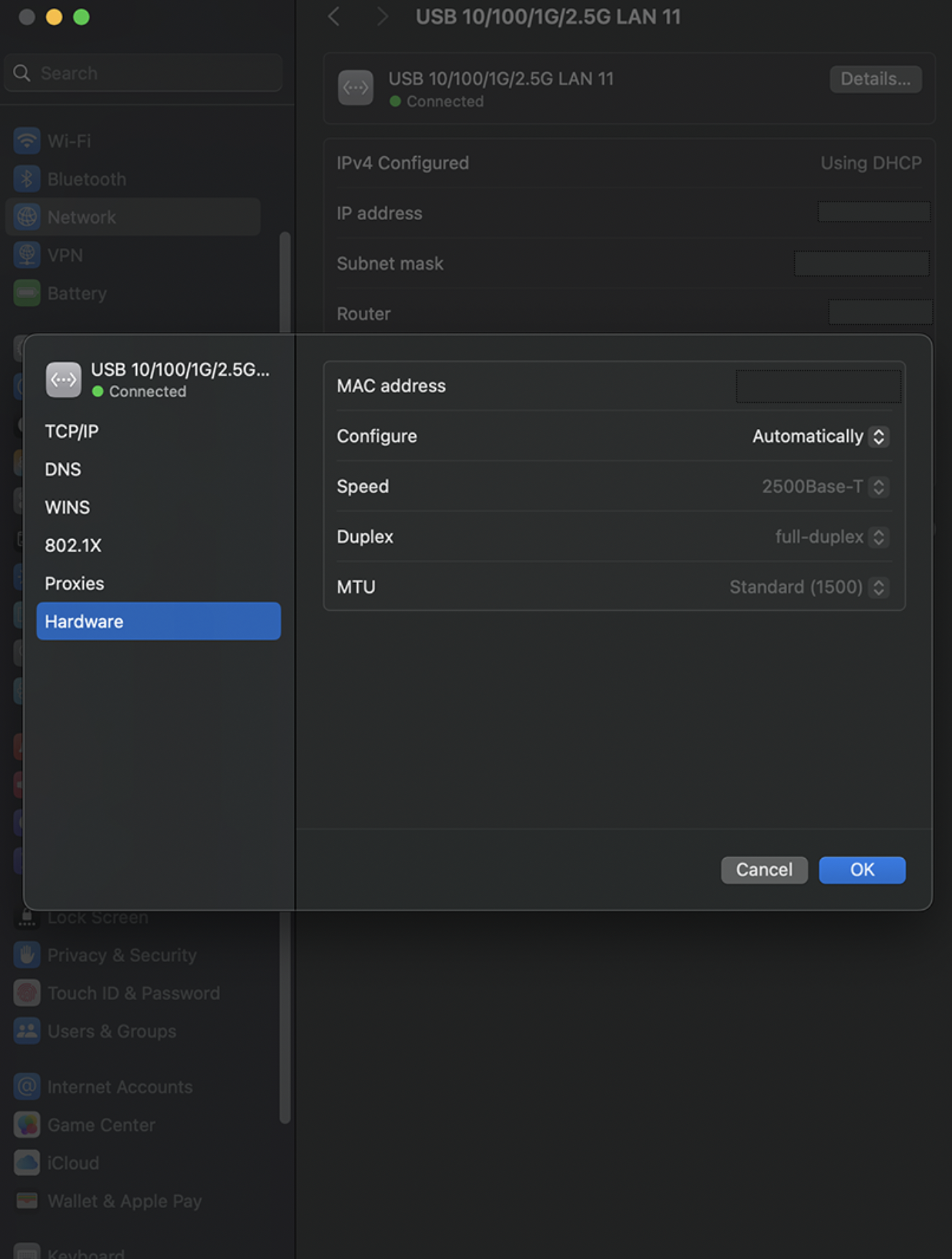
Open the Apple Menu and select System Settings from the drop-down menu, then Network from the left column. Select the entry named “USB 10/100/1G/2.5G LAN” with the Green - Connected icon. Expand the Details button, and go to Hardware.
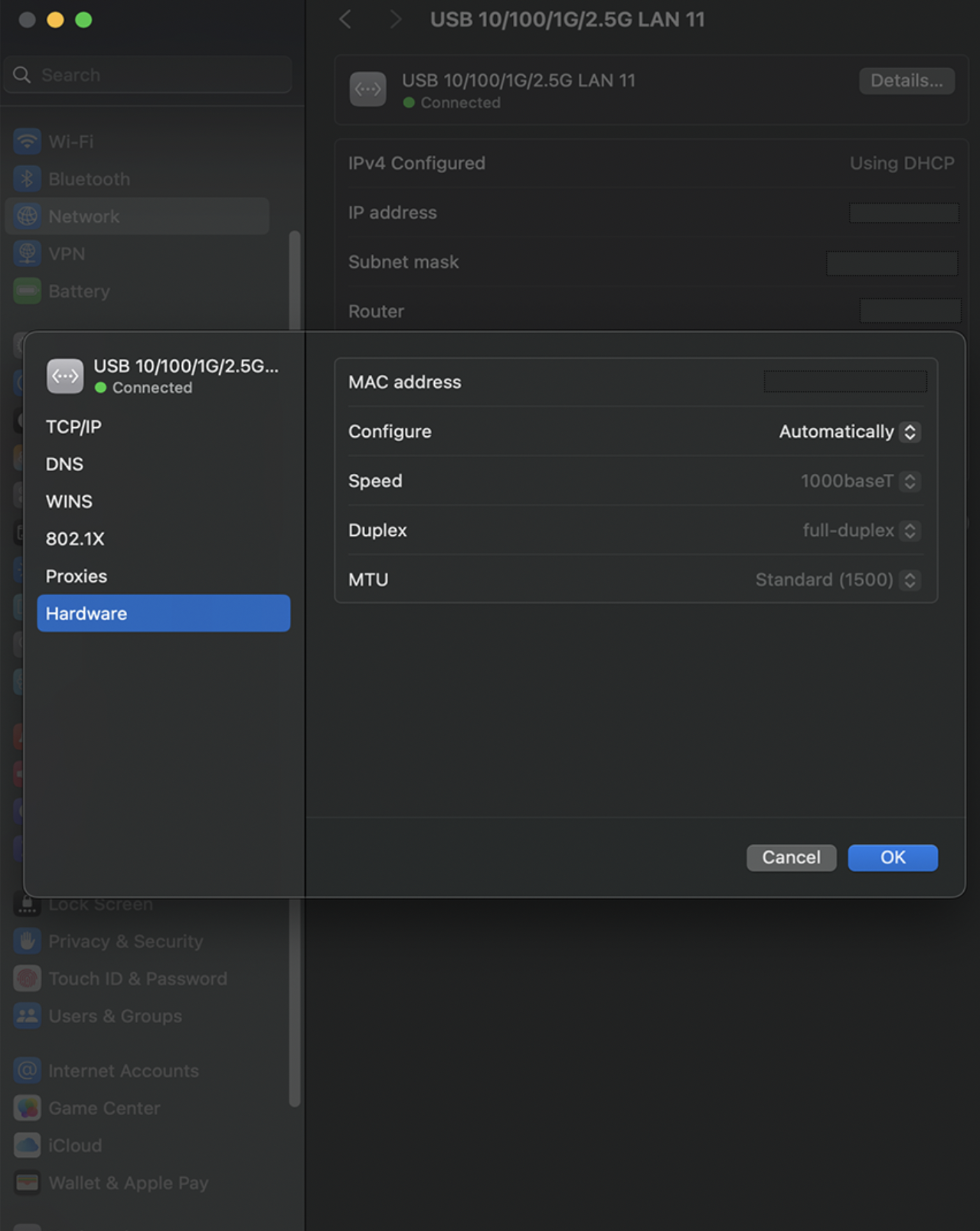
In the field that says Speed, you should see 2500Base-T if the Ethernet adapter is connected to a 2.5G Ethernet LAN port on your router. If you see 1000Base-T, this means the adapter is connected to a 1G Ethernet LAN port. If you are expecting faster network speeds, please see your router's documentation on its multi-gig LAN port.
If you have any questions please feel free to contact us at support@plugable.com and we'll be happy to help!
