
DisplayLink enabled external displays require the DisplayLink Manager App to be running before the displays will light up. This application starts only after logging into the desktop. But fear not, there is an extension to enable the displays before logging in to the system.
DisplayLink Login Screen Extension
The login screen extension can be installed after logging into the desktop, directly from the DisplayLink Manager App.
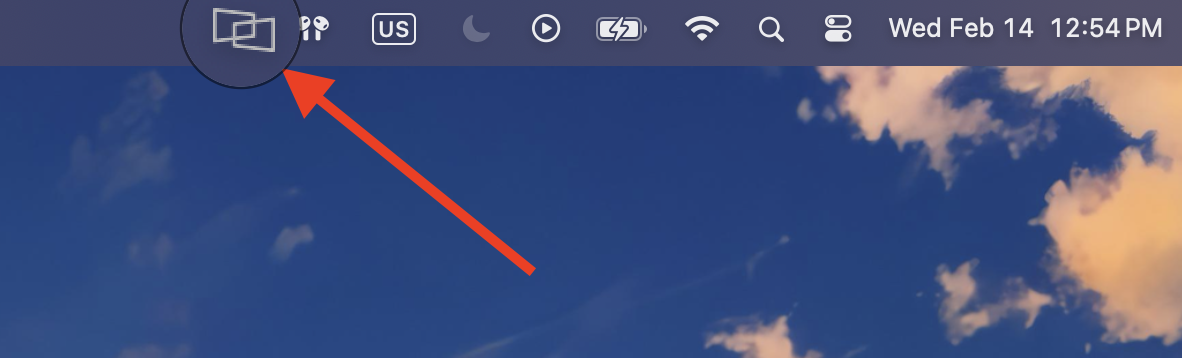
- Expand the DisplayLink Manager by clicking on its icon in the menu bar at the top of your screen
- In the app, click the download button in the DisplayLink Manager to download the Login Screen Extension.
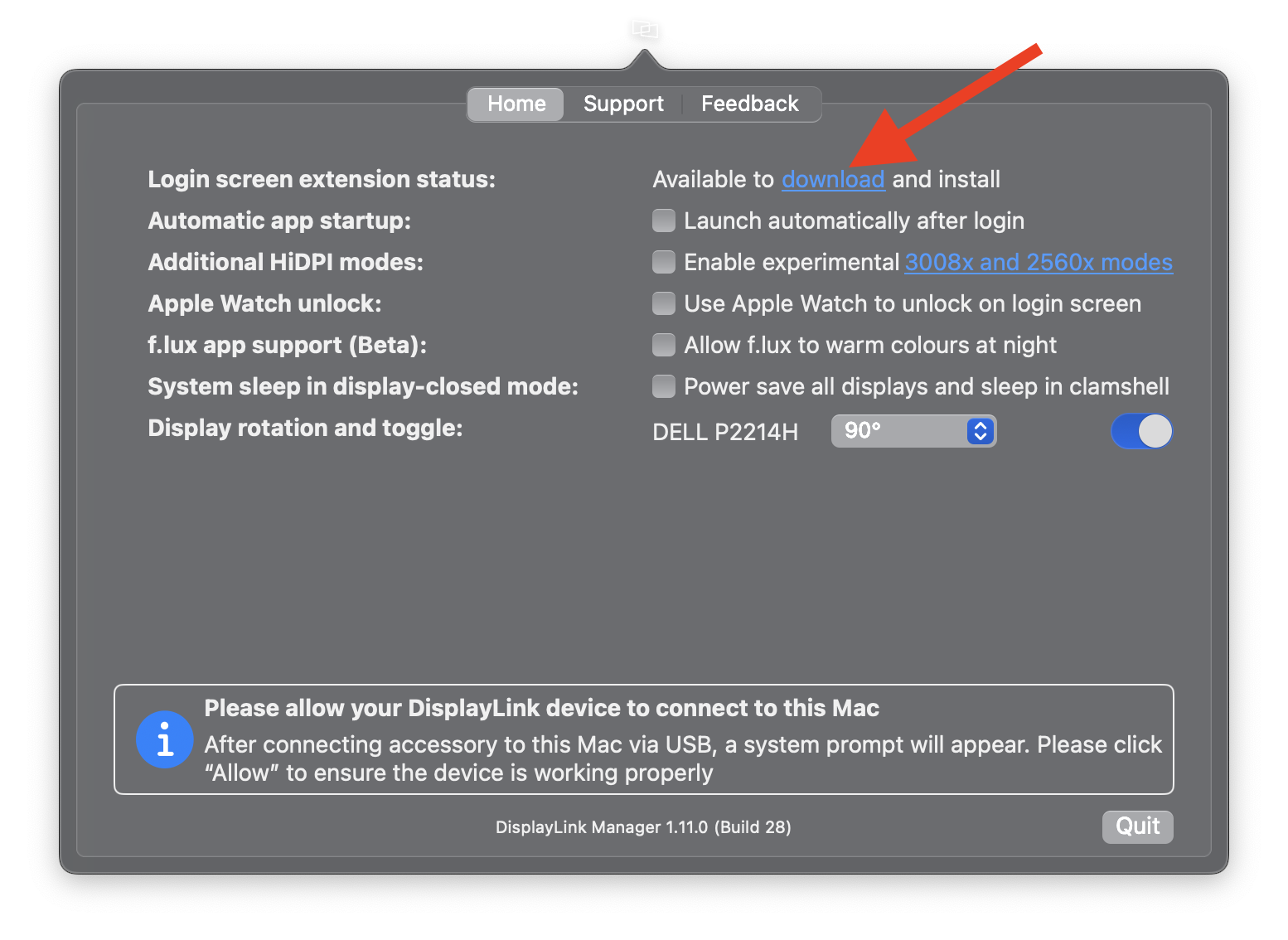
- The Login Screen Extension will download. Open the downloaded file to begin the installation.
- Follow on-screen instructions and grant any necessary permissions.
- After installation, your connected displays should show video output once your Mac is rebooted, even before login.
If you have any questions please feel free to contact us at support@plugable.com and we'll be happy to help!
