
Applicable To
Plugable PL2303-DB9 USB Serial Adapter
Summary
A loopback test is a simple way to verify that a USB to RS232 adapter is functioning correctly. This test involves bridging the transmission (TX) and reception (RX) pins, sending data to the adapter, and checking if it is received correctly to confirm hardware functionality.
Instructions
-
Connect the USB to RS232 adapter to the computer.
On Windows, open Device Manager (
Win + X> Device Manager), expand Ports (COM & LPT), and note the COM port assigned to the adapter (e.g., COM3).On macOS, open Terminal and run
ls /dev/tty.*to identify the device name (e.g.,/dev/tty.usbserial-XXXXX).On Linux, open a terminal and run
ls /dev/ttyUSB*to note the assigned device name (e.g.,/dev/ttyUSB0).
- Identify the TX (Transmit) and RX (Receive) pins on the adapter. The PL2303-DB9 uses a standard RS232 DTE pinout which assigns TX to pin 3 and RX to pin 2.
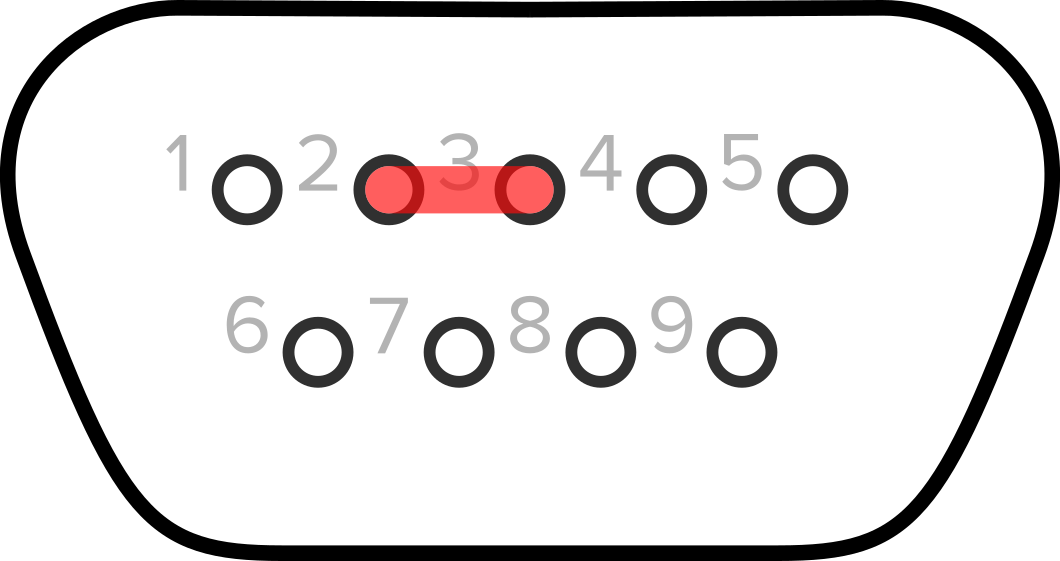
- Position a jumper wire, paperclip, screwdriver, or any other conductive object so it's touching pins 2 and 3 to electrically bridge them.
-
Open a serial terminal application to test communication.
-
For Windows:
- Open a serial terminal application (e.g., PuTTY, Tera Term, or RealTerm).
- Configure the connection:
Select the adapter’s COM port.
Set baud rate (e.g.,
9600), data bits (8), parity (None), stop bits (1), and flow control (None).
Open the connection and type in the terminal. If the characters you type appear on screen, the adapter is working.
-
For macOS & Linux:
- Open Terminal and run:
screen /dev/ttyUSB0 9600Note: the name of the port you connect to should match the port name found in step 1.
Type in the terminal. If the characters you type appear on screen, the adapter is functioning.
To exit
screen, pressCtrl + A, thenK, and confirm withY.
- Open Terminal and run:
-
For Windows:
Expected Result
If the characters you type appear on screen, the adapter is functioning correctly. To exit the screen application on macOS and Linux, press Ctrl + A, then K, and confirm with Y.
If the Issue Persists
If no characters appear when performing the loopback test, ensure that the correct COM port is selected, the TX and RX pins are properly bridged, and the appropriate drivers are installed. If problems continue, please contact Plugable support (support@plugable.com)
