
Applicable To
Plugable DisplayLink-based docking stations and USB graphics adapters.
Summary
Various factors, such as connection quality, USB bandwidth, driver versions, and display settings, can cause displays connected via DisplayLink to run slowly or perform sub-optimally. The details below highlight some common causes of poor performance, but this is not an exhaustive list. If you are experiencing sub-optimal performance, try the following steps as a starting point.
Instructions
- Ensure you are using the original detachable host cable that came with your Plugable product, as third-party cables may lack the necessary speed or quality.
- Plug your DisplayLink device into a USB port on your computer that matches its required speed. The required USB speed for each Plugable product is listed as the Version and Link Rate in the Connection to Host section of the product specifications on Plugable’s website.
- Ensure that you have installed the latest DisplayLink driver from Plugable's website. While Windows Update can provide DisplayLink drivers automatically, they may not always be the latest version. If your driver was installed some time ago, a newer version that includes performance optimizations may be available.
- The latest DisplayLink drivers are available on the Downloads tab of the product page for your Plugable product, or at www.plugable.com/displaylink
- It’s recommended that you update the DisplayLink driver through a “clean” reinstallation. This involves removing the existing driver from the system using a specialized cleaning tool from Synaptics before installing the updated driver.
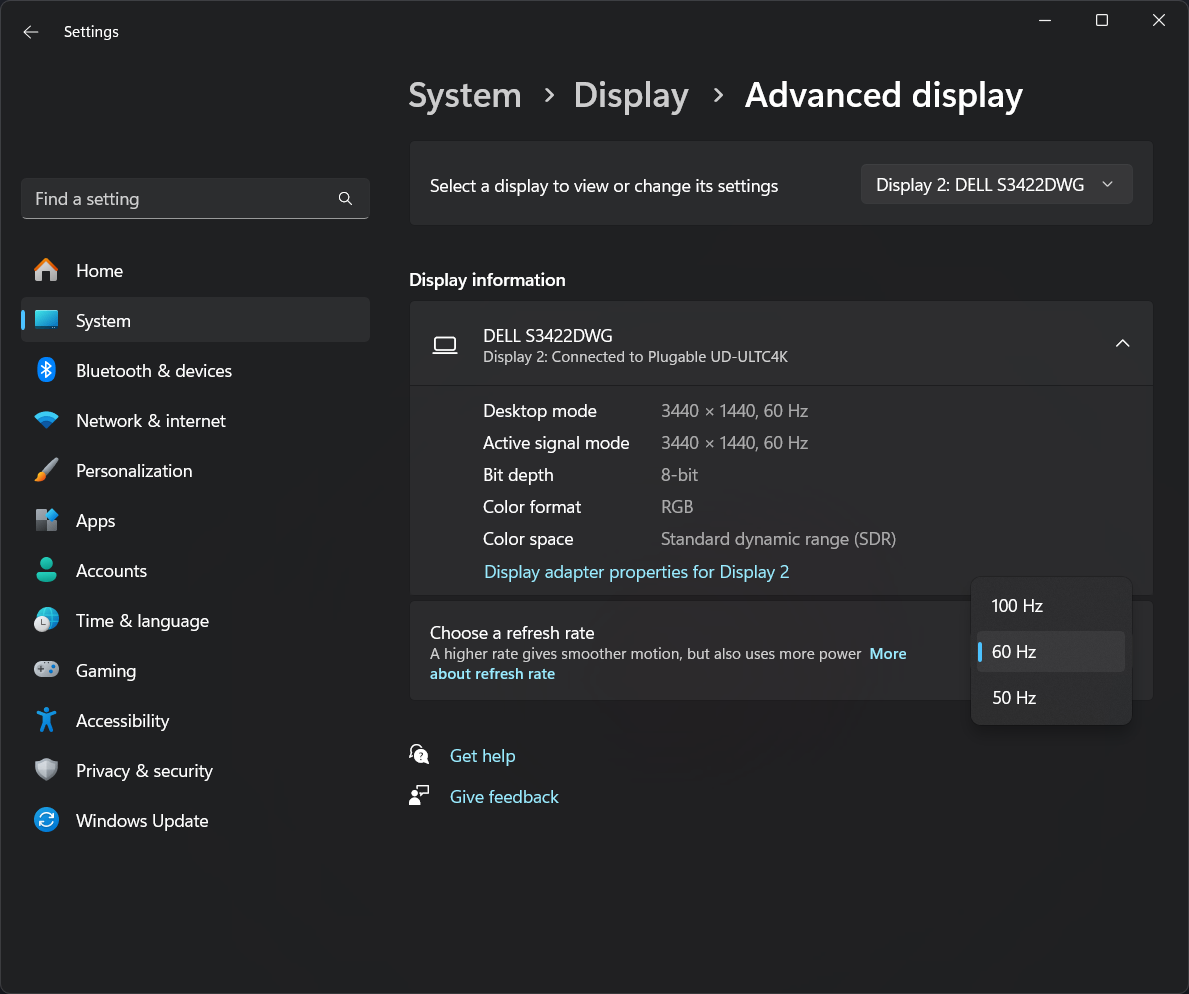
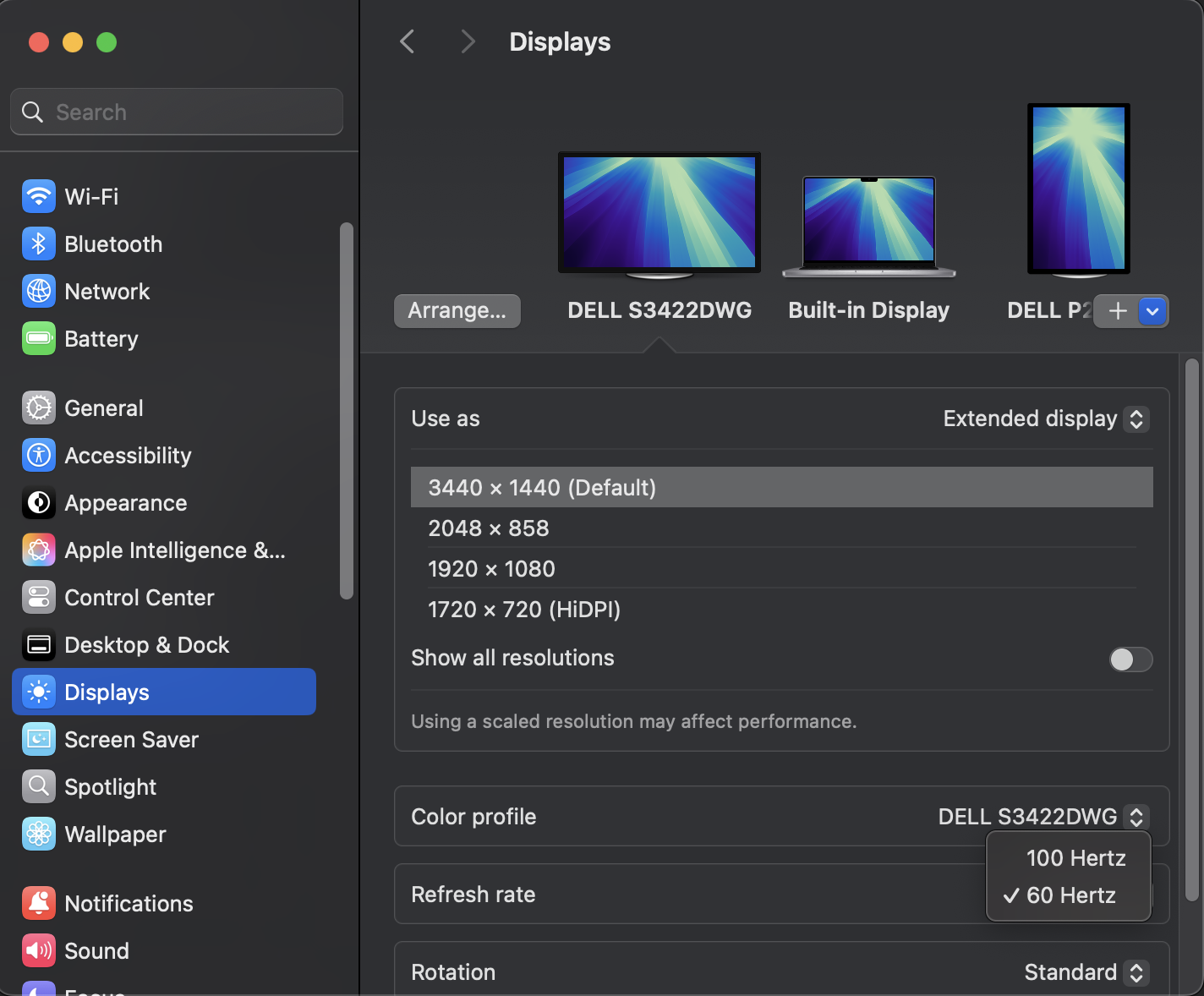
- Adjust your connected display refresh rates to a maximum of 60Hz within your operating system's display settings (via Display Settings in Windows or System Settings in macOS) to avoid reduced performance.
While other refresh rates may appear as options in your operating system, selecting them may lead to reduced performance. We recommend keeping refresh rates for connected displays set to 60Hz.
How to Change Display Refresh Rates in Windows:- Right-click on the desktop and select Display settings.
- Select the display you want to adjust from the display arrangement diagram at the top of the window.
- Click Advanced display settings.
- Under Refresh rate select 60Hz from the dropdown menu.
- A prompt will appear asking if you want to save the setting change. Select Keep changes
How to Change Display Refresh Rates in macOS:
- Click on the Apple menu and select System Settings.
- Click Displays in the sidebar.
- Select the display you want to adjust from the available options.
- Click the Refresh Rate dropdown and select 60Hz.
- Connect your laptop to a dedicated power supply if your dock does not support USB-C Power Delivery, as running on battery power can throttle CPU performance.
- Update your system's BIOS, graphics drivers, and operating system to the latest versions provided by the manufacturer.
- Keep static content like documents or emails on your DisplayLink-powered screens, and reserve dynamic applications like video games or CAD software for displays connected directly to your system's native graphics output.
Expected Result
Your external monitors connected to the DisplayLink-based device should run smoothly without latency or lagging performance during standard productivity tasks.
If the Issue Persists
If your DisplayLink-based displays are still performing poorly after completing these steps, please reach out to our support team at support@plugable.com for further assistance.
