
The USB2-MICRO-250X can be used with the built-in Windows Camera app. Before opening the Camera app, first confirm that Windows is correctly detecting the microscope.
How Do I Use the Microscope With the Windows Camera App?
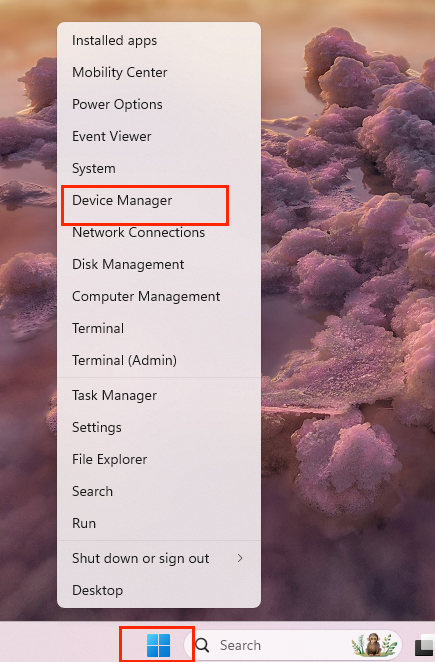
- Right-click the Windows Start button and select Device Manager.
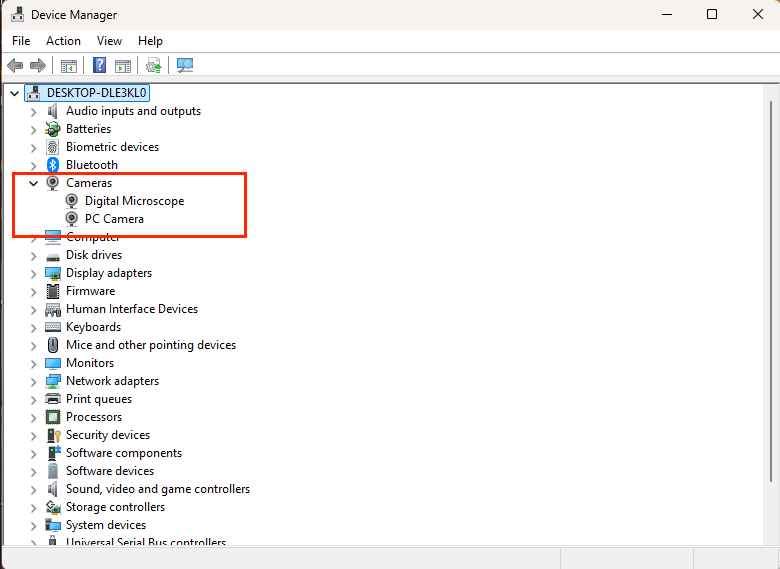
- Expand the Cameras category and look for Digital Microscope or Plugable Microscope.
If the microscope appears here, Windows is correctly detecting it.
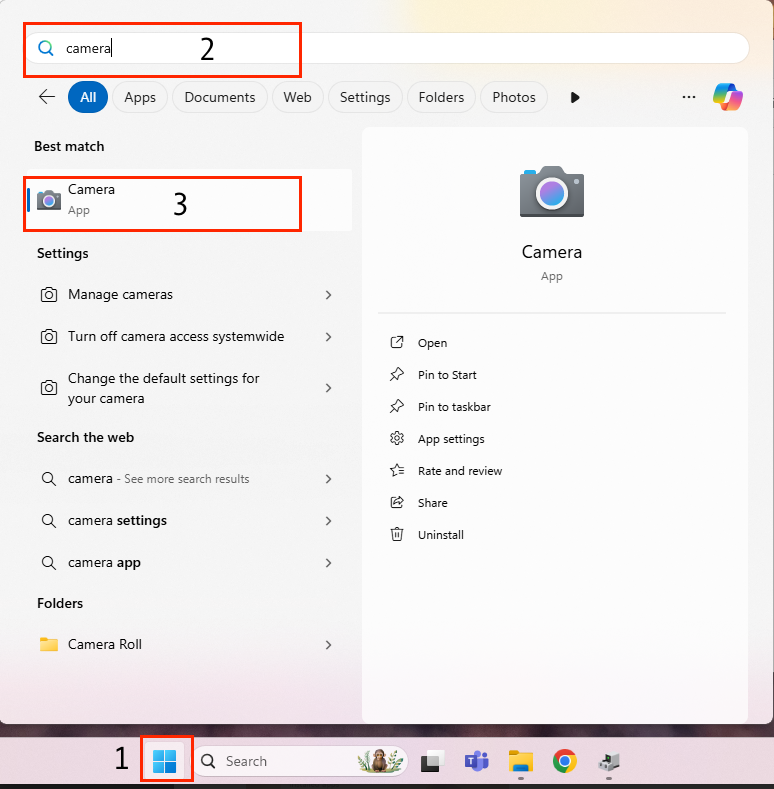
- Open the Start Menu, type Camera, and select the Camera app.
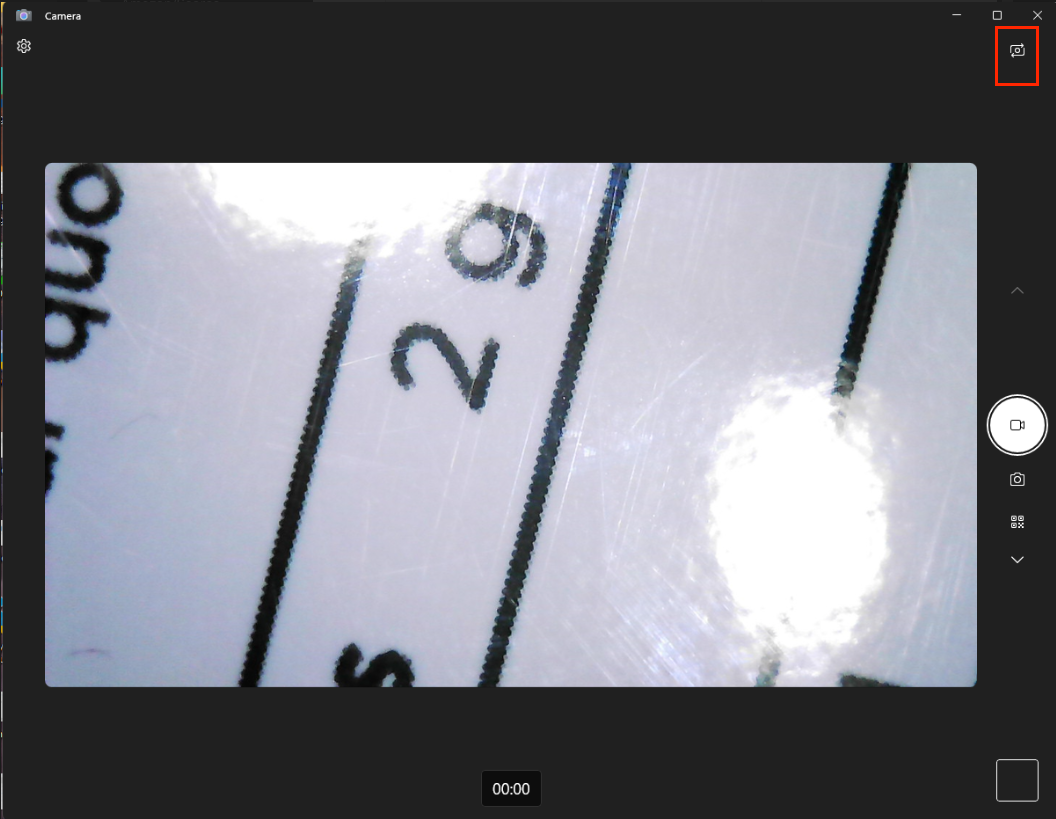
- If your computer has more than one camera, use the Change camera button to cycle through the available cameras until the microscope image appears.
On Windows 11, the Change camera button is typically located in the upper-right corner of the Camera app.
- If the microscope image is very dark or appears black, rotate the light-control wheel on the microscope to increase the LED brightness.
Applicable To
- USB2-MICRO-250X
