
macOS 26 Tahoe introduced support for high refresh rate modes for compatible HDMI 2.1 displays, including additional features like Variable Refresh Rate (VRR) on compatible Apple Silicon Mac systems. Plugable adapters with compatible chipsets, such as USBC-HDMI8K, support these higher modes if the adapter is running the correct firmware. Please also note that high refresh rate and Variable Refresh Rate modes are not available on all displays. Consult your monitor’s user manual to check if your monitor supports these features.
System Requirements
HDMI 2.1 high refresh rate support is available only on the following Apple Silicon Mac processors:
- M1 Pro
- M1 Max
- M2 Pro
- M2 Max
- M3 and newer
Base M1 and base M2 systems do not support HDMI 2.1 high refresh rate output. On these systems, 4K high refresh rate modes will not be available.
Note that if 4K high refresh rate modes are not available in System Settings > Displays, your unit may require updated firmware to enable this functionality. Without the updated firmware, the adapter may operate in HDMI 2.0 mode and high refresh rate options may not appear, even when using:
- macOS 26 Tahoe or above
- A compatible HDMI 2.1 display
- A supported Pro/Max or M3+ Mac system
What You Need
To update the firmware, you will need:
- A Plugable USBC-HDMI8K adapter
- A Windows PC with a USB-C port that supports DisplayPort Alt Mode (video output)
- The VmmTool firmware update application: https://apps.microsoft.com/detail/9nrk6tg8vcnx?hl=en-US&gl=US
- The appropriate firmware (.fullrom) file
Note: The firmware update cannot be performed in macOS. A Windows system with USB-C DisplayPort Alt Mode support is required. Please contact Plugable support at support@plugable.com if you don’t have access to a system for performing the update.
Updating the Firmware
- A Windows PC must be used for the firmware update process.
- Download the VmmDPTool64 updater software from the Microsoft Store: https://apps.microsoft.com/detail/9nrk6tg8vcnx?hl=en-US&gl=US
- Download the updated firmware file: https://media.plugable.com/downloads/drivers/products/usbc-hdmi8k/vmm7100%20update%20fw20251126.zip
- Connect the USBC-HDMI8K adapter to your computer
- Connect a monitor to the USBC-HDMI8K
- Open the VmmTool application
-
Select “Update FW”
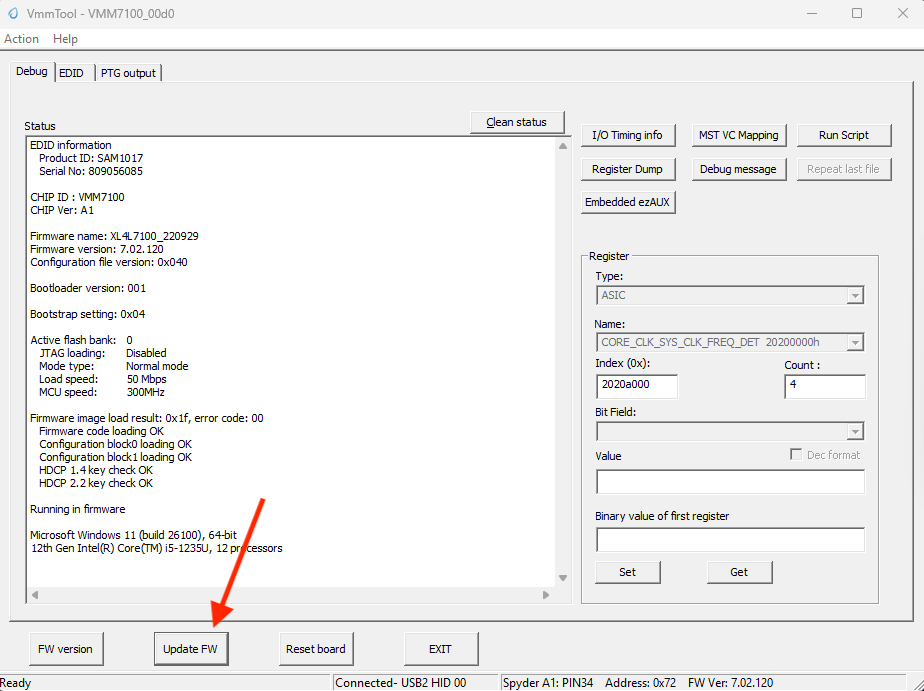
- Select the firmware file extracted from the download earlier named XL4L7100_251126.fullrom
- Wait for the tool to finish updating
- Power cycle the adapter by disconnecting it from the computer for one minute
- Connect the USBC-HDMI8K adapter to your Mac and a compatible HDMI 2.1 display
Enabling High Refresh Rate in macOS
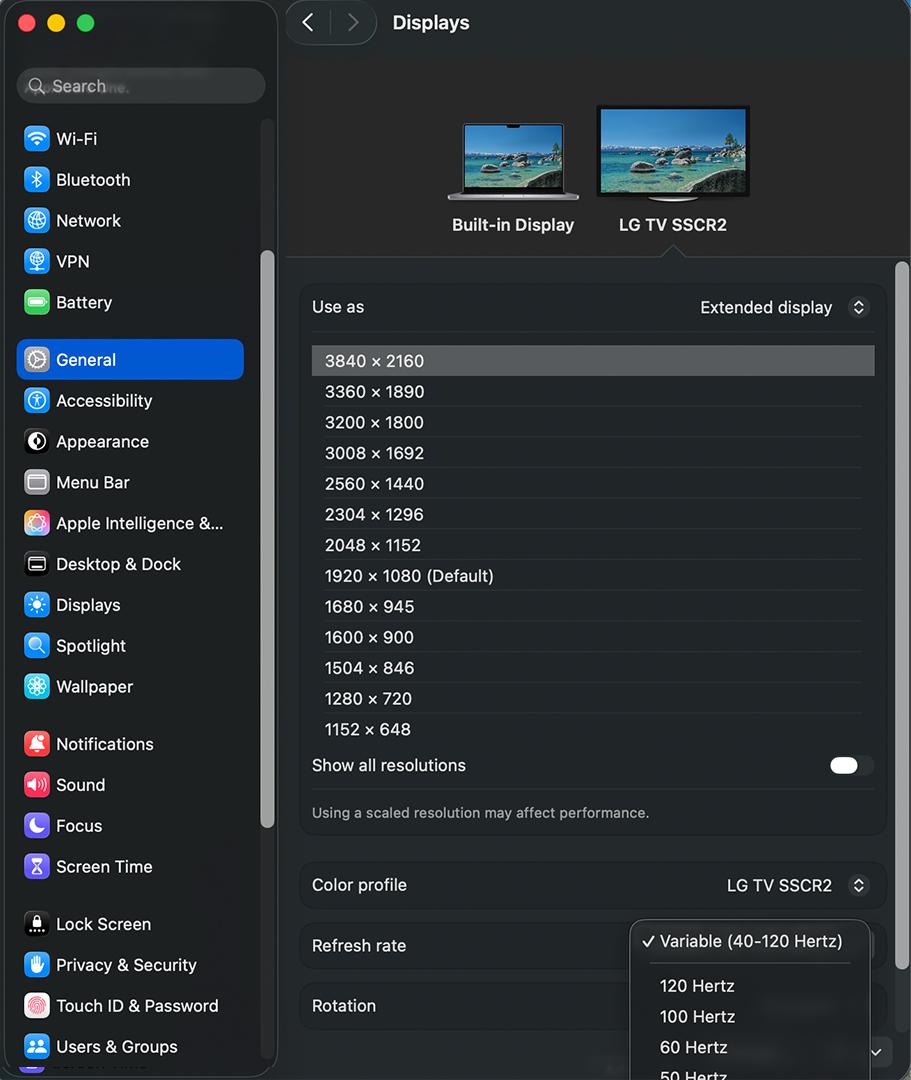
- Navigate to the ‘Systems Settings’ app
- Navigate to Displays - select the external display
-
Variable Refresh Rate (40-120 Hertz) will now be available along with other static high refresh rate mode
Additional Notes
- Not all HDMI 2.1 displays support 4K High Refresh Rate or Variable Refresh Rate (VRR). Please confirm your monitor’s specifications.
- Use a certified HDMI 2.1 cable to ensure proper bandwidth support.
- Refresh rate availability may vary depending on Mac model and display capabilities.
- If you do not have access to a compatible Windows system for the firmware update, or if you encounter issues during the update process, please contact Plugable Support at support@plugable.com for assistance. When reaching out, include your adapter model, Mac model and processor type, display model, and a brief description of the issue.
