With the release of USB-C on iPhone 15 / 16 / 17, certain models such as the Pro and Max trims can play HDR and Dolby Vision content using a Plugable USB-C to HDMI adapter.
Within the iPhone settings menu it is possible to adjust the preferred display settings by navigating through these following steps:
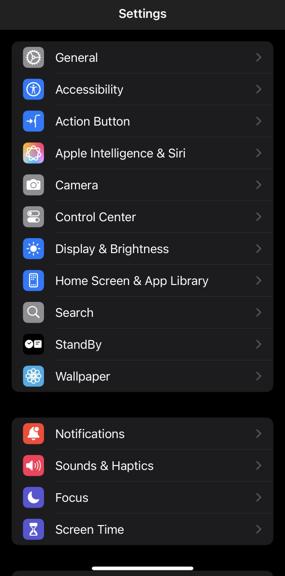
- Navigate to the Settings app
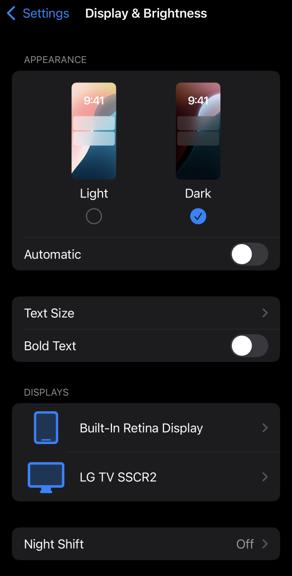
- Scroll down to Display & Brightness
-
- Select the external display in the Displays sub-menu
-
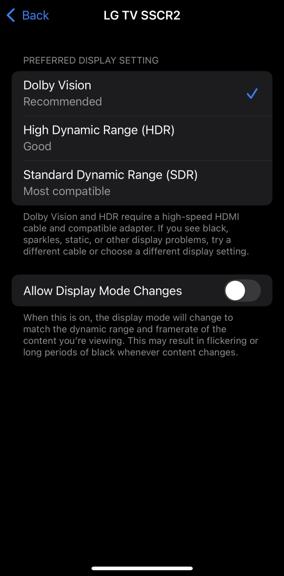
- Select the appropriate display setting based on the content you intend to watch such as Dolby Vision, High Dynamic Range (HDR), or Standard Dynamic Range (SDR)
- Not all displays support HDR or Dolby Vision, if this option is missing it indicates the display does not support that display setting.
- If preferred, you can enable Allow Display Mode Changes to automatically adjust the display settings based on the content you are viewing but this can cause temporary no video signal or display flickering
-