
Overview
This document describes how to get started using the Plugable TBT5-AI for local AI tasks. This document presumes that you have already installed a graphics processing unit (GPU) inside the TBT5-AI. If you have not already installed a GPU, please see our TBT5-AI GPU Installation Guide.
Requirements
TBT5-AI with GPU already installed
Windows 11 computer with Thunderbolt 5, Thunderbolt 4 or USB4 (Thunderbolt 5 recommended for best performance)
Physical setup
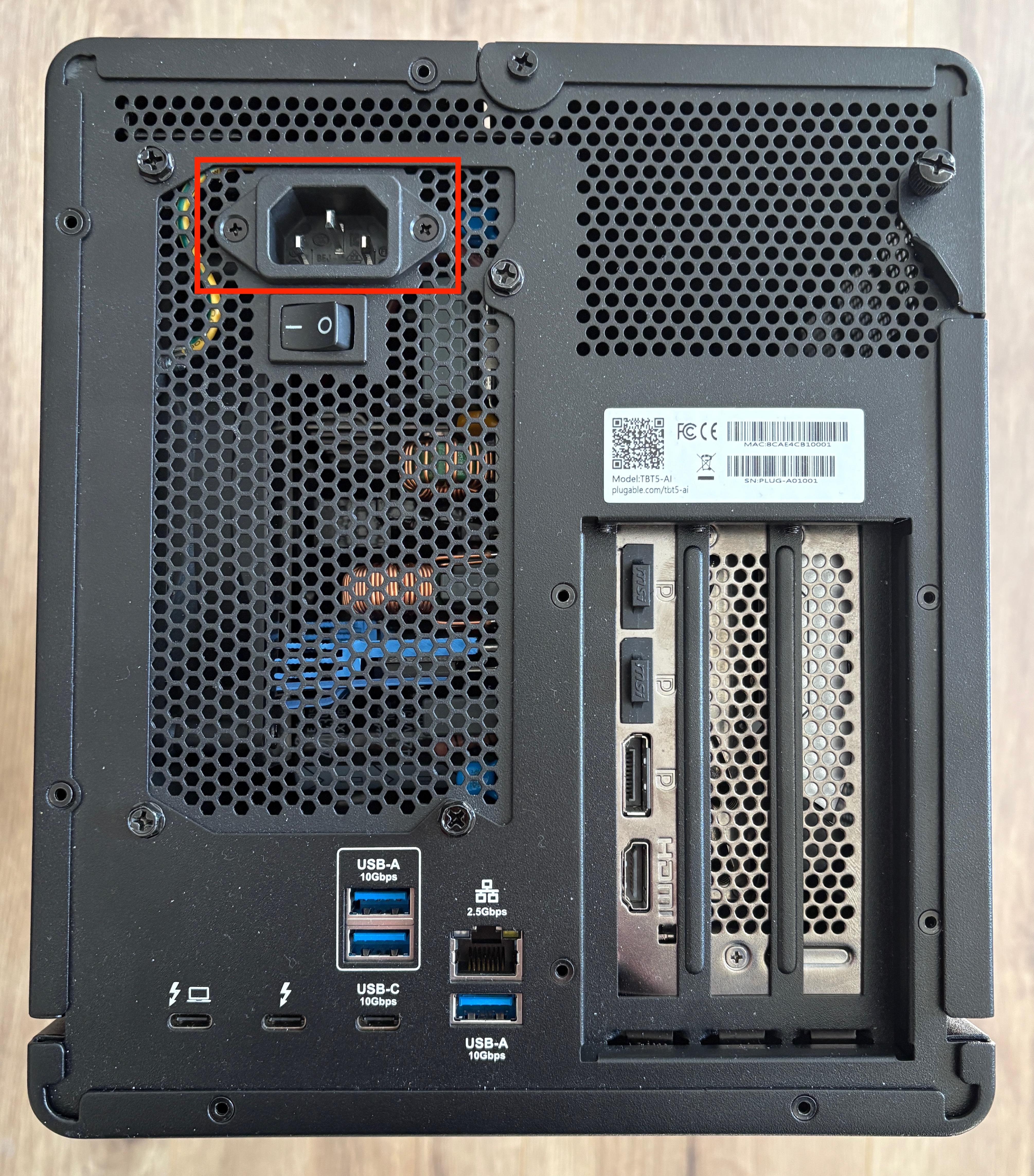
1. Connect the included power cable to the power input port on the back of the TBT5-AI. Connect the opposite end of the power cable into a known-working electrical power outlet.
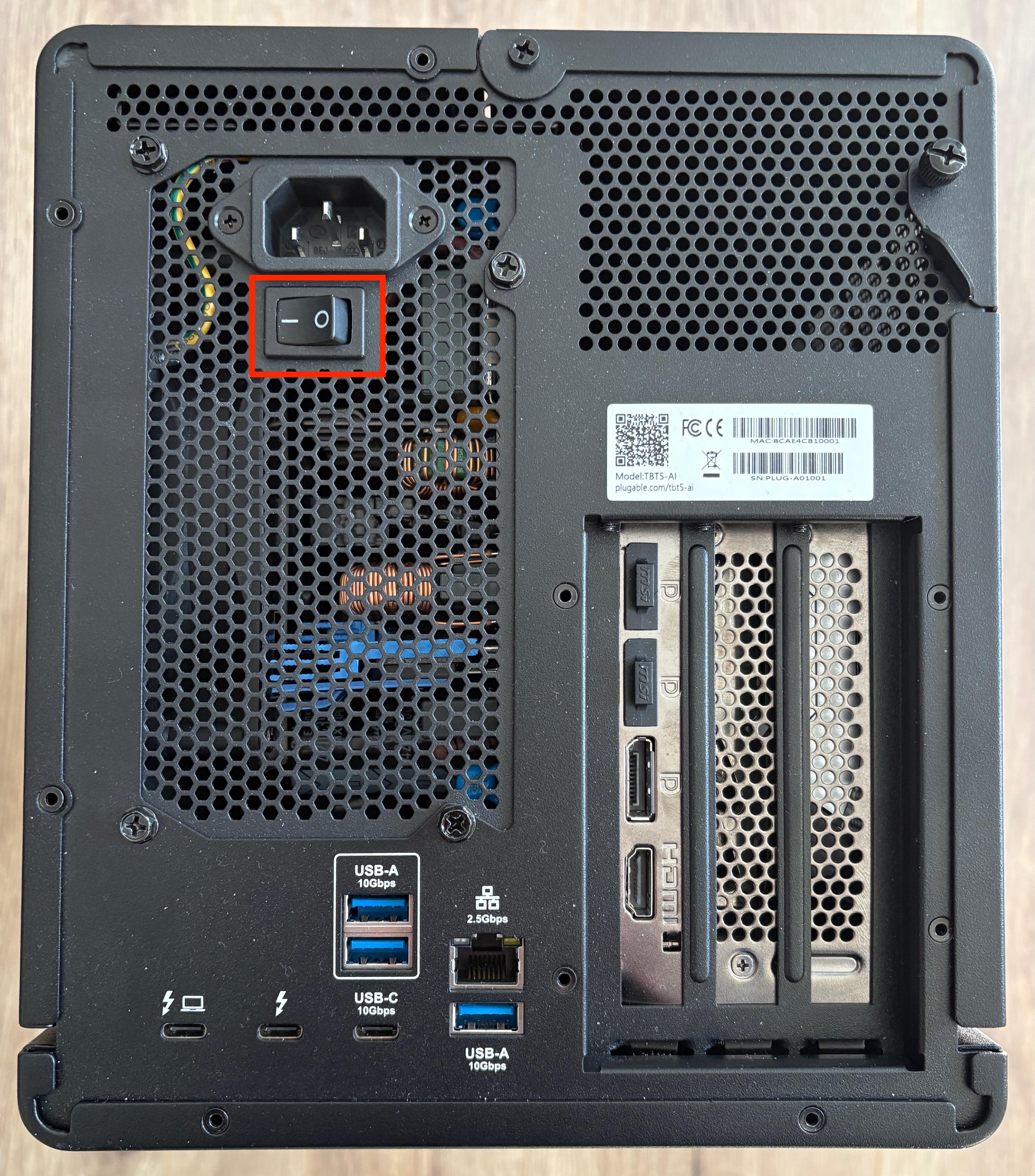
2. Ensure that the power switch located underneath the power input is switched to the ‘On’ position, which is represented by a horizontal white line.
*** IMPORTANT NOTE - The TBT5-AI will not power on unless it establishes a connection to a compatible host computer ***
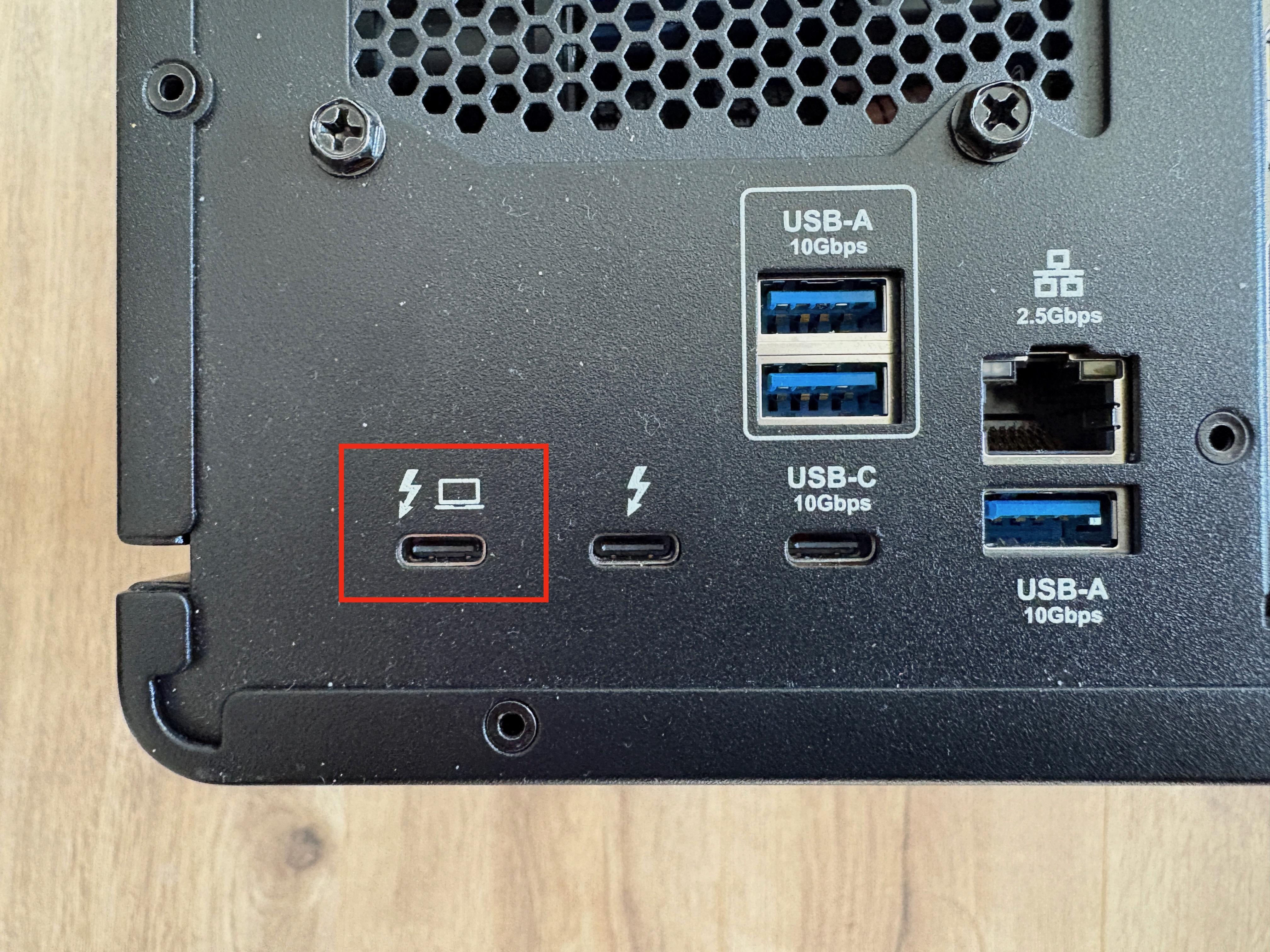
3. Connect the included Plugable Thunderbolt 5 cable to the TBT5-AI’s single Thunderbolt 5 host connection port. This port has a small icon of a computer located above it.
For reference, the included Plugable Thunderbolt 5 cable has a small white cable flag attached to it that lists the cable’s specifications on one side and the product model (TBT5-AI) on the opposite side.
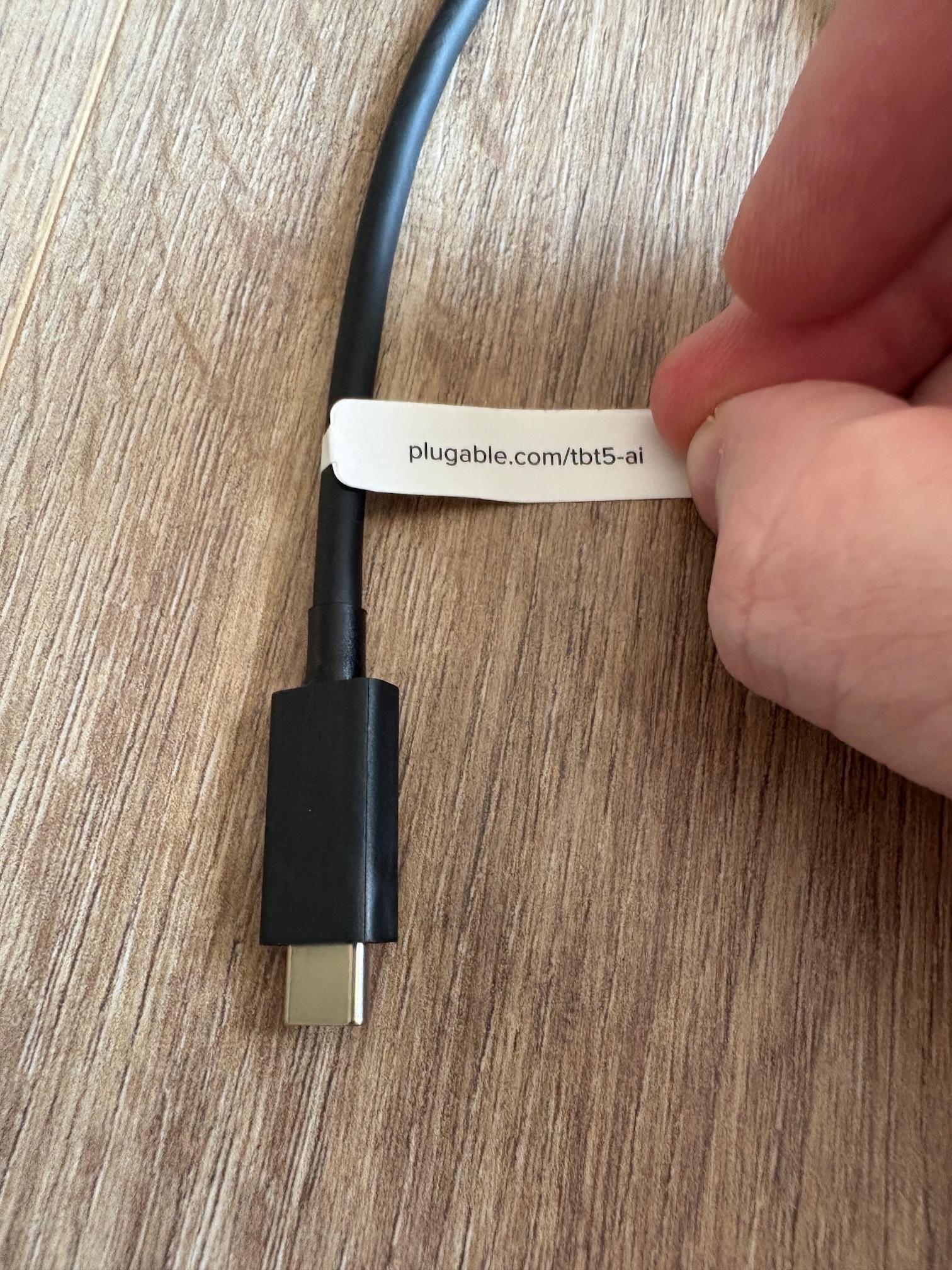
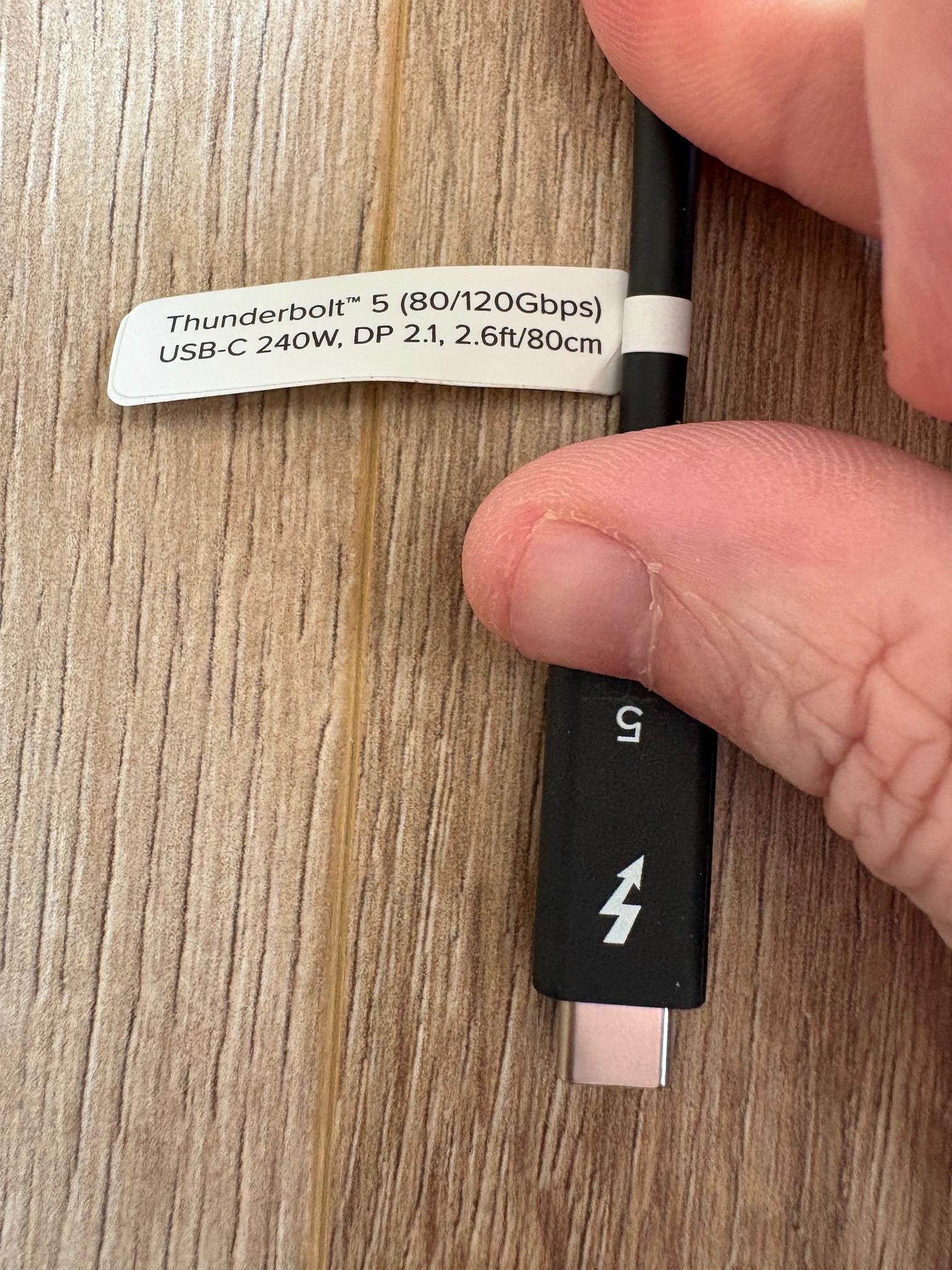
The TBT5-AI will only work if the Thunderbolt cable is connected to the Thunderbolt 5 host connection port. If the cable is connected elsewhere, then the TBT5-AI will not function.
4. Power and login to a compatible computer running Windows 11.
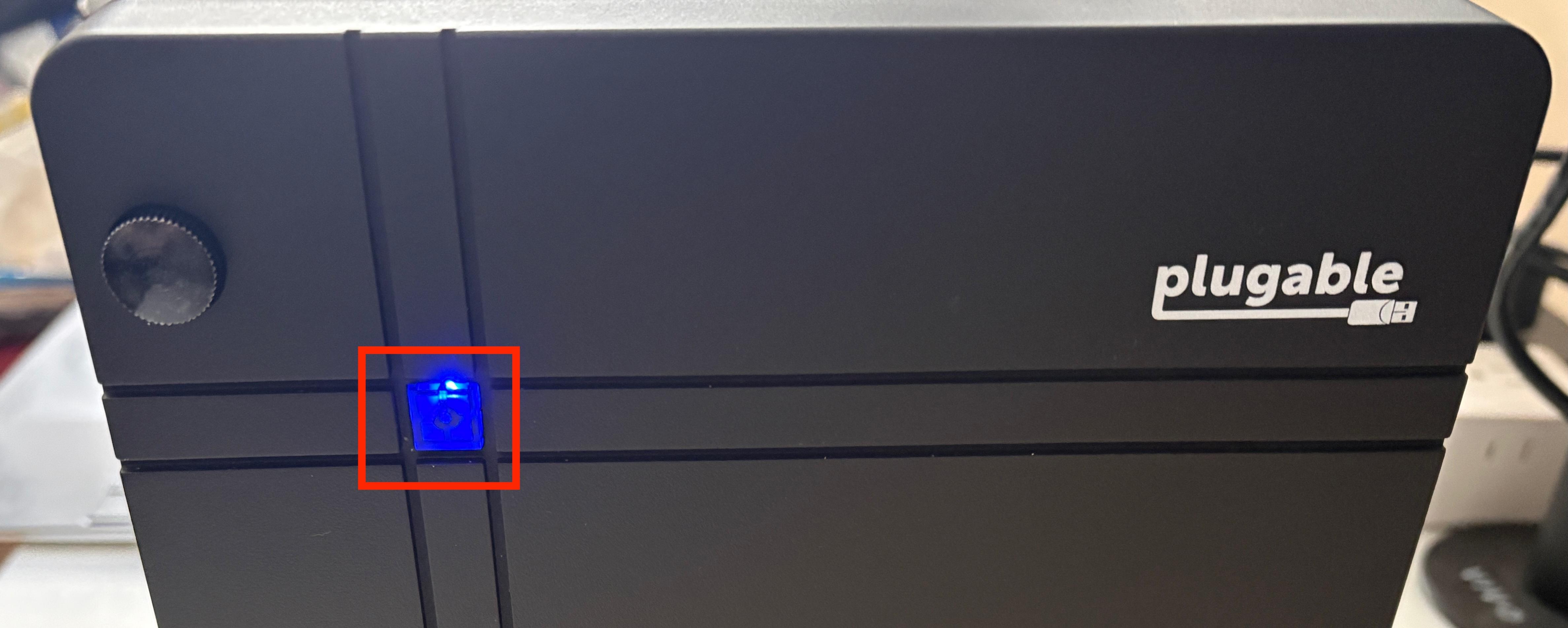
5. Connect the opposite end of the Thunderbolt 5 cable to the host computer. When the TBT5-AI establishes a connection to the host computer, the TBT5-AI will power on automatically, which will be indicated by a solid blue power indicator light on the front of the unit.
Most compatible host computers should detect the TBT5-AI automatically.
6. While the TBT5-AI should be automatically detected by the host computer, the graphics processing unit (GPU) installed within the TBT5-AI may not be detected automatically until an appropriate Windows driver is installed.
Consult the documentation included with your GPU in order to determine and download the appropriate driver software. Once the appropriate GPU driver software is installed, the GPU should be detected by Windows 11.
END OF PROCEDURE
