
System compatibility can be complex and we are happy to help answer this question!
The key points are:
- Operating System
- Processor and Graphics hardware
- USB Type-C port features
- Host power requirements
Operating System
- Windows 10 or 11
- ChromeOS version 100 and newer
Windows 11 for ARM and ARM based Chromebooks may only support two external displays, and may have reduced display resolution or performance depending on the graphics hardware capability.
No additional software installations are required, however this docking station does rely on the host computer to be kept fully up to date both through Windows Update and may require manually installing up to date graphics drivers if not provided through Windows Update, we provide a guide for updating the graphics drivers in Windows.
Apple has not implemented DisplayPort MST support in macOS and can only enable a single external display with this docking station (additional displays will be “mirrored” showing the same content as the main display), due to this limitation we do not recommend this docking station for Apple computers.
Processor and Graphics
Compatible Systems
- Intel 12th generation i-series processor graphics and newer
- AMD Ryzen 6000 series processor graphics and newer
- (Optional) NVIDIA graphics with a supported processor graphics controller
Incompatible or Limited Systems
- Apple systems are not supported
- ARM based Windows computers will be limited to two external displays
- Intel Pentium and n-series processors may not enable USB Type-C Video output
- ARM based Chromebooks may have display number and resolution limitations
The UD-MSTH3 requires a host computer’s hardware graphics controller to support DisplayPort version 1.4 with DSC (Display Stream Compression) - an optional feature of the DisplayPort specifications. Some Intel 11th generation processor systems may have DSC disabled by default, and enabling this may be required to multiple external displays, more details can be found here.
Intel Ultra 100V and 200V series processors can only support three total displays, to enable three external displays the built-in display must be either disabled, or the laptop lid closed, more details can be found here.
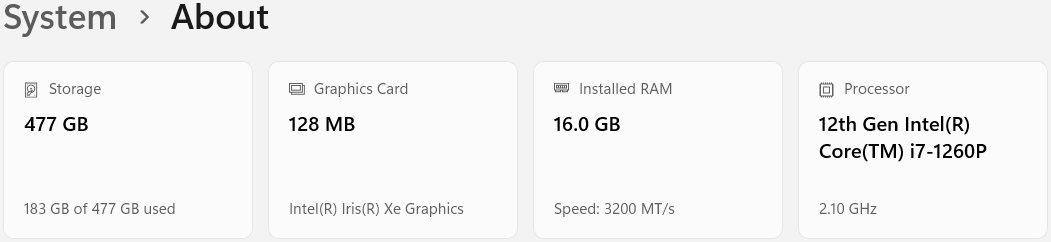
In Windows we can check the processor in the System Settings application: right-click on the Start Menu and select Settings from the pop-up menu. The processor should be listed similar to the screenshot below which shows an Intel 12th generation i-series processor.
USB Type-C Port Features
- USB 3 Type-C with Alternate Mode Video
- USB4, Thunderbolt 4, or Thunderbolt 5
USB Type-C ports may support Alternate Mode Video video; this optional feature allows for a computer to be connected directly to a USB Type-C display, or multiple displays through this docking station. Most compatible computers will either have the DisplayPort “DP” logo by the USB Type-C port, a Thunderbolt lightning bolt ( not to be confused with the “Charging” lightning bolt sometimes seen by the power port ), or will specify the display capability on the manufacturer’s website. Unfortunately incompatible computers are generally harder to positively identify as they may not be labeled or described by the manufacturer.
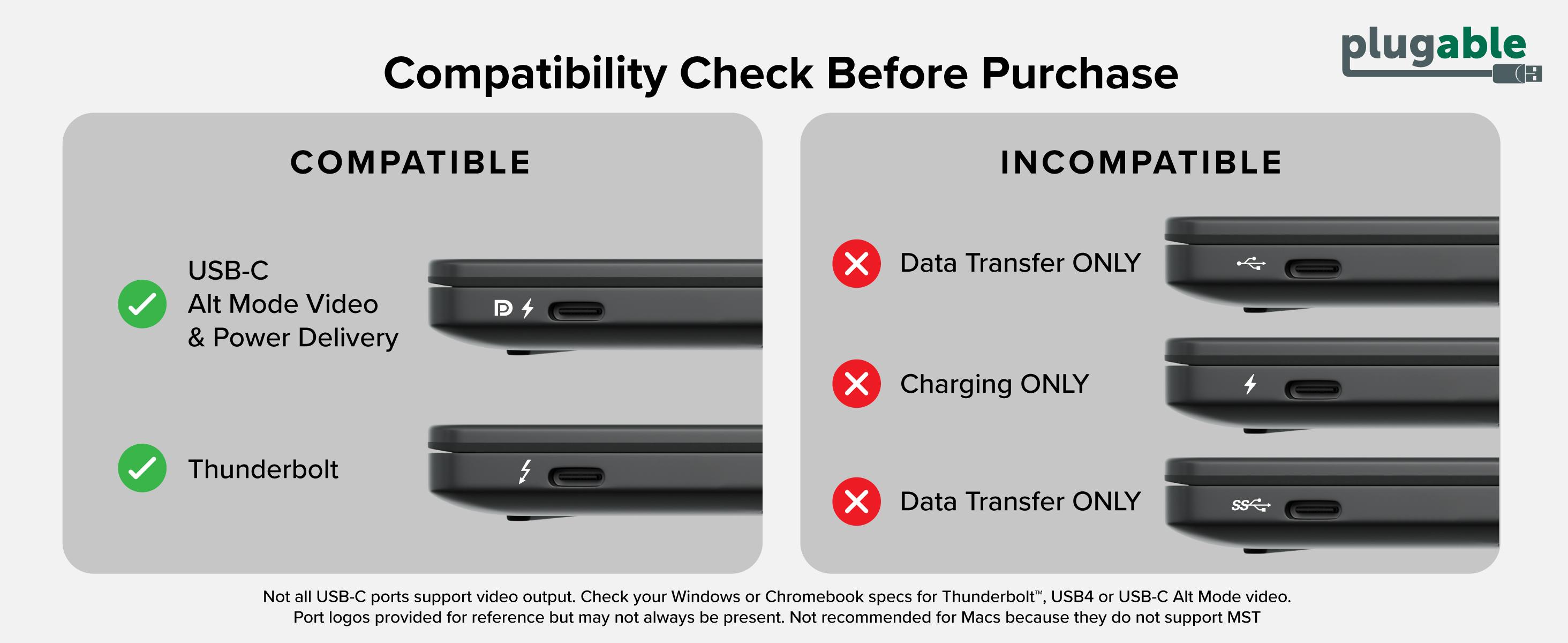
USB Type-C Alternate Mode Video is required to meet the USB4 and Thunderbolt specifications, computers with either of these technologies and that meet the processor requirements are expected to be compatible with this docking station.
Host Power and Charging
The UD-MSTH3 supports USB Power Delivery for providing up to 100W to power and charge a compatible notebook computer. This can effectively replace a computer’s original USB Type-C power supply rated up to 100W.
Not all computers with USB Type-C support charging, if the computer’s original charger is rated for more than 100W, or if the computer did not include a USB Type-C power supply we recommend connecting the original power supply when using the docking station.
Still unsure?
We are happy to help! Please feel free to contact our support team via email at support@plugable.com, in the subject line specify the docking station model: “UD-MSTH3 compatibility question” and in the body of the email please include the manufacturer name and model of the computer, optionally the manufacturer name and model of the displays, and if you have any additional questions. To get the computer details in Windows 11:
- Open the Start Menu and search for "msinfo32" and launch the first search result
- Please include the values from the following entries ( on the right column ):
- "System Model"
- "System SKU"
- Please feel free to attach a screenshot of this window to your reply email if you prefer by using the Windows Snipping Tool (from the Start Menu search for "Snipping") and I can get the details from there
Alternative Docking Stations
If your computer does not meet these system requirements we may have alternative docking stations options that are compatible.
For Apple computers, or when using a mixed macOS and Windows desk our UD-ULTC4K or UD-6950PDZ Triple 4K Display Docking Stations can support up to three external displays with either HDMI or DisplayPort connections. These docking stations rely on DisplayLink USB Graphics Technology which does require administrative permissions to install the DisplayLink software and drivers.
For computers without USB Type-C Alternate Mode Video, our USB 3.0 Dual Display Docking stations make a good starting point. For example our UD-6950Z supports up to two 4K displays with either HDMI or DisplayPort, this relies on DisplayLink USB Graphics Technology which does require administrative permissions to install the DisplayLink software and drivers.
If you have any questions or would like a recommendation, feel free to reach out to our support at support@plugable.com
