
Summary
This article describes the connection and setup process for a Samsung device that supports Samsung DeX when used with the Plugable UDS-7IN1. These steps can also apply to most devices that support USB-C DisplayPort Alternate Mode, though behavior may vary depending on the operating system.
This article applies to Samsung phones and tablets that support wired Samsung DeX over USB-C DisplayPort Alt Mode. Menu names and options may vary slightly by device model and One UI version.
Connecting to your UDS-7IN1
1. Connect the USB-C power adapter that came with your device to the USB-C power passthrough port on the UDS-7IN1.
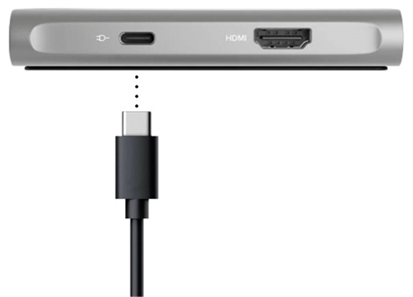
2. Next, connect your monitor to the HDMI port on your UDS-7IN1.
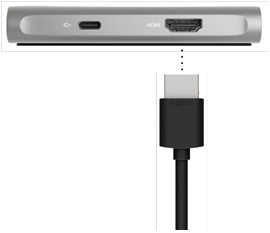
3. Now, connect your Samsung DeX device to the “To Host” USB-C port on the right side of the unit.
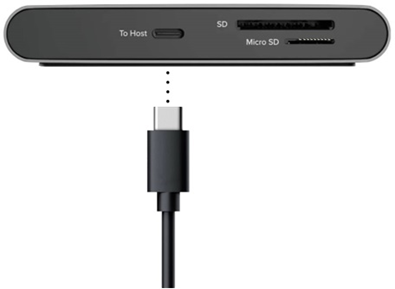
And that's it! You are now connected to the UDS-7IN1. DeX will automatically start displaying video to your external monitor and you can now use the additional ports on the dock. Please note that it may take a few seconds for DeX to display video on your external monitor.
DeX touchpad
Once DeX starts, you will have the option to use your device as a tablet or a touchpad. In most cases, DeX will default to the touchpad. The touchpad is useful because you can use your finger or an S Pen to move the cursor and navigate on your external monitor.
On the touchpad screen, there are three options to the right:
- Rotate touchpad. Rotates the touchpad depending on the orientation of your device screen.
- Gestures help. Provides a quick tutorial on touchpad gestures.
- Close touchpad. Closes the touchpad view.
If the touchpad does not launch automatically, you may need to adjust your DeX settings. See the FAQs below.
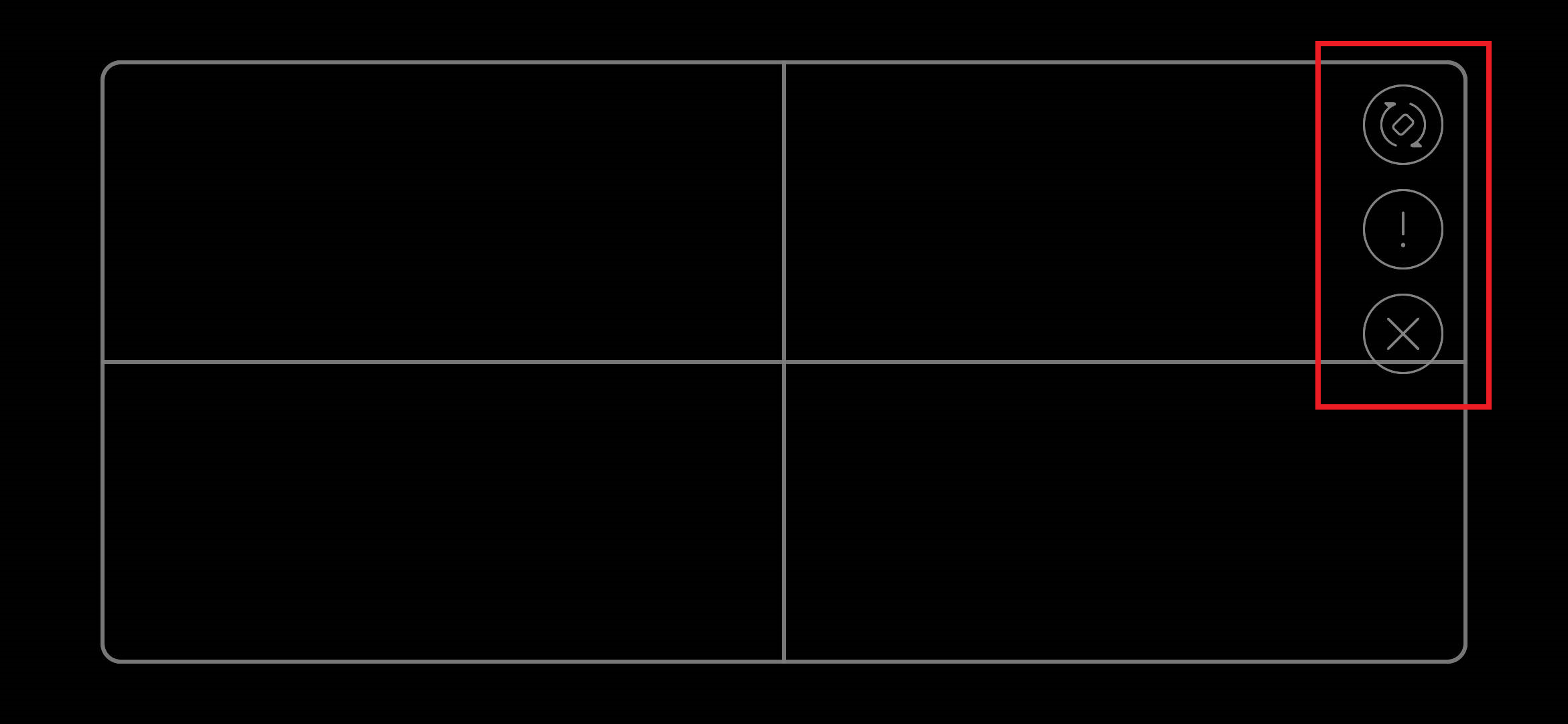
If the touchpad does not launch automatically, you may need to adjust your settings (see FAQ's below)
DeX Settings
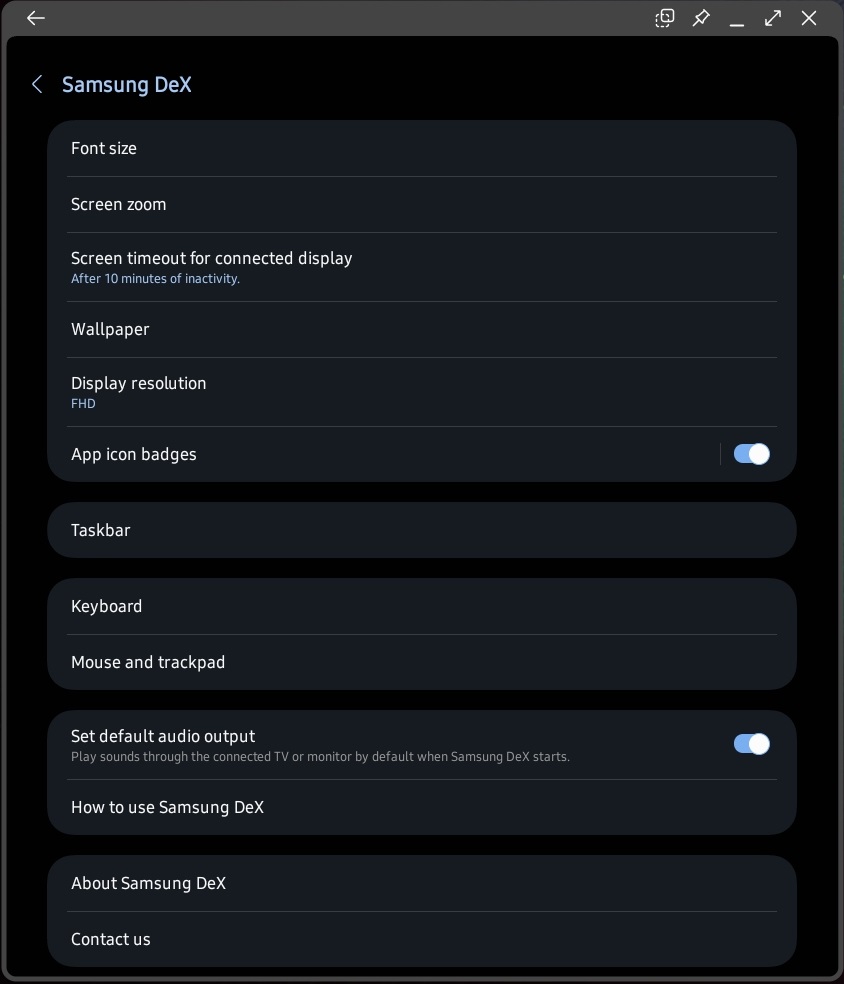
To access your DeX settings, open Settings from the DeX desktop, then select Samsung DeX.
Samsung DeX provides several options to customize your Desktop eXperience. For example, you can adjust the font size and zoom, change the wallpaper, change the desktop resolution, and select the audio output source so that audio plays through your phone or tablet or a monitor with built-in speakers.
FAQ's
I have everything connected and DeX is still not starting
For most users, DeX will automatically start when it detects an external display. If your device does not automatically start DeX, you can enable DeX first:
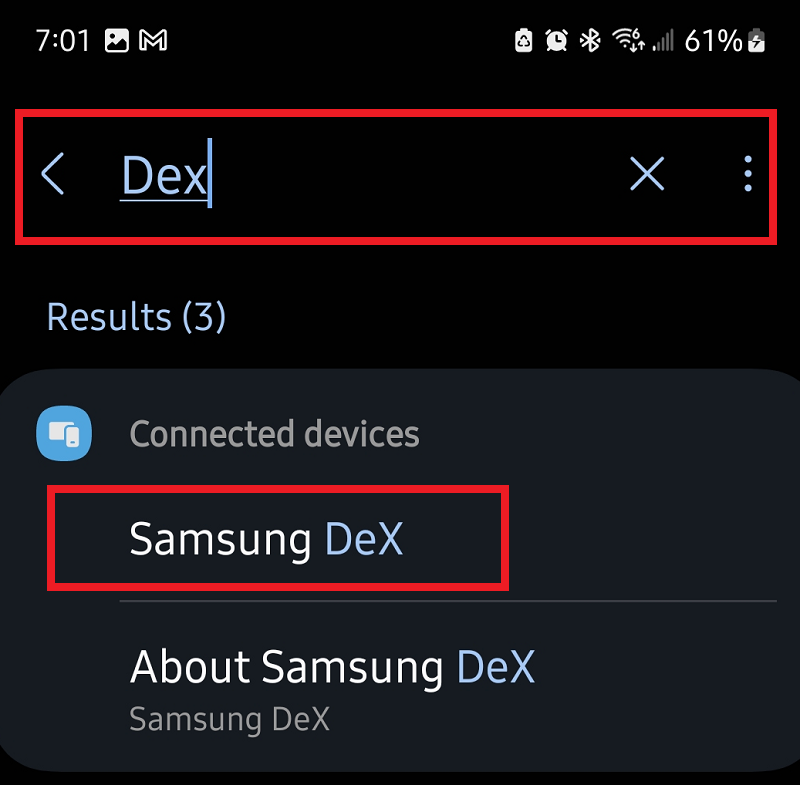
To enable DeX, go to Settings and search for DeX and click on Samsung DeX.
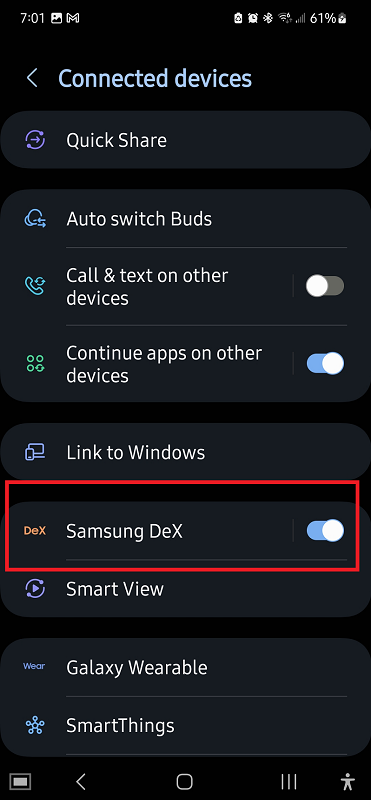
Next, scroll down until you see Samsung DeX and ensure that DeX is enabled by selecting the toggle switch.
After confirming that DeX is enabled step through the Connecting to your UDS-7IN1 section again to connect your device to the UDS-7IN1.
Additional tips if DeX still does not start:
- Confirm the monitor is set to the correct HDMI input.
- Make sure the UDS-7IN1 is connected to power.
- If your device is in a thick case, remove the case and test again to ensure the USB C connection is fully seated.
- Try a different HDMI cable or a different monitor or TV input if available.
What if my touchpad does not start?
If the touchpad does not start right away you can access it anytime by selecting the touchpad icon in the lower left of your device screen.

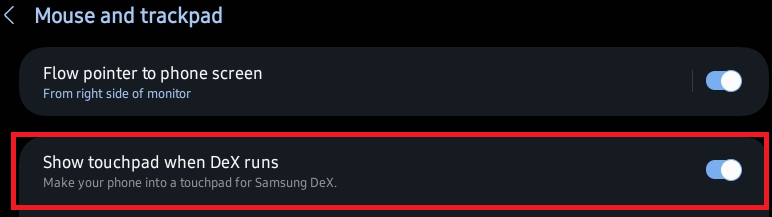
Additionally, you can set your touchpad to start automatically when DeX runs:
- On the DeX desktop, open Settings.
- Select Samsung DeX.
- Select Mouse and trackpad.
- Enable Show touchpad when DeX runs.
Why can’t I select 4K 60Hz in DeX Display settings?
If you are trying to reach 4K at 60Hz, that is beyond what the UDS-7IN1 video output supports, so it will not appear as an option in DeX Display settings.
Note: Available display resolutions in DeX are determined by both the video adapter’s hardware capabilities and Samsung’s software limitations for your specific device model.
If you need 4K at 60Hz, you will need a different video adapter or dock that supports HDMI 2.0 or newer, or DisplayPort output at the required bandwidth.
Can I use the SD and microSD slots at the same time in DeX?
The UDS-7IN1 card reader supports either the SD or microSD slot at a time. Only one card can be accessed at once.
Good Lock and MultiStar for higher DeX resolutions
Some Samsung phones and tablets can enable higher DeX display resolutions using the Good Lock app and its MultiStar module. If you are using a video adapter or hub that supports 4K at 60Hz, such as the Plugable USBC-9IN1E or USBC-4IN1 (for example), this can allow DeX to offer a 4K 60Hz option in Display settings.
Note: Availability of Good Lock and MultiStar varies by region and device model.
Important notes:
- The UDS-7IN1 HDMI port supports up to 4K at 30Hz. Good Lock and MultiStar cannot override the UDS-7IN1 hardware limit. If you are connected through the UDS-7IN1, the highest 4K option will be 4K 30Hz, or you may prefer 2560x1440 at 60Hz depending on your display and device.
- If you switch to a hub or adapter that supports 4K 60Hz, such as the Plugable USBC-9IN1E or USBC-4IN1, Good Lock and MultiStar may enable 4K 60Hz in DeX on supported Samsung devices.
To use MultiStar, first download the GoodLock app to your device.
1. Open the Samsung Galaxy Store and install Good Lock.
2. Open Good Lock and install the MultiStar module.
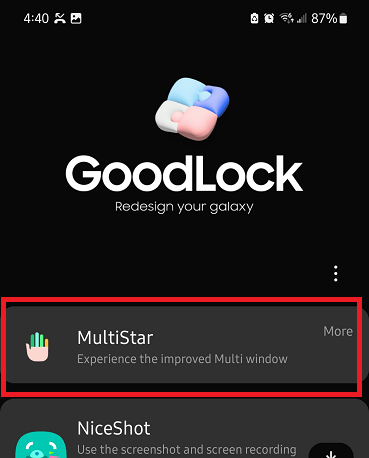
3. Next select I love Samsung DeX.
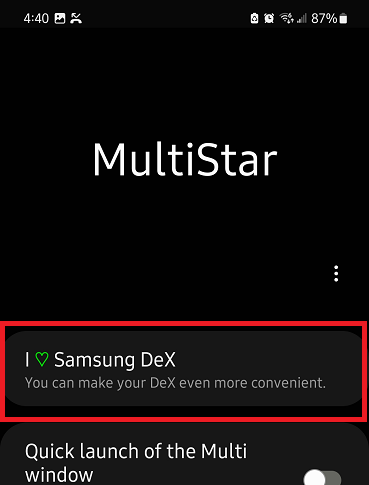
4. Now click on the toggle switch next to High resolutions for external display.
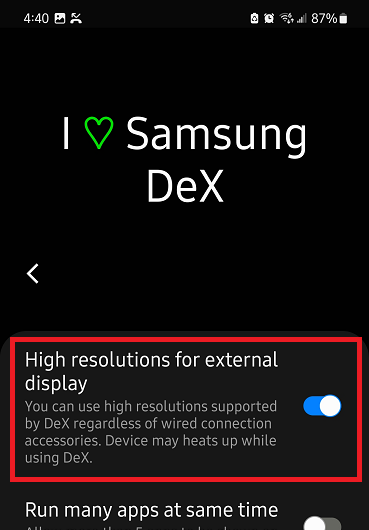
You will now have access to UHD 4K 60Hz resolution with a supported hub in your Display settings.
Questions? We're here to help! Feel free to contact support@plugable.com for questions or concerns when setting up your Samsung device with your UDS-7IN1.
