How Do I Update Bravura Easy Computer Sync When Both PCs Are Stuck on "Waiting for Connection"?
Applicable To
- Plugable USB Transfer Cables USBC-TRAN, USB3-TRAN, USB-EASY-TRAN, TBT-TRAN
- Bravura Easy Computer Sync software
- Windows 10 and Windows 11
If both PCs are stuck on a “waiting for connection” screen, the two computers are often running different versions of Bravura Easy Computer Sync. This is usually resolved by running the Get Updates tool included in the software's programs folder on each PC so both are on the same version.
Troubleshooting Steps
Windows 10
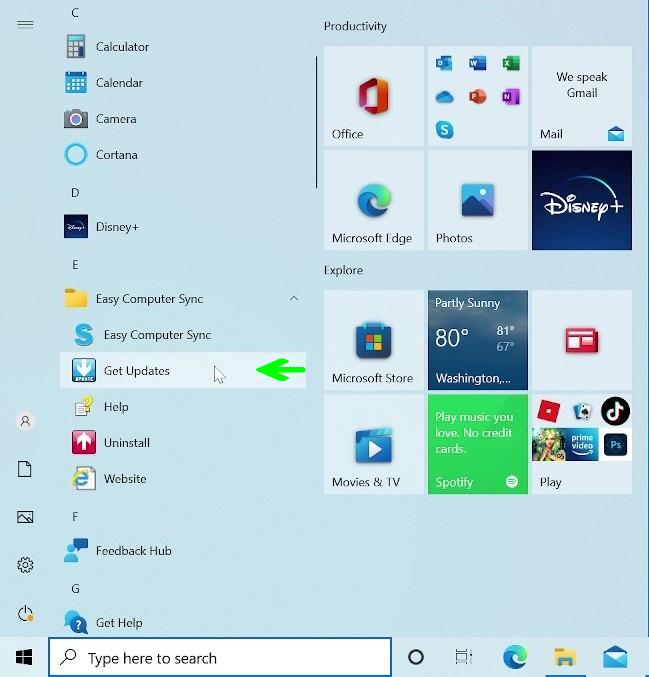
- Open the Windows Start Menu.
- Go to Programs > Easy Computer Sync > Get Updates.
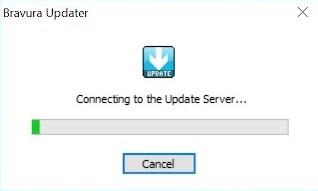
- If an update is available, download and install it from the window that appears.
- Repeat steps 1–3 on the second PC.
- Close Easy Computer Sync on both PCs.
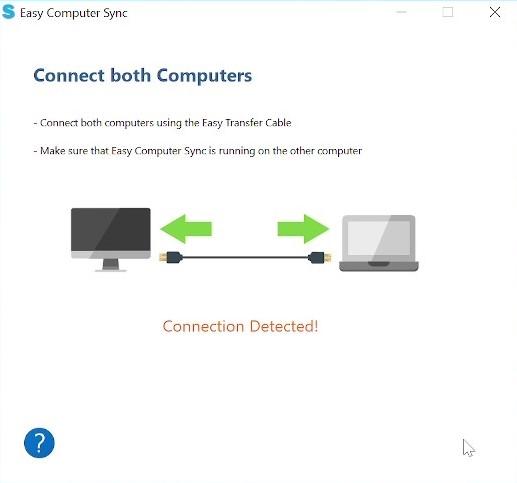
- Reopen Easy Computer Sync on both PCs to establish a connection.
Windows 11
- Open the Windows Start Menu.
- Select All Apps.
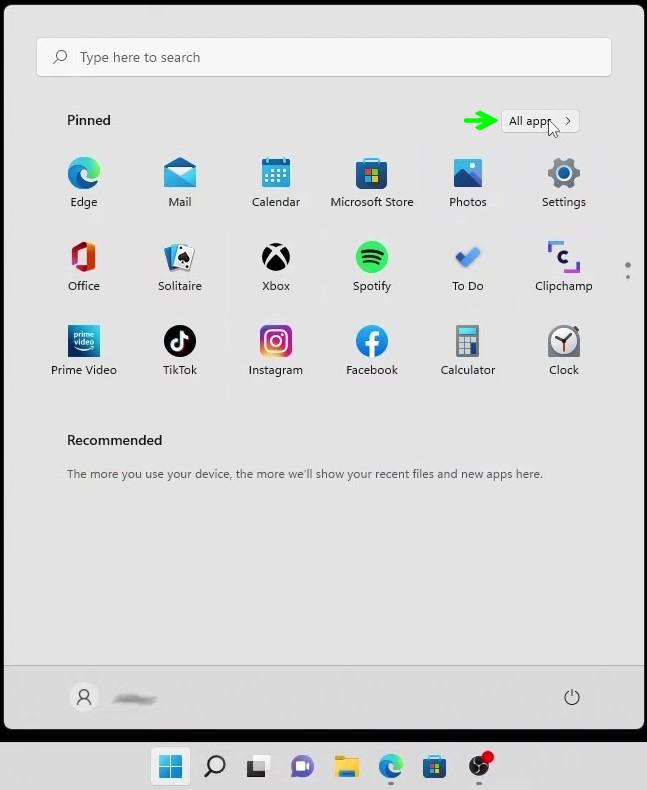
- Navigate to Easy Computer Sync > Get Updates.
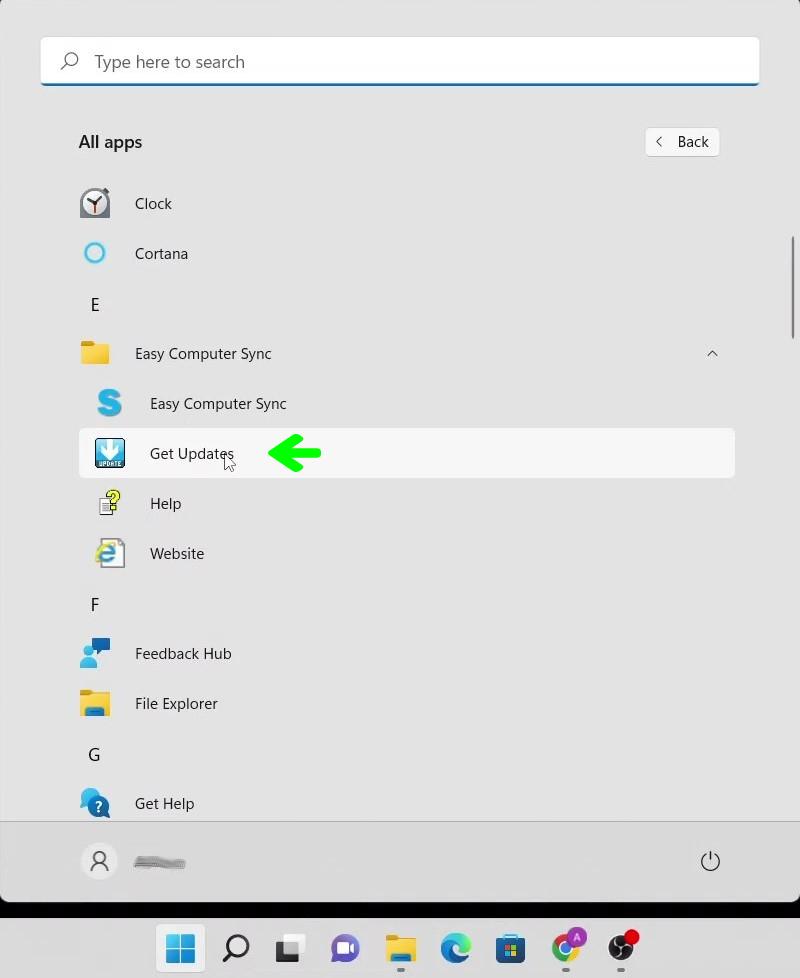
- If an update is available, download and install it from the window that appears.
- Repeat steps 1–4 on the second PC.
- Close Easy Computer Sync on both PCs.
- Reopen Easy Computer Sync on both PCs to establish a connection.
Note: If the “Automatically check for updates” option was selected during installation, Easy Computer Sync will check for updates each time it launches and notify you on the Welcome Screen when one is available.
Expected Result
Both PCs are running the same version of Easy Computer Sync, the “waiting for connection” screen clears, and the two computers connect so you can begin transferring or syncing files.
If the Issue Persists
- Confirm the transfer cable is plugged directly into a USB port on each PC rather than through a hub or dock.
- Search the Plugable Knowledge Base for additional Easy Computer Sync troubleshooting articles.
- Contact Plugable Support and include your product SKU, the Windows version on each PC, and the Easy Computer Sync version shown on each PC.