How Do I Transfer My Browser Bookmarks, Favorites, and Outlook Content With Easy Computer Sync?
Applicable To
- Plugable USB Transfer Cables
- Bravura Easy Computer Sync software
Easy Computer Sync can't directly access or otherwise communicate with other programs, so bookmarks, favorites, and Outlook content won't transfer on their own. This is resolved by exporting them to files (bookmarks and favorites as HTML files), transferring those files to the new computer, and then importing them using the steps below.
Instructions
Exporting Bookmarks and Favorites
- Open the Edge browser on the first computer.
- Click the three dots in the top-right side of the browser to open the browser options.
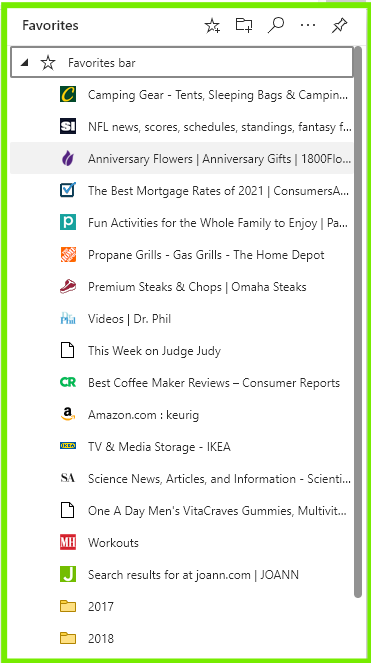
- Click Favorites.
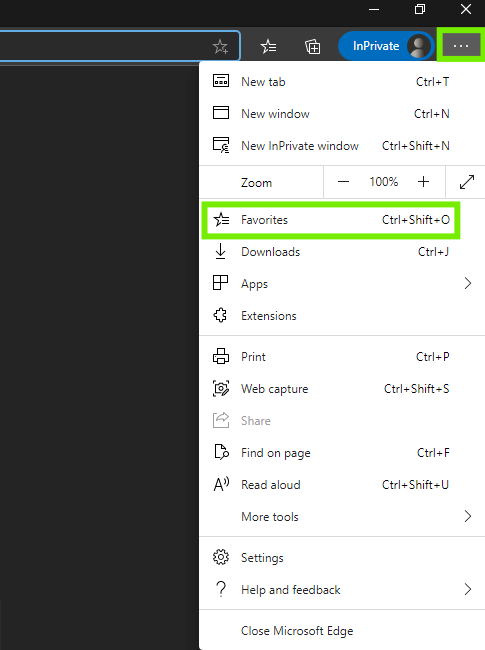
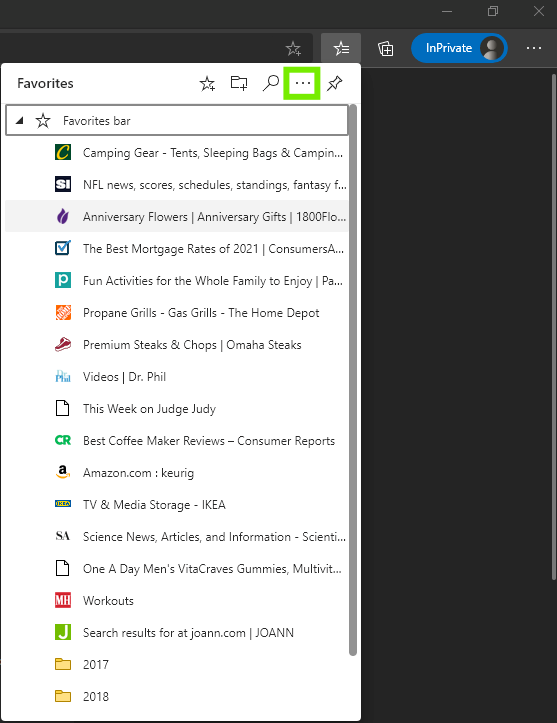
- In the Favorites window, click the three dots to show the export option.
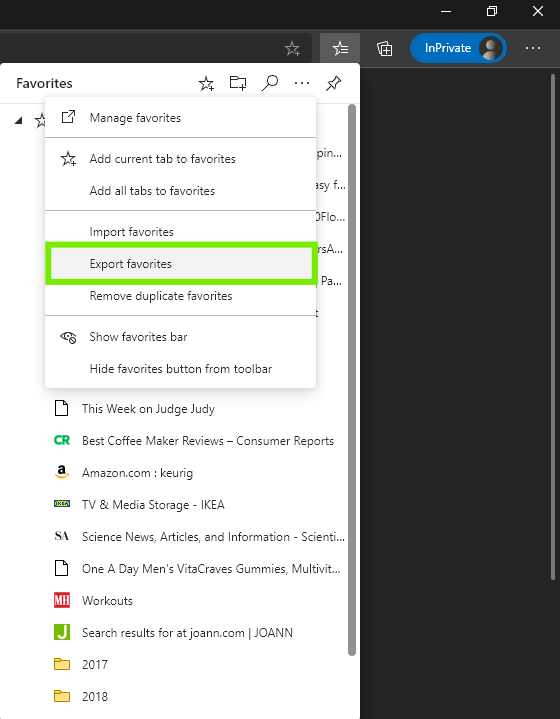
- Click Export Favorites.
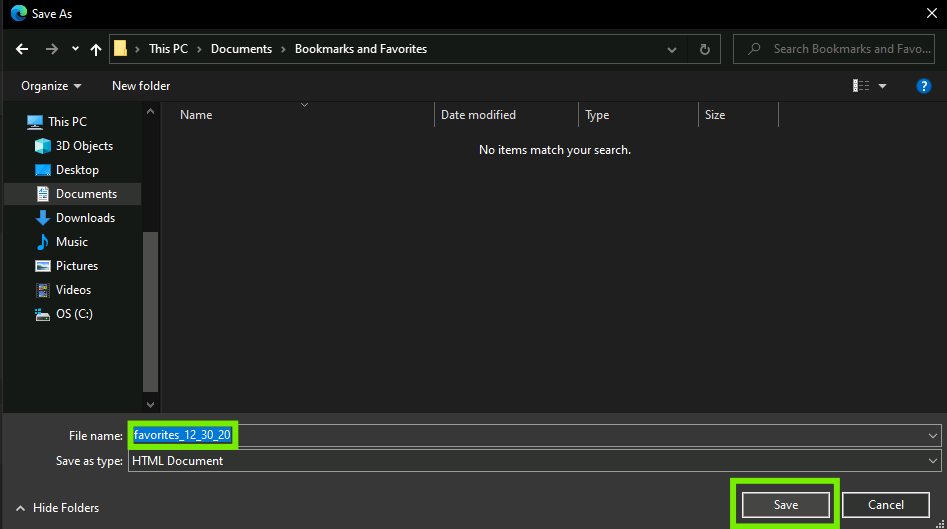
- Choose the folder where the favorites will be saved. The exported HTML filename defaults to a Month/Date/Year format, but feel free to rename it.
- Click Save to start the export.
- Transfer the exported HTML file to the second computer.
Importing Bookmarks and Favorites
- Open the Edge browser on the second computer.
- Click the three dots in the top-right side of the browser to open the browser options.
- Click Favorites.
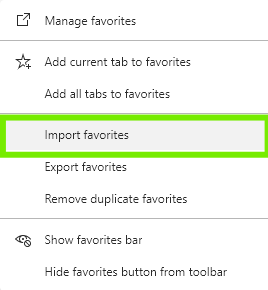
- Click Import Favorites.
- From the drop-down menu, select Favorites or bookmarks HTML file.
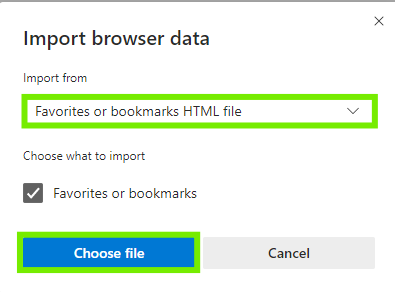
- Click Choose File to open a File Explorer window.
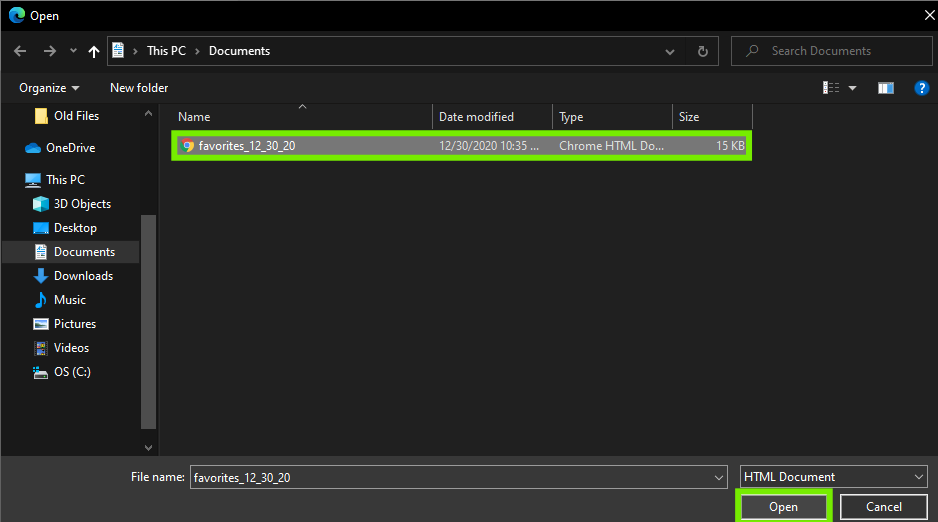
- Navigate to the folder containing the transferred HTML file.
- Select the HTML file.
- Click Open.
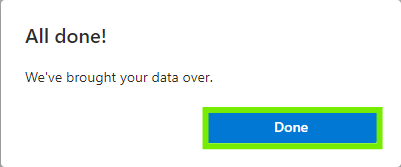
- Wait for the confirmation message that your favorites were imported.
- Open your Favorites to confirm everything is there.
I Use a Different Browser, What Do I Do?
The process for exporting and importing bookmarks in other browsers is similar, if not the same. Use the steps for your browser below:
Can I Transfer My Outlook Content?
Yes. Like bookmarks and favorites, Outlook content must be exported first, transferred to the second computer, and then imported. The exact steps depend on your Outlook platform and version, so follow Microsoft's official guide:
Import and Export Outlook Email, Contacts, and Calendar
Expected Result
After importing, the browser shows a confirmation message, and all of your bookmarks and favorites from the first computer appear in the Favorites list on the second computer. Imported Outlook email, contacts, and calendar items appear in Outlook on the second computer, so you can pick up right where you left off.
If the Issue Persists
- Confirm the exported HTML file (or Outlook export file) was fully transferred and opens on the second computer.
- If you use a browser other than Edge, follow the browser-specific links in the section above.
- For Outlook, review Microsoft's Import and Export Outlook Email, Contacts, and Calendar guide for your version.
- Still need help? Reach out to us directly at support@plugable.com with any questions or concerns.