How to Use the Drag & Drop Mode in Easy Computer Sync
Applicable To
- Plugable USB Transfer Cables
- Easy Computer Sync software by Bravura
The Drag & Drop mode is one of the three main Transfer Modes available in Easy Computer Sync. It is ideal for accessing specific files and folders, and lets you manually drag and drop files and folders between your connected computers.
Instructions
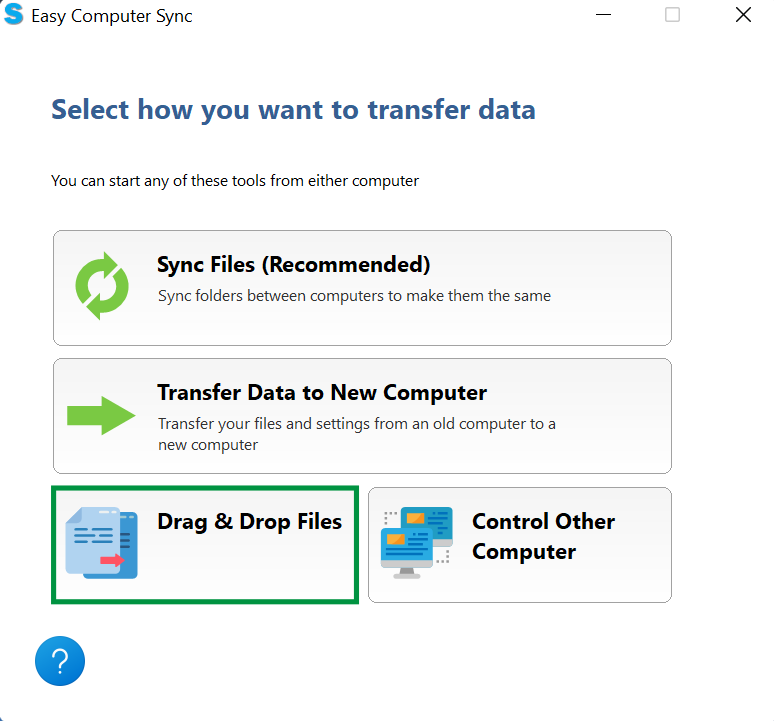
- After you've made the connection, click the Drag & Drop button on the main menu
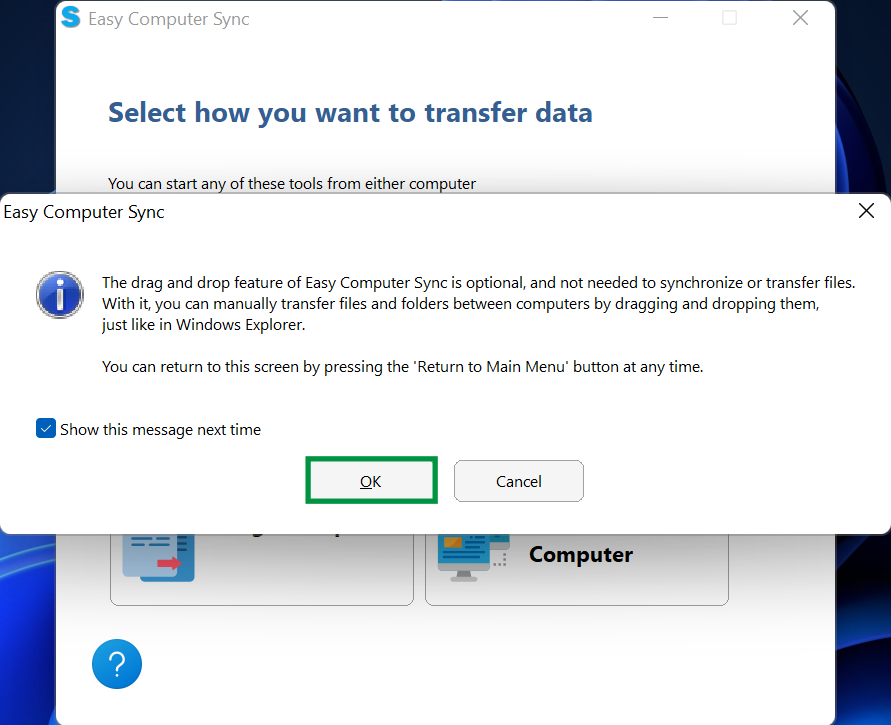
- A screen will pop up with further information about the Drag & Drop mode. Click OK to begin
- On the main Drag & Drop screen, locate the computer you're currently using at the top of the screen and the connected computer below it. Any additional hard drives, such as this Second Drive, are shown automatically
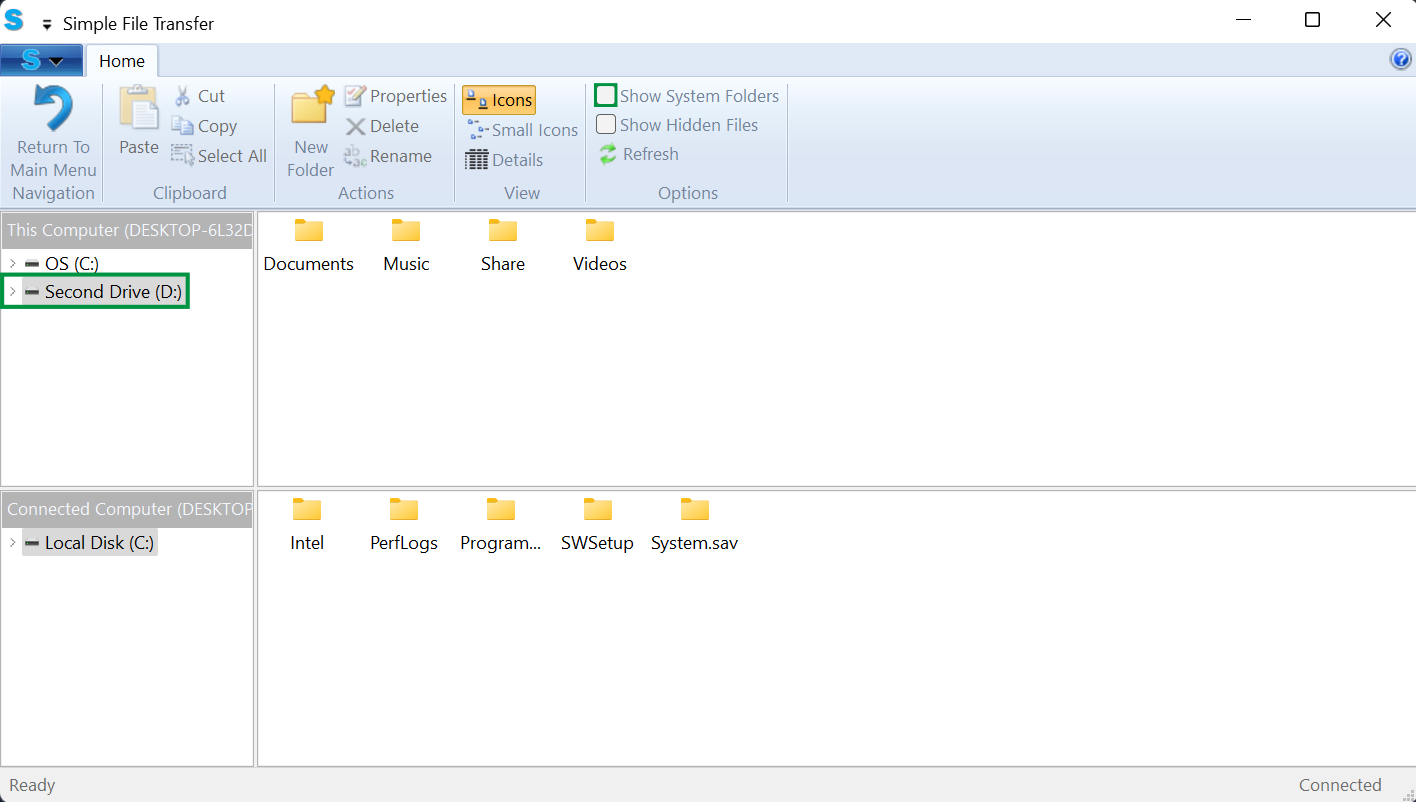
- If a folder you need isn't visible, click the Show System Folders button to display it
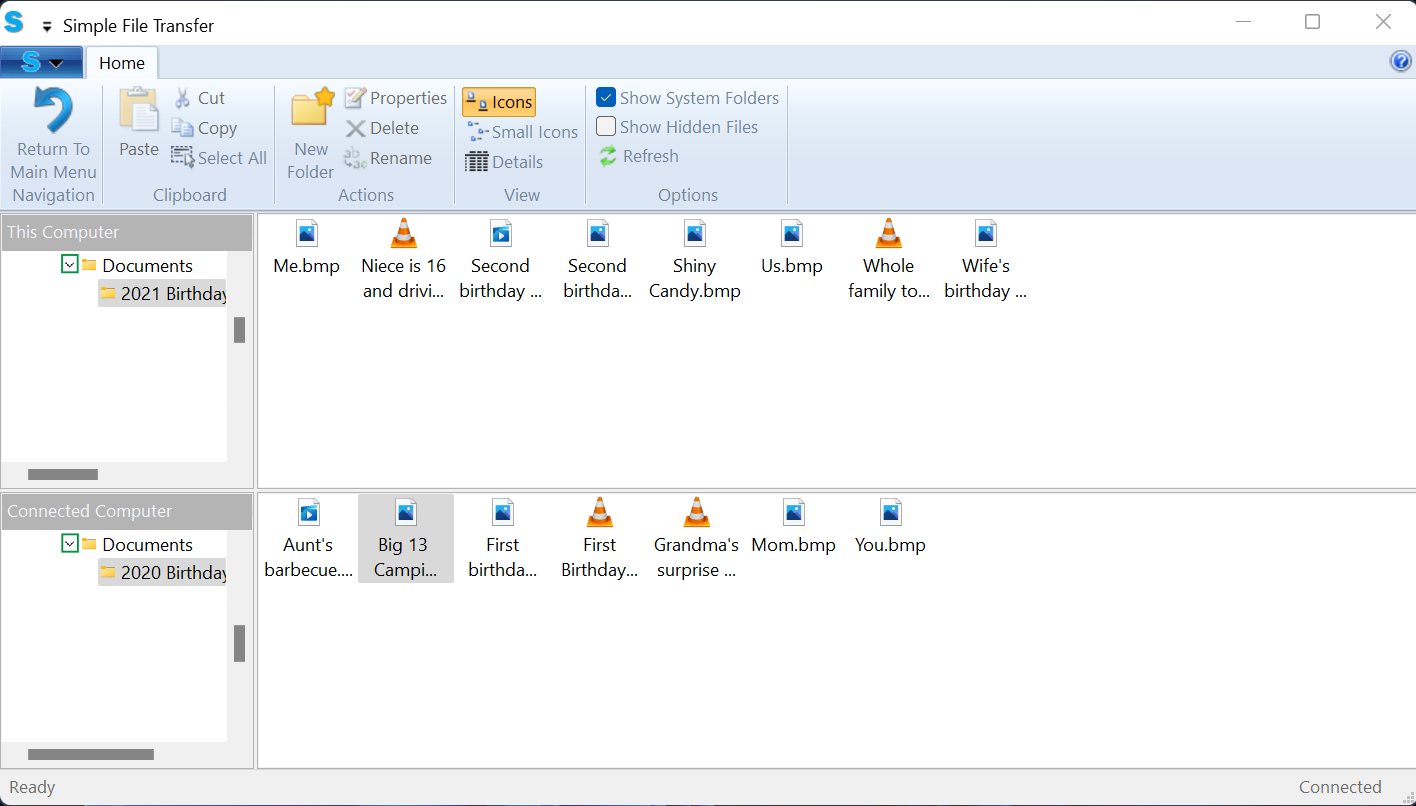
- Click the arrows next to drives and folders to expand them and view their contents
- Click and drag the files or folders you want from one computer, and drop them onto the other computer to start the transfer
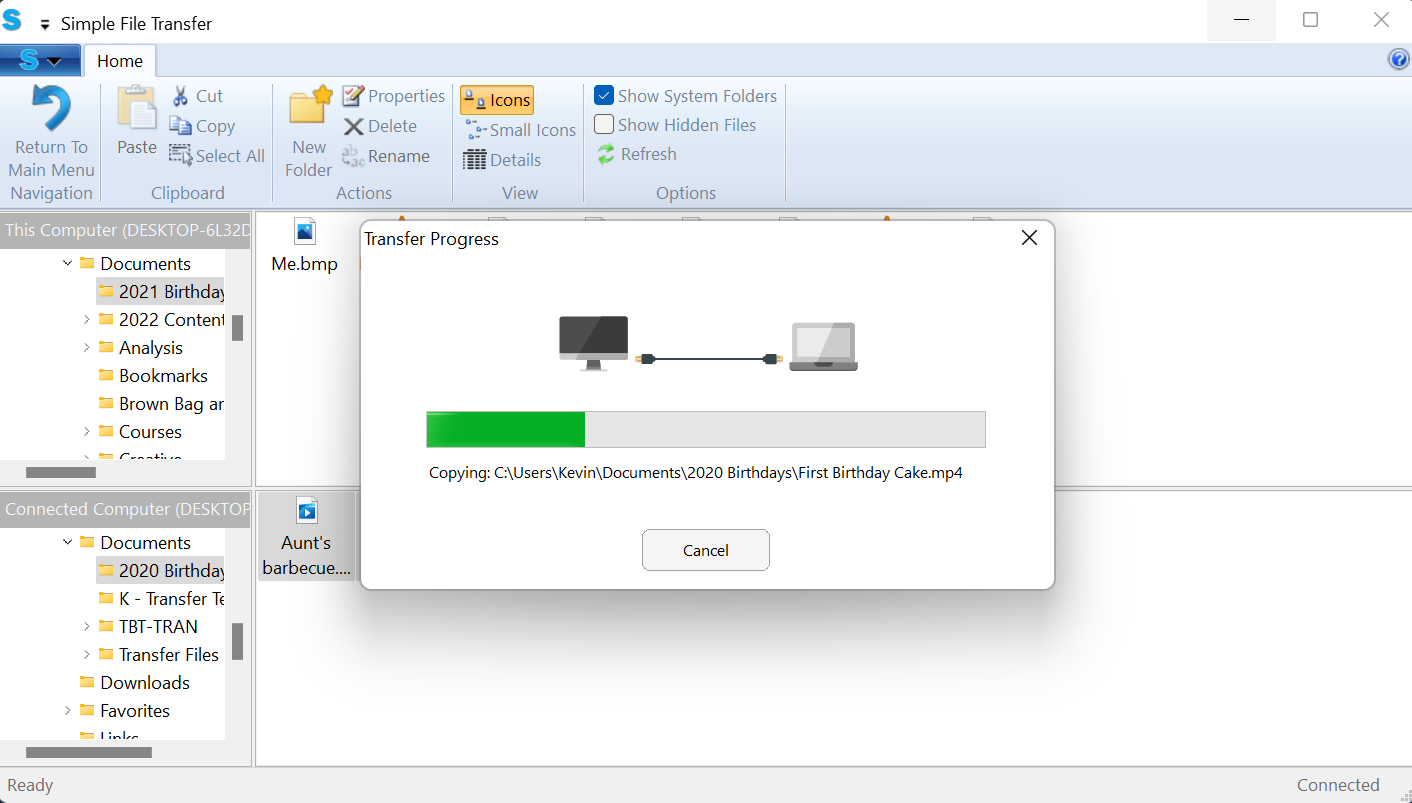
- Wait for the green progress bar to fill up, indicating the file transfer is complete
Expected Result
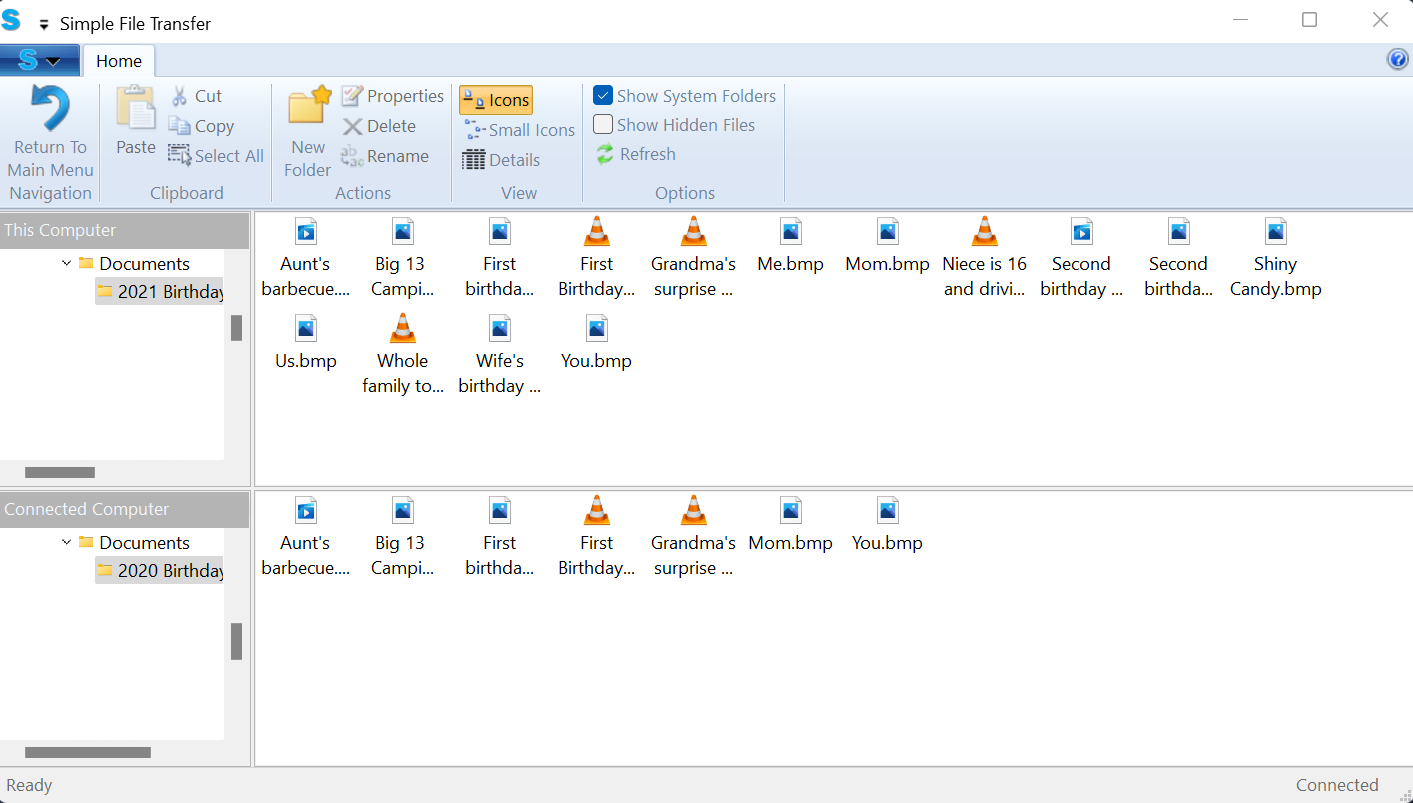
Once the transfer finishes, the files and folders you dragged will appear on the destination computer. In the example below, all of the items are now on the top computer.
If the Issue Persists
If you're still having trouble, feel free to reach out to us directly at support@plugable.com with any questions or concerns.