How Do I Enable Screen Recording for DisplayLink on macOS?
Applicable To
- Plugable DisplayLink Docking Station
- Plugable DisplayLink graphics adapters
- macOS 10.15 Catalina and later, including macOS 13 Ventura, macOS 14 Sonoma, macOS 15 Sequoia, macOS 26 Tahoe, and macOS 27 Golden Gate
If your DisplayLink docking station or adapter is installed and the DisplayLink Manager software is downloaded, but your displays stay blank, the most common cause is that macOS hasn't given DisplayLink Manager the screen recording permission. Turning on this permission with the steps below usually fixes the issue right away.
Note: DisplayLink Manager needs this permission only to read the pixels it renders to your external displays (mirrored or extended) and send them over USB. It does not record, store, or send any data.
Troubleshooting Steps
macOS 13 Ventura Through macOS 27 Golden Gate
The setting is called Screen & System Audio Recording in macOS 15 Sequoia, macOS 26 Tahoe, and macOS 27 Golden Gate. In macOS 13 Ventura and macOS 14 Sonoma, it's called Screen Recording.
- Click the Apple menu in the top-left corner of your screen and select System Settings.
- Click Privacy & Security in the sidebar.
- Scroll down and click Screen & System Audio Recording (or Screen Recording on macOS 13 and 14).
- Find DisplayLink Manager in the list and check whether its toggle is on. If it's off, the permission hasn't been granted. Use the image below as a reference.
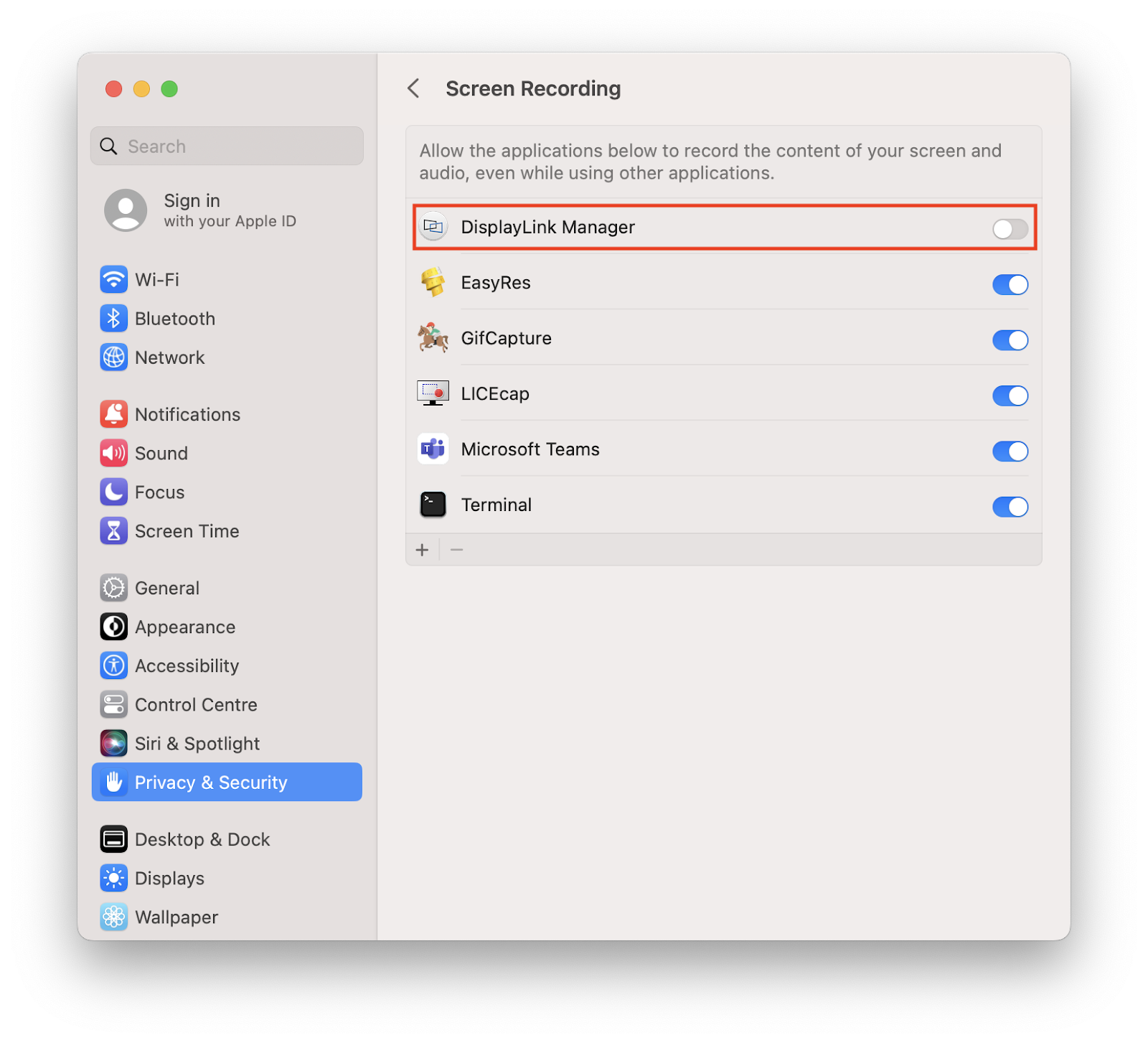
- Turn on the toggle next to DisplayLink Manager.
- If DisplayLink Manager isn't in the list, click the + button below the list, select DisplayLink Manager from your Applications folder, and click Open.
- If prompted, enter your Mac password or use Touch ID to approve the change.
- When prompted, click Quit & Reopen.
- On macOS 15 Sequoia and later, if macOS asks whether DisplayLink Manager can access your screen and audio, click Allow.
macOS 10.15 Catalina Through macOS 12 Monterey
- Click the Apple menu in the top-left corner of your screen and select System Preferences.
- Click Security & Privacy.
- Select the Privacy tab.
- Scroll through the list on the left and click Screen Recording.
- Click the lock icon in the bottom-left corner to make changes.
- If prompted, enter your Mac password.
- Check the box next to DisplayLink Manager.
- When prompted, click Quit & Reopen.
- Click the lock icon again to save your changes.
Expected Result
DisplayLink Manager shows as enabled in the screen recording settings, and your displays connected to the docking station or adapter turn on and show your desktop, either mirrored or extended. On macOS 14 Sonoma and later, you may also see a menu bar notice that DisplayLink Manager is capturing your screen. This is normal and means the permission is working.
If the Issue Persists
- Disconnect the docking station or adapter from your Mac, wait 10 seconds, and reconnect it.
- On a Mac laptop with Apple silicon running macOS 13 Ventura or later, click Allow if macOS asks whether to let the accessory connect.
- After a macOS update, check that the DisplayLink Manager toggle is still on, since you may need to confirm the permission again.
- Restart your Mac, then confirm that DisplayLink Manager is running. Its icon should appear in the menu bar at the top of your screen.
- Do a clean reinstall of DisplayLink Manager using our guide: DisplayLink Manager App Installation Instructions for macOS 26 Tahoe, macOS 15 Sequoia, and macOS 14 Sonoma. You can also get the latest version from the Synaptics DisplayLink macOS download page.
- If your displays stopped working after an update or restart, see Why Did My Displays Stop Working After My Mac Updated or Rebooted?
- If your displays still don't work, contact our support team at support@plugable.com.