
Summary
When using a Plugable DisplayLink-based docking station or USB graphics adapter with macOS, you may see a notification in the Apple menu bar stating that DisplayLink Manager is capturing your screen.
This message is normal and expected when the DisplayLink Manager application is running and a DisplayLink-based device is connected. DisplayLink Manager requires macOS screen recording permission in order to generate the image shown on monitors connected through DisplayLink technology.
DisplayLink Manager is not recording, storing, or sending your screen contents to Plugable. DisplayLink also states that DisplayLink Manager does not send data or pixels back to DisplayLink or Synaptics.
Applicable To
- Plugable DisplayLink-based docking stations
- Plugable DisplayLink-based USB graphics adapters
- Mac computers running macOS 14 Sonoma or newer, including macOS 15 Sequoia and macOS 26 Tahoe
- Systems with the DisplayLink Manager application installed and running
This article applies to products that use DisplayLink technology. It does not apply to Plugable products that use only native USB-C DisplayPort Alternate Mode, Thunderbolt, USB4, or HDMI/DisplayPort video without DisplayLink.
Answer
This notification appears because macOS is informing you that DisplayLink Manager is actively using screen capture access.
DisplayLink-based products use an indirect display technology. Instead of the external monitor being driven directly by the Mac’s built-in graphics output, DisplayLink Manager helps create the display image in software and sends the required display data over USB to the DisplayLink hardware.
Because DisplayLink Manager must access the screen image in order to create the output shown on the DisplayLink-connected monitors, macOS requires the application to be granted screen recording permission. Starting with macOS 14 Sonoma and newer versions of macOS, Apple also shows a visible menu bar notification when this type of screen access is active.
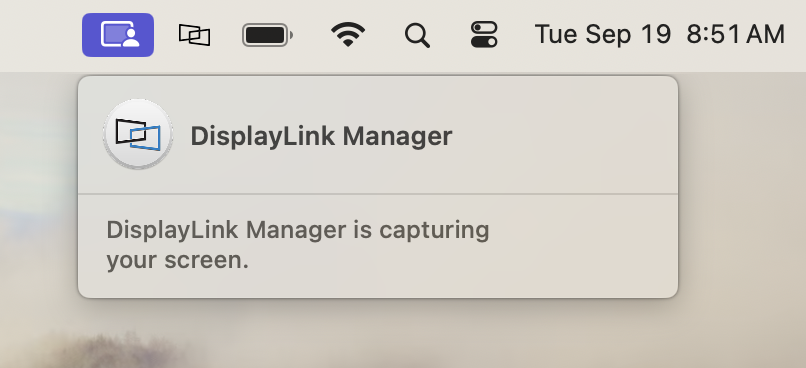
As long as your DisplayLink-connected monitors are working normally, no corrective action is required.
Why This Happens
macOS includes privacy controls for applications that can access screen contents. Apple uses this permission category for screen sharing, screen recording, and applications that need screen access to provide a display-related function.
DisplayLink Manager uses this access so it can generate the pixels shown on monitors connected to a DisplayLink-based dock or adapter. This is required for DisplayLink video output on macOS.
The wording used by macOS can sound concerning because it uses terms such as capturing or recording. In this context, the permission allows DisplayLink Manager to access the screen information needed to render the external display. It does not mean that DisplayLink Manager is saving a video recording of your screen.
What the Notification Means
The notification means that DisplayLink Manager is currently running and using the macOS screen access permission needed for DisplayLink video output.
This is expected when:
- The DisplayLink Manager application is open or running in the background
- A Plugable DisplayLink-based dock or adapter is connected to the Mac
- One or more monitors are connected through the DisplayLink-based product
The notification may disappear if DisplayLink Manager is quit, if the DisplayLink device is disconnected, or if the required permission is removed. However, DisplayLink-connected monitors will not work correctly if DisplayLink Manager is not running or does not have the required permission.
Do I Need to Change Any Settings?
No. If your DisplayLink-connected monitors are working normally, this notification can be ignored.
Plugable recommends leaving the required permission enabled if you want to continue using monitors connected through a DisplayLink-based product.
If you want to confirm that the required permission is enabled:
- Open the Apple menu.
- Select System Settings.
- Select Privacy & Security.
- Select Screen & System Audio Recording.
On some older macOS versions, this may appear as Screen Recording. - Confirm that DisplayLink Manager is enabled.
- If macOS asks you to quit and reopen DisplayLink Manager, follow the prompt so the change can take effect.
Can I Disable the Notification?
The notification is generated by macOS as part of Apple’s privacy and security design. There is not a Plugable setting that removes this notification while DisplayLink Manager is actively using the required screen access permission.
If you quit DisplayLink Manager, disconnect the DisplayLink-based product, or remove the screen recording permission, the notification may stop. However, monitors connected through DisplayLink technology will also stop working or may not work correctly.
If Your DisplayLink Displays Are Not Working
If you see the notification but your DisplayLink-connected monitors are not working as expected, check the following:
- Make sure the latest DisplayLink Manager application for macOS is installed. The latest DisplayLink Manager installer is available here: Plugable DisplayLink Driver and Software Downloads.
- Make sure DisplayLink Manager is running. A DisplayLink Manager icon should appear in the Apple menu bar when the application is active.
- Confirm that DisplayLink Manager is enabled under System Settings > Privacy & Security > Screen & System Audio Recording.
- If prompted by macOS, choose the option to quit and reopen DisplayLink Manager after changing the permission.
- Disconnect the Plugable DisplayLink device from the Mac, reconnect it, and allow any macOS accessory approval prompt that appears.
- Restart the Mac if the displays do not begin working after the permission has been granted.
For full installation steps, please see Plugable’s DisplayLink Manager installation guide: DisplayLink Manager App Installation Instructions for macOS.
Important Notes
- The message is expected behavior in macOS 14 Sonoma and newer when DisplayLink Manager is running and a DisplayLink device is connected.
- The required permission is a macOS privacy requirement, not a defect with the Plugable dock or adapter.
- DisplayLink Manager must be running for DisplayLink-connected monitors to function on macOS.
- Removing the screen recording permission may cause DisplayLink-connected monitors to stop working.
- DisplayLink states that DisplayLink Manager does not record or store screen content, and does not send data or pixels back to DisplayLink or Synaptics.
Need Assistance?
If your DisplayLink-connected monitors are not working after confirming the items above, contact Plugable Support at support@plugable.com. Please include the Plugable product model, your Mac model, your macOS version, the DisplayLink Manager version installed, and a brief description of what appears in the DisplayLink Manager application.
For the fastest assistance, please also include the output from Plugable’s PlugDebug diagnostic utility: PlugDebug.
