
Summary
The DisplayLink Manager application is required to enable DisplayLink-based video outputs on compatible Plugable docking stations and USB graphics adapters when used with macOS.
In most cases, DisplayLink Manager installs without issue. However, the macOS installer may occasionally report an “Unexpected Error” and fail to complete the installation.
Common causes include insufficient installation permissions, macOS privacy restrictions, an installation file being accessed from an unsuitable location, an incomplete or damaged download, or remnants of a previous DisplayLink installation.
Applicable To
This article applies to:
- Plugable DisplayLink-based docking stations used with macOS
- Plugable DisplayLink-based USB graphics adapters used with macOS
- macOS 10.15 and later when using the DisplayLink Manager application
macOS 10.14 Mojave uses the legacy DisplayLink software and is not covered by these instructions.
Answer
If DisplayLink Manager fails to install with an “Unexpected Error,” first confirm that you are using the correct DisplayLink Manager version for your version of macOS and that your Mac account has permission to install software.
If the error continues, check the macOS Files & Folders privacy permissions for the Installer application, confirm that the installation package is stored locally on the Mac, and remove any existing DisplayLink software before attempting the installation again.
Before You Begin
Before troubleshooting the installation:
- Confirm your version of macOS by selecting Apple menu > About This Mac.
- Download the correct DisplayLink Manager version for your version of macOS from Plugable's DisplayLink driver page:
DisplayLink Drivers and Software
- Make sure the downloaded installation package is completely downloaded before opening it.
- If the Mac is owned or managed by a company, school, or other organization, confirm that you are authorized to install software.
1. Confirm That Your Account Can Install Software
DisplayLink Manager installation requires authorization to make changes to macOS.
During installation, macOS may prompt you to enter an administrator password or authenticate using Touch ID.
If your Mac is managed by an employer, school, or other organization, security policies or Mobile Device Management (MDM) settings may prevent software installation even if you can log in normally.
If you do not have permission to install software, contact your organization's IT administrator for assistance.
2. Run the Installation Package From Local Storage
For troubleshooting, make sure the DisplayLink Manager installation package is stored on the Mac's local storage before opening it.
Avoid running the installer directly from:
- A network drive
- An external storage device
- Microsoft OneDrive
- Dropbox
- Google Drive
- Another cloud-synchronized or remotely mounted location
If necessary, download a new copy from Plugable's DisplayLink driver page and save it to the Mac's Downloads folder.
Also confirm that the Mac has sufficient available storage space for the installation.
3. Check the macOS Files & Folders Permission
The macOS Installer application may need permission to access the folder containing the DisplayLink Manager installation package.
For example, if the installation package is located in the Downloads or Desktop folder, macOS may display a prompt asking whether the Installer application should be allowed to access that folder.
If prompted, click Allow.
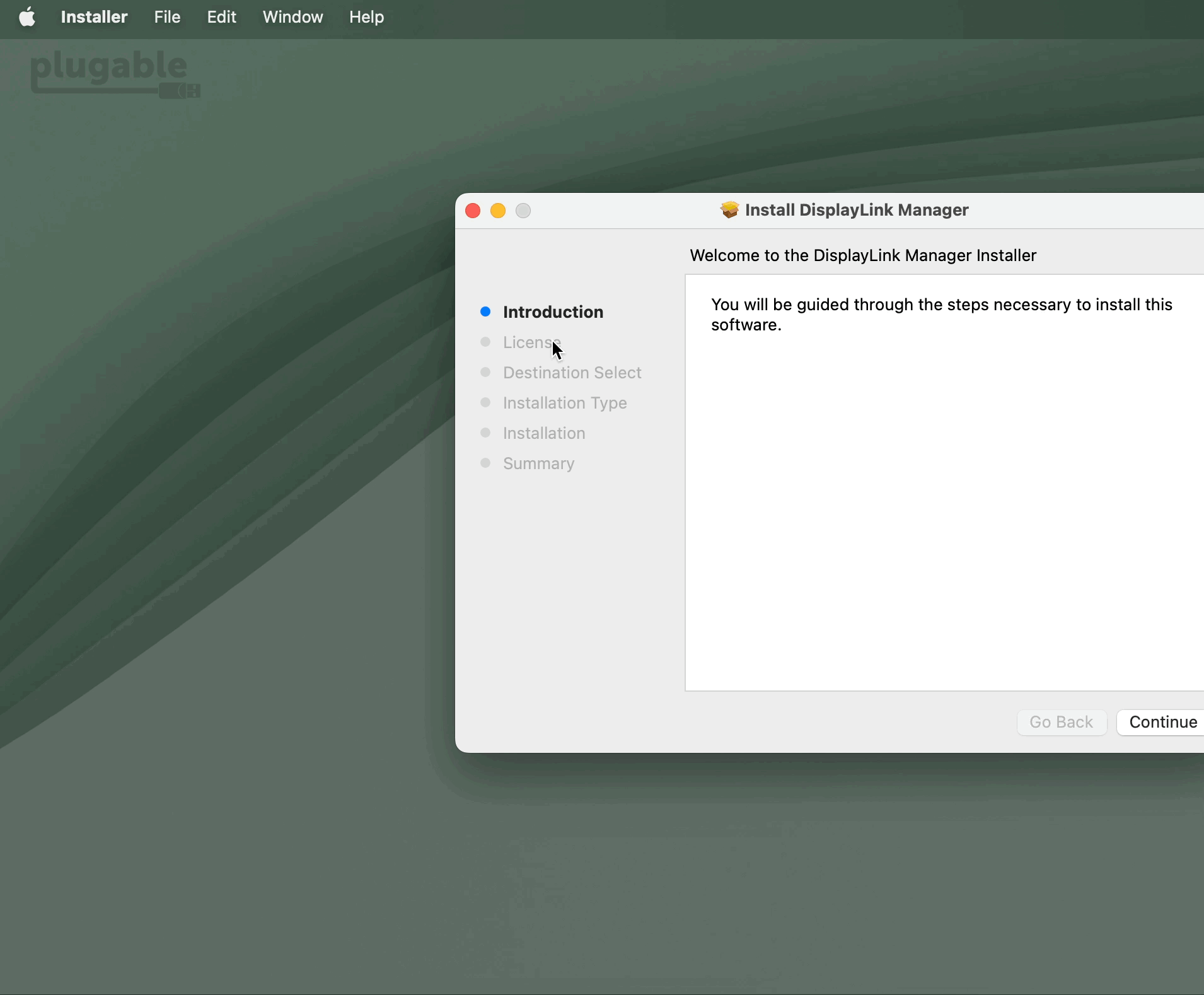
If permission was previously denied, macOS may remember that choice and may not display the same prompt again.
To check the permission manually:
- Open Apple menu > System Settings.
- Select Privacy & Security.
- Scroll down and select Files & Folders.
- Look for Installer in the list.
- If Installer is listed, expand the entry if necessary and enable access to the folder containing the DisplayLink Manager installation package, such as Downloads Folder or Desktop Folder.
- Close System Settings.
- Close the DisplayLink installer if it is still open.
- Open the DisplayLink Manager installation package again and retry the installation.
If Installer is not listed under Files & Folders, continue to the next section.
4. Download a New Copy of DisplayLink Manager
An incomplete or damaged installation package can also prevent the installation from completing.
Delete the existing DisplayLink Manager installation package, then download a new copy appropriate for your version of macOS from Plugable's DisplayLink driver page:
DisplayLink Drivers and Software
Once the download is complete, open the new installation package and attempt the installation again.
5. Remove Existing DisplayLink Software
If DisplayLink Manager or an older DisplayLink driver was previously installed on the Mac, remaining software components may interfere with a new installation.
Plugable recommends completely removing the existing DisplayLink installation before reinstalling.
For instructions, see:
How to Uninstall DisplayLink Manager Software on macOS
When troubleshooting installation problems, the DisplayLink Installation Cleaner can be used to remove DisplayLink Manager and associated components.
After the cleanup is complete:
- Restart the Mac.
- Download the correct DisplayLink Manager version for your version of macOS.
- Run the installation again.
6. Complete the DisplayLink Manager Setup
Once DisplayLink Manager installs successfully, additional macOS permissions are required before DisplayLink-connected displays can operate.
Follow Plugable's DisplayLink Manager installation instructions for your version of macOS. Installation guidance is available from Plugable's DisplayLink Drivers and Software page.
This may include allowing DisplayLink Manager to run in the background and granting the required Screen & System Audio Recording or Screen Recording permission.
Note: Screen Recording permission is required for DisplayLink video functionality after installation. It is separate from the Files & Folders permission used by the macOS Installer during the installation process.
Need Assistance?
If DisplayLink Manager still reports an “Unexpected Error” after completing the steps above, please contact Plugable Support at support@plugable.com.
When contacting support, please include:
- Your Plugable product model
- Your Mac model
- Your macOS version
- The DisplayLink Manager version you are attempting to install
- A screenshot of the “Unexpected Error” message
- Whether the Mac is personally owned or managed by an organization
- The output from Plugable's diagnostic tool, PlugDebug
