
Introduction
This document covers steps to resolve the most common issues enabling video from Plugable products with DisplayLink technology on Mac. In order to use a Plugable DisplayLink device on Mac, the items listed below are required.
Required Items
1. The DisplayLink Manager Application must be installed on the host Mac
The DisplayLink Manager Application is available to download here
We have detailed installation instructions available at the link below:
macOS Tahoe version 26, macOS Sequoia version 15, macOS Sonoma version 14
2. The DisplayLink Manager Application must be granted the proper security permissions in order to function properly
The DisplayLink Manager application must be granted ‘Screen Recording’ permissions within the macOS ‘Privacy & Security’ settings in order to function. If these permissions are not granted, then the product will not function.
To be clear, no information is actually being recorded. The DisplayLink Application only needs this permission in order to generate the image shown within the displays connected to the product.
The installation instructions provided in Item #1 provide more detail about this process.
3. The DisplayLink Manager Application must be actively running
The DisplayLink Manager Application must be running in order for the product’s video outputs to function.
When the DisplayLink Manager Application is running, there will be a small DisplayLink icon (which looks like two interlocking displays) located within the Apple Menu bar at the top of your screen.
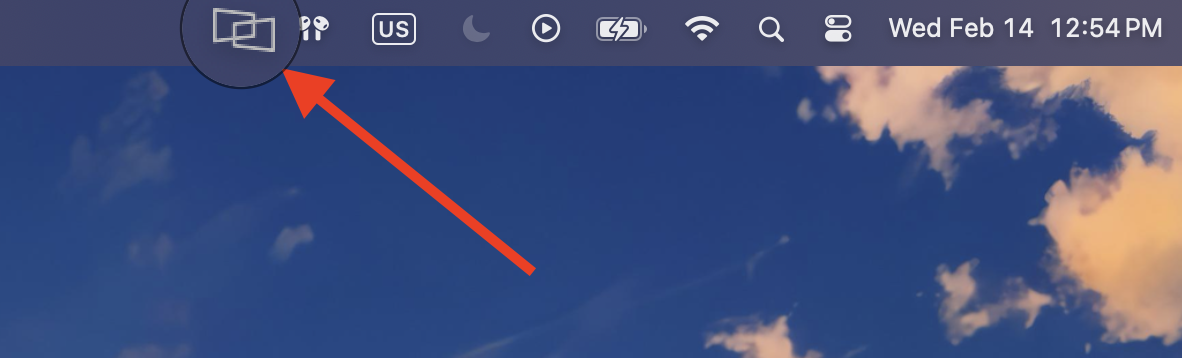
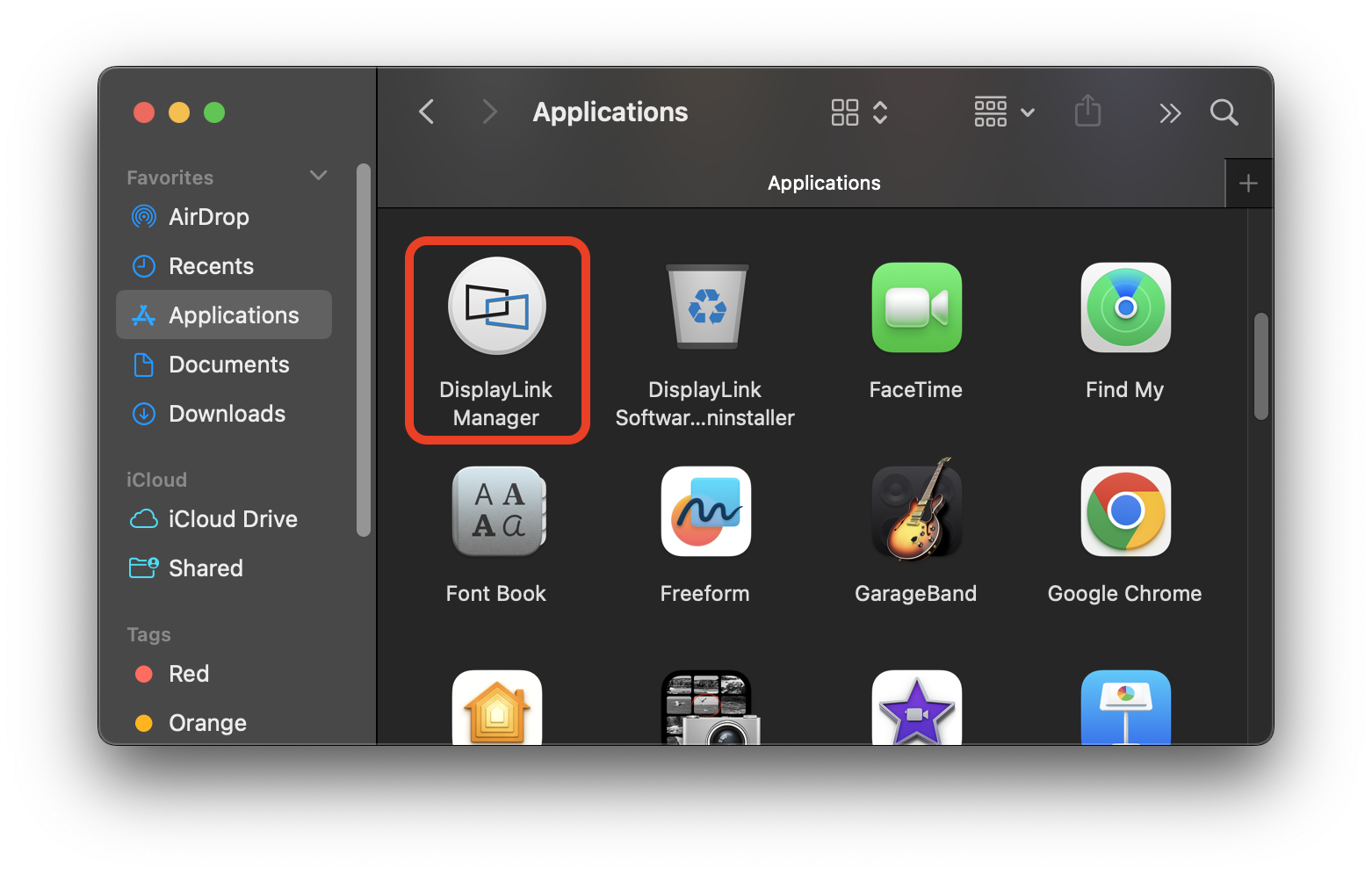
If the DisplayLink Manager Application is not running, please open a new Finder window and navigate to the ‘Applications’ folder and then double click on the ‘DisplayLink Manager’ application icon to start the application.
4. On Apple Silicon MacBooks with macOS Ventura version 13 or later, the Plugable product must be granted permission in order to connect the device to the Mac
For portable Macs with Apple silicon running macOS Ventura version 13 or later, any external USB accessory must first be ‘Allowed’ in order for the device to function. If the device is not ‘Allowed’, then the device will not work.
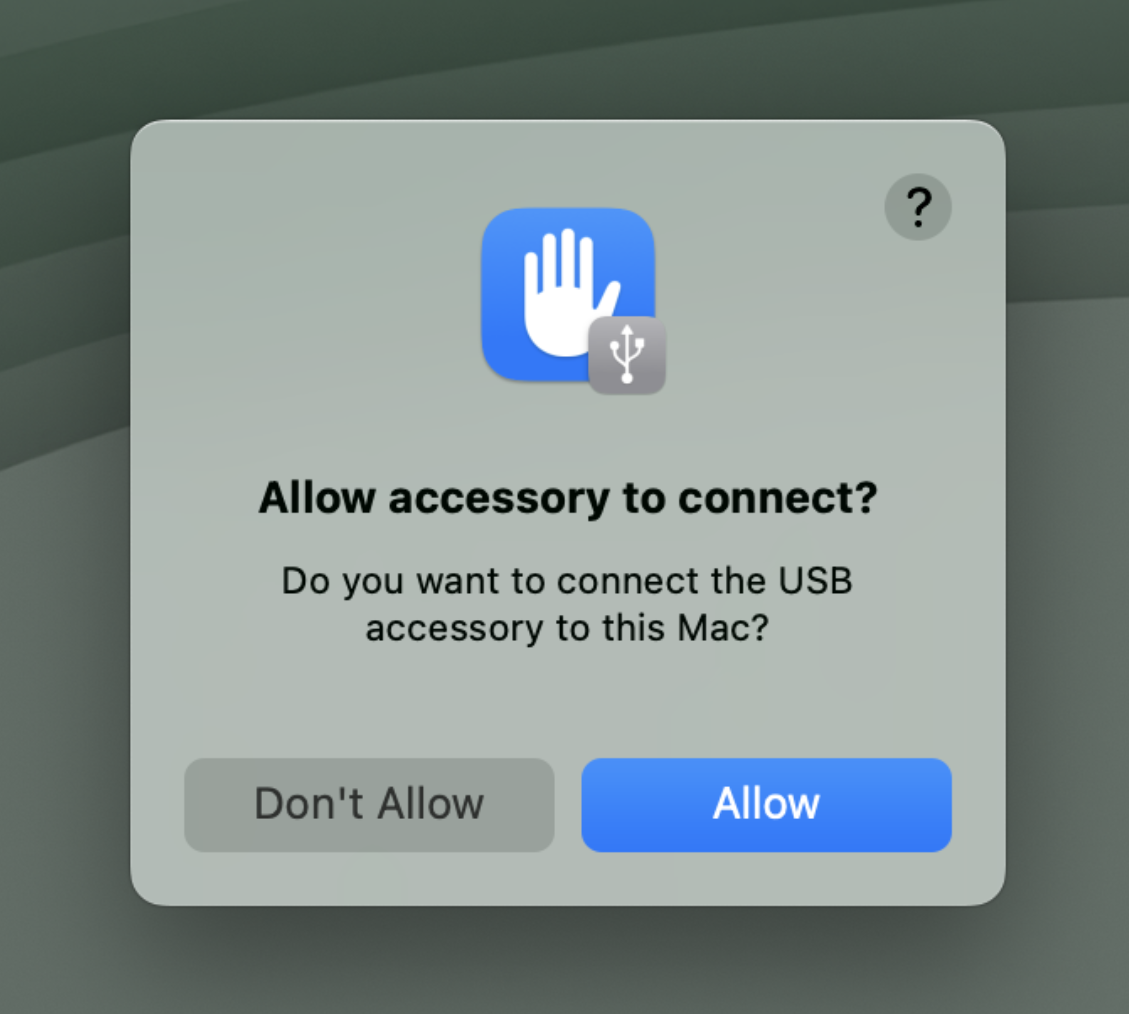
Apple provides more information on this process at the links below:
macOS Tahoe 26 - Connect accessories to your Mac
macOS Sequoia 15 - Connect accessories to your Mac
macOS Sonoma 14 - Allow accessories to connect to Mac
macOS Ventura 13 - Allow accessories to connect to Mac
If you need more help
If all of the items listed above have been completed and your Plugable DisplayLink-based device is still not working as expected with your Mac, please reach out to us directly via support@plugable.com and we will be happy to assist you further.
