
How to Remotely Control Another Computer Using the Control Other Computer Mode
Applicable To
-
Plugable USB Transfer Cables:
- TBT-TRAN (Thunderbolt 3, Thunderbolt 4, and USB4)
- USBC-TRAN (USB 3.0 with USB-C Adapters)
- USB3-TRAN (USB 3.0)
- USB-EASY-TRAN (USB 2.0)
- Software: Easy Computer Sync
- Operating Systems: Windows 7, 8.x, 10 and Windows 11
The Control Other Computer mode in Easy Computer Sync lets you view and operate a second Windows computer directly over a Plugable Transfer Cable, with no network connection required. The steps below walk through starting a remote session, working on the host computer, and closing the connection when you're done.
Instructions
With the ability to reach speeds up to 10gbps, our TBT-TRAN Easy Transfer Cable is the perfect fit for the Control Other Computer mode. Because it uses a direct Thunderbolt-to-Thunderbolt connection, it's a valuable tool for maintaining computers at the office, at home, or really anywhere. Systems must have at least one free Thunderbolt 3, Thunderbolt 4, or USB4 port to use the TBT-TRAN.
The Control Other Computer mode can also be used with our USBC-TRAN (USB 3.0 with USB-C Adapters), USB3-TRAN (USB 3.0), and USB-EASY-TRAN (USB 2.0) Transfer Cables. However, functionality and speed will be limited to the respective speeds of USB 3.0 (up to 5Gbps) and USB 2.0. The USBC-TRAN works with both USB-A and USB-C ports using its included adapters.
- Plug your Plugable Transfer Cable into a free compatible port on each computer.
- Open Easy Computer Sync on both computers so the software can make the connection.
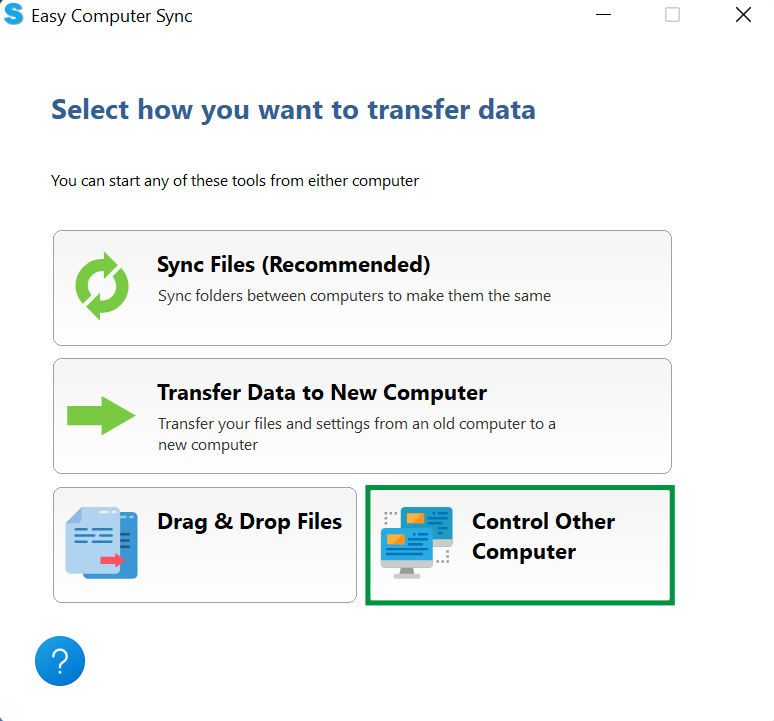
- On the computer you want to connect from, click the Control Other Computer button on the main menu to start the mode.
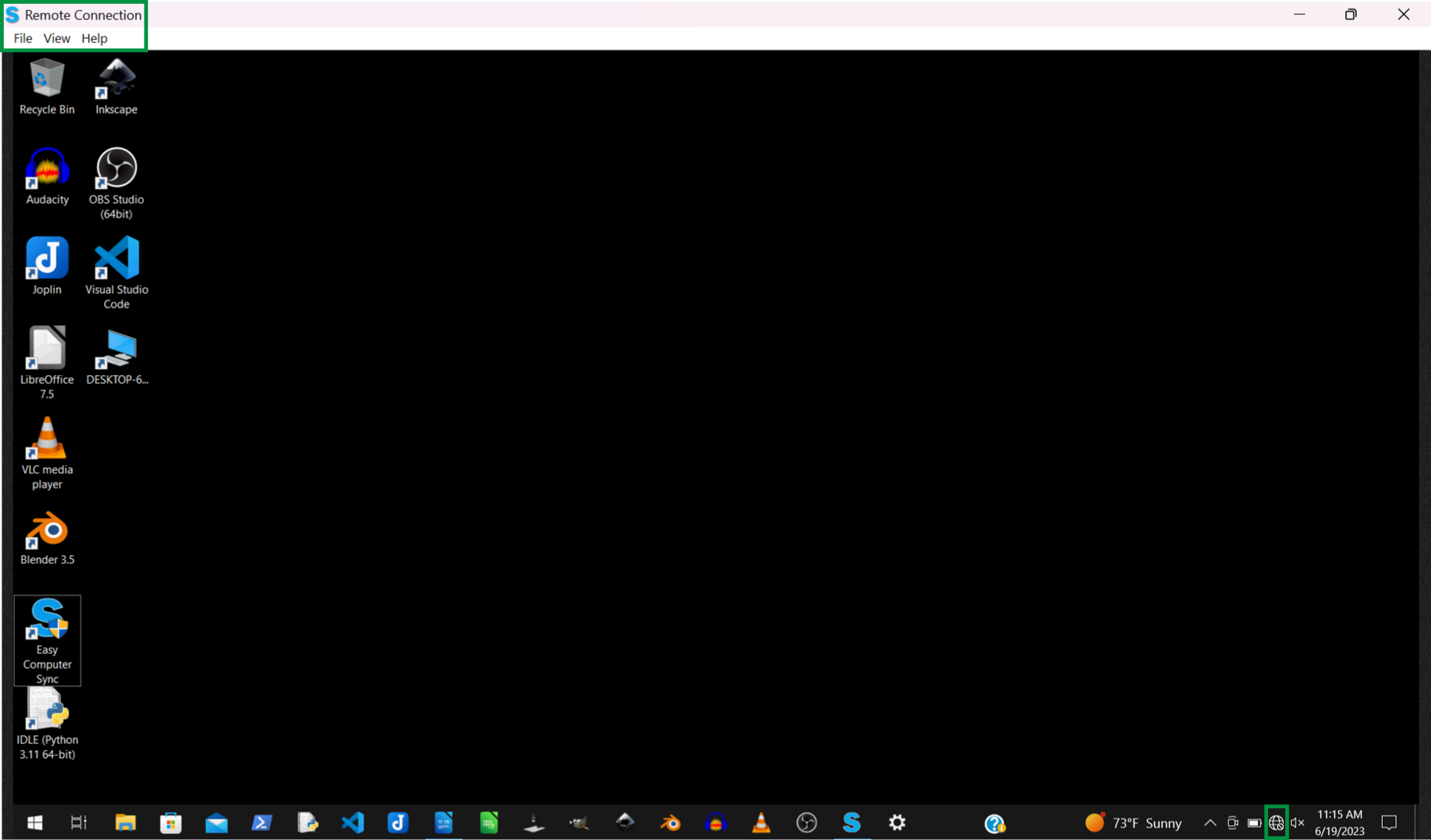
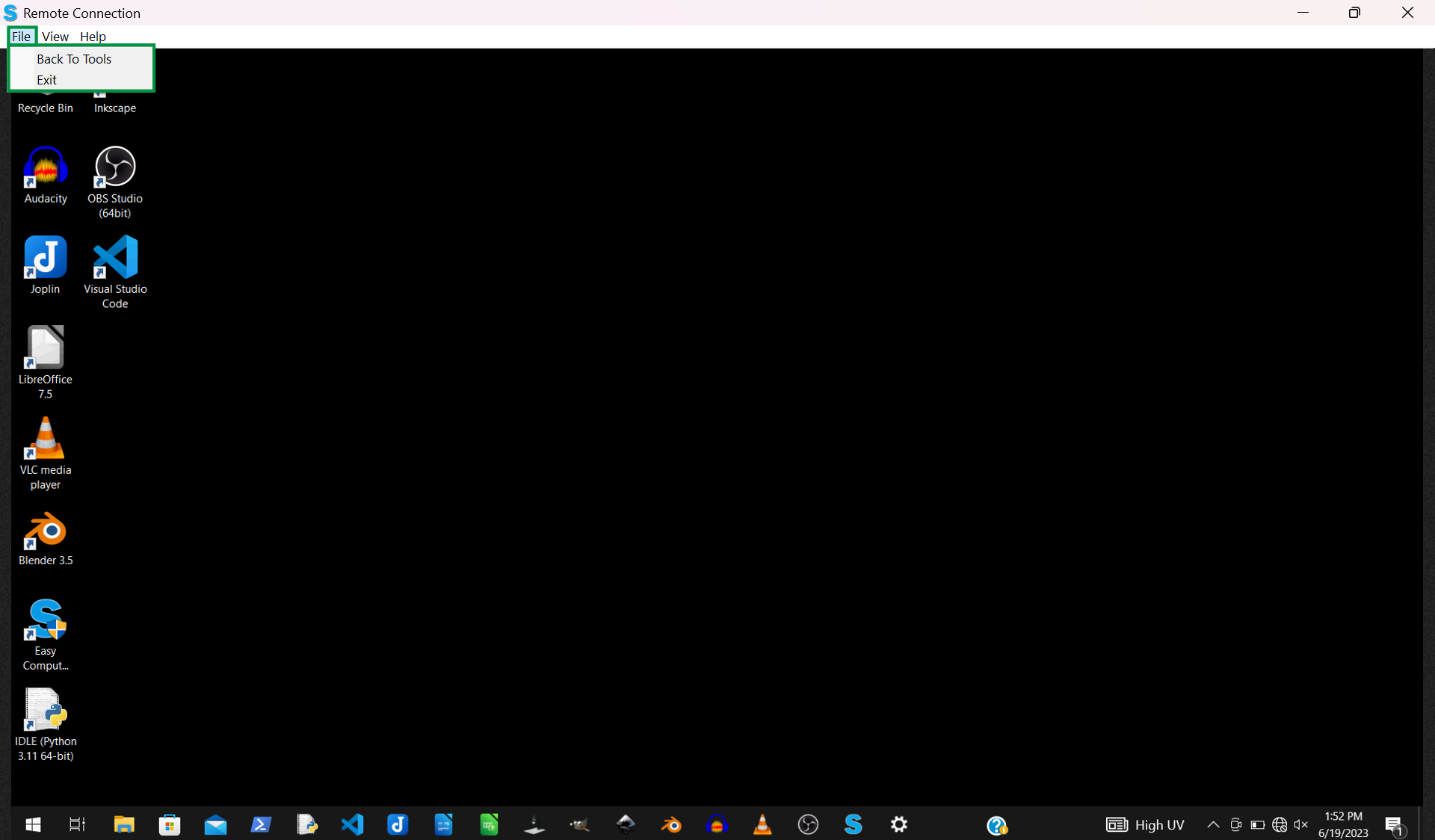
- Use the remote view of the host computer's desktop to work on the host. The icons appear just as they do on the host system, which makes working with its software a breeze. This is particularly useful for systems that are kept offline to restrict access, like the one used in this example. (Please note, the background is meant to be blank for minimal resource usage.)
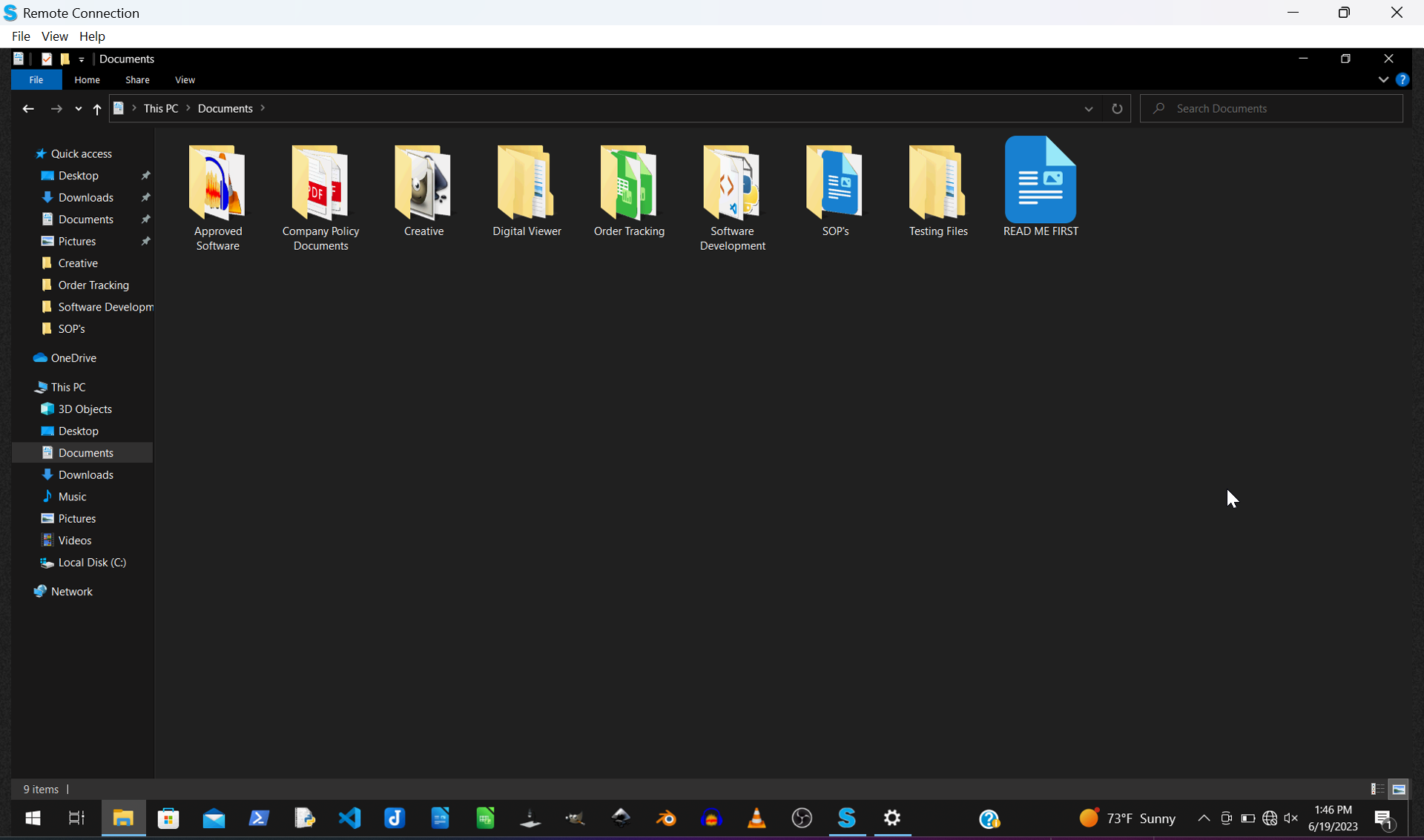
- Navigate the host computer's folders and files just as you would on the machine itself. A network-disconnected system becomes a great local resource for shared files and tools!
- Open files using programs installed on the host computer. In this example, a Word Processing document is open.
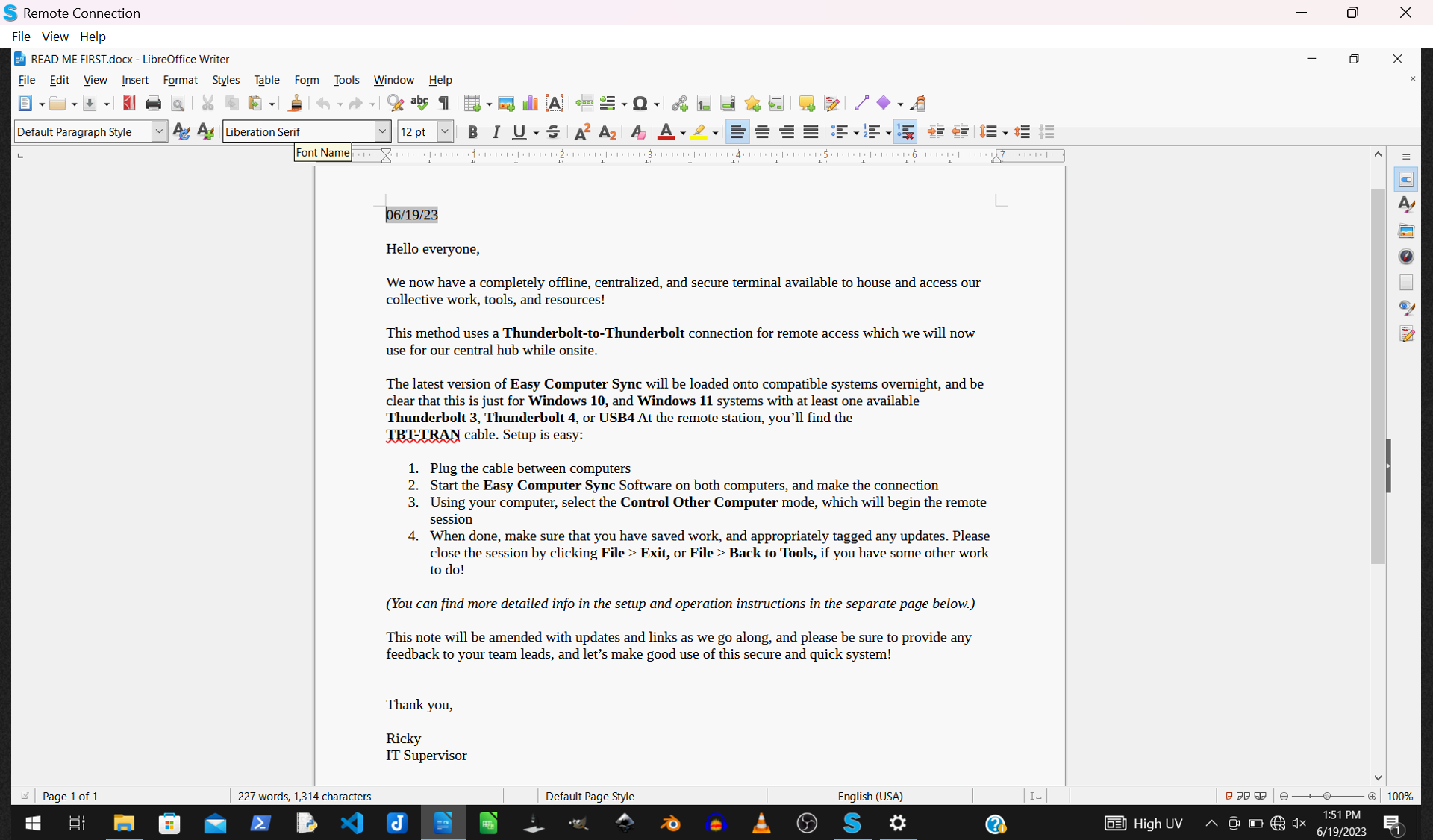
- When you've finished, close the Remote Connection by clicking File > Exit, or click Back To Tools if you have other tasks to do.
Expected Result
The computer you connected from displays the host computer's desktop, and you can open folders, files, and programs on the host using your own mouse and keyboard. After clicking File > Exit, the remote session closes; clicking Back To Tools returns you to the Easy Computer Sync main menu.
If the Issue Persists
- Confirm both computers are running Windows 10 or Windows 11 and that Easy Computer Sync is open on both.
- Make sure the cable is connected to a supported port. The TBT-TRAN requires a Thunderbolt 3, Thunderbolt 4, or USB4 port on each computer, while the USBC-TRAN works with USB-A ports or USB-C ports using its included adapters.
- Unplug the cable, reconnect it to a different port on each computer, and restart Easy Computer Sync on both systems.
- If the mode still won't connect or the remote desktop doesn't appear, reach out to us directly at support@plugable.com with your product SKU and a description of the issue.
Next Steps:
With our Transfer Cables and Easy Computer Sync software you can:
- Use the Sync Files mode. This mode is designed to sync two folders up between computers, making them have the same files and items. Click the following link for more information: How to - Use the Sync Files mode
- Use the Transfer Data to New Computer transfer mode. This mode is designed for one way transfer between computers. Click following link for more information: How to - Use the Transfer Data to New Computer mode
- Use the Drag & Drop mode. This mode gives you manual access to individual files and folders. Click the following link for more information: How to - Use the Drag & Drop mode
