How to Use the Transfer Data to New Computer Mode in Easy Computer Sync
Applicable To
- Plugable USB Transfer Cables
- Easy Computer Sync software
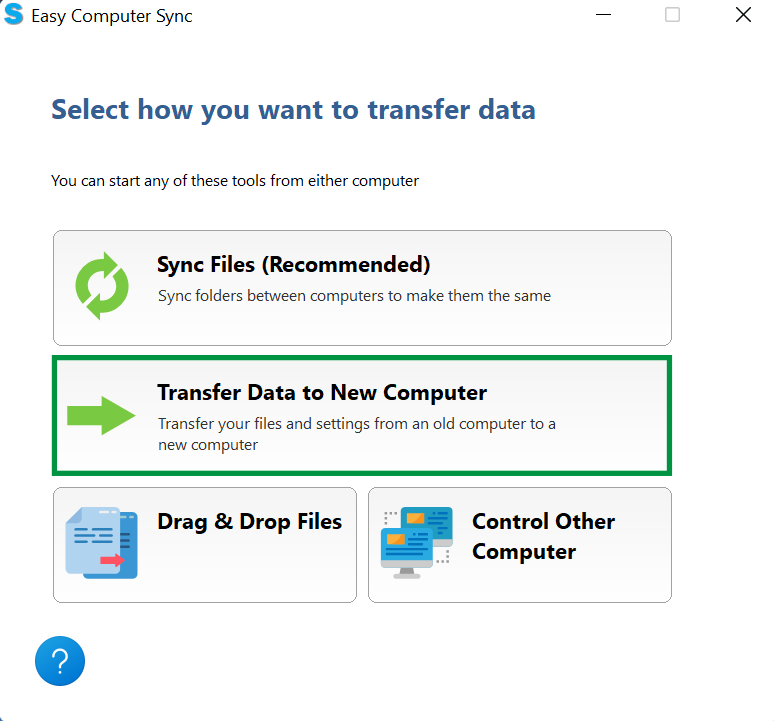
The Transfer Data to New Computer mode is one of the three main Transfer Modes in Easy Computer Sync. It is designed for one-way transfers between folders with the same name. For example, files in the Pictures folder on the first computer transfer to the Pictures folder on the second computer.
Instructions
- After you've made the connection, click the Transfer Data to New Computer button on the main menu
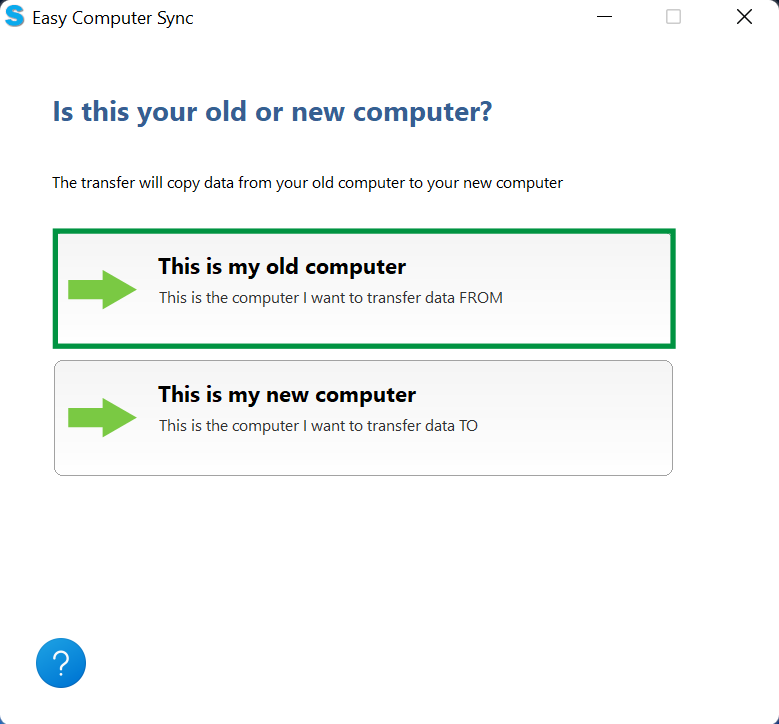
- Pick which computer you're transferring from. This mode is typically used to transfer from an older machine to a newer one, which is what we're doing here, so click This is my old computer
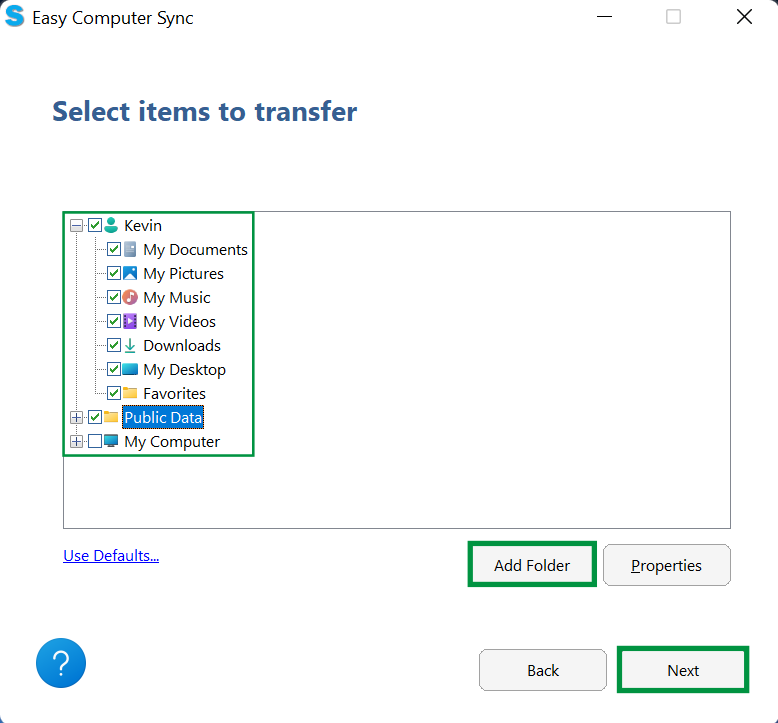
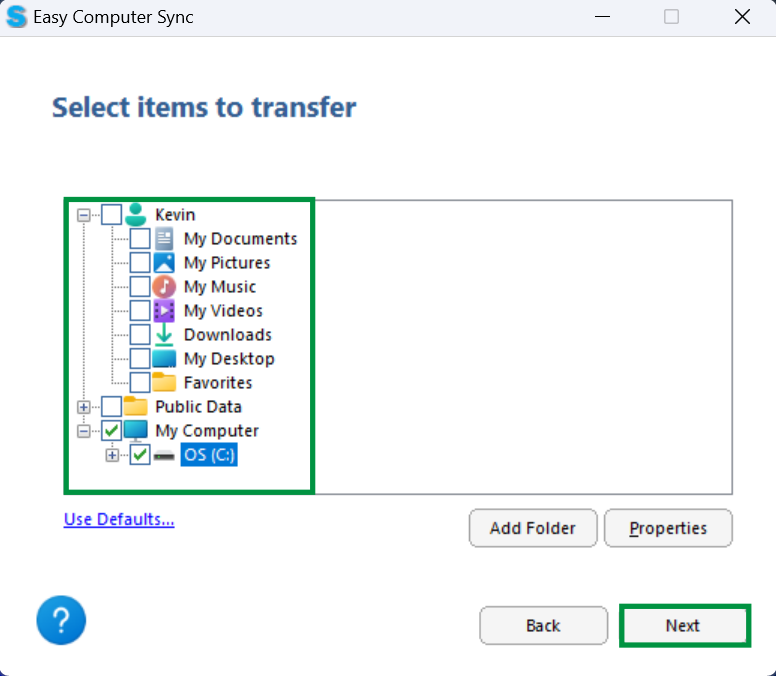
- In the top-left corner of the page, click the boxes next to the main Windows folders you want to transfer. Please note, clicking these boxes will select all content in the folder. If these folders are all you need, click Next to start transferring and skip to step 11
- To look for specific folders to transfer instead, click Add Folder
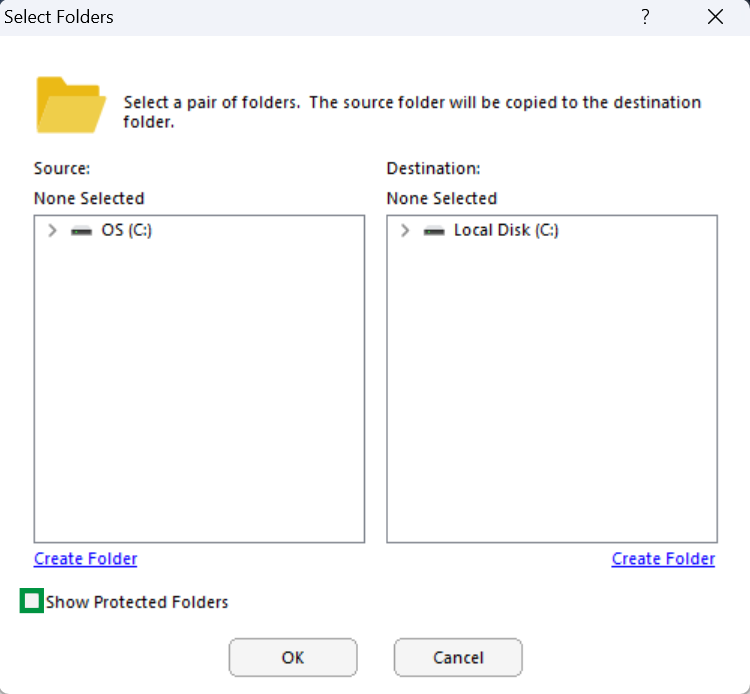
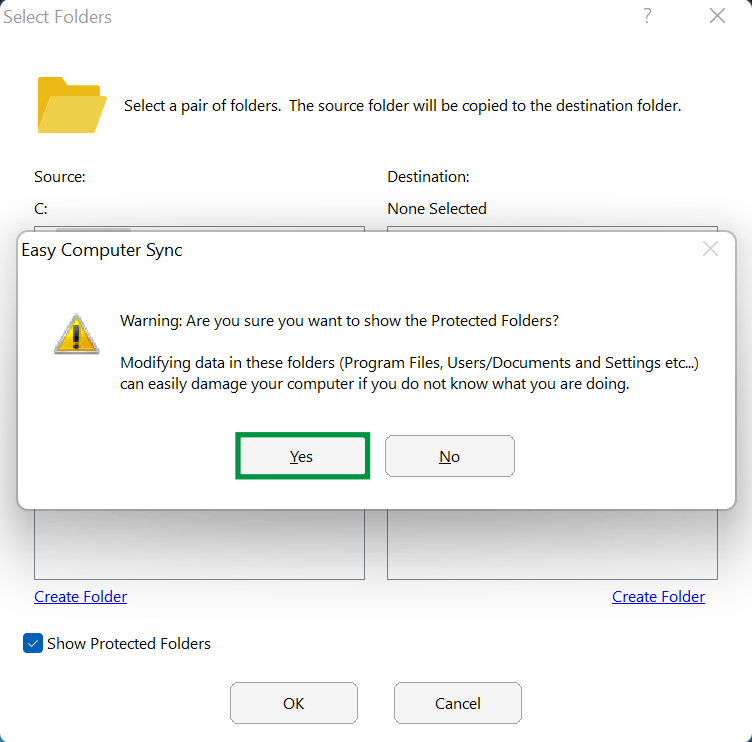
- A screen appears with the first computer on the left and the second computer on the right. As a precaution, folders such as Users, Program Files, Documents, Pictures and more aren't available when the software is started. To get further access to files and folders, click the box in the bottom-left of the screen that says Show Protected Folders
- A message will pop up with information about viewing Protected Files. Click Yes to continue
- Click the arrows next to drives and folders to expand them and find the folders you need
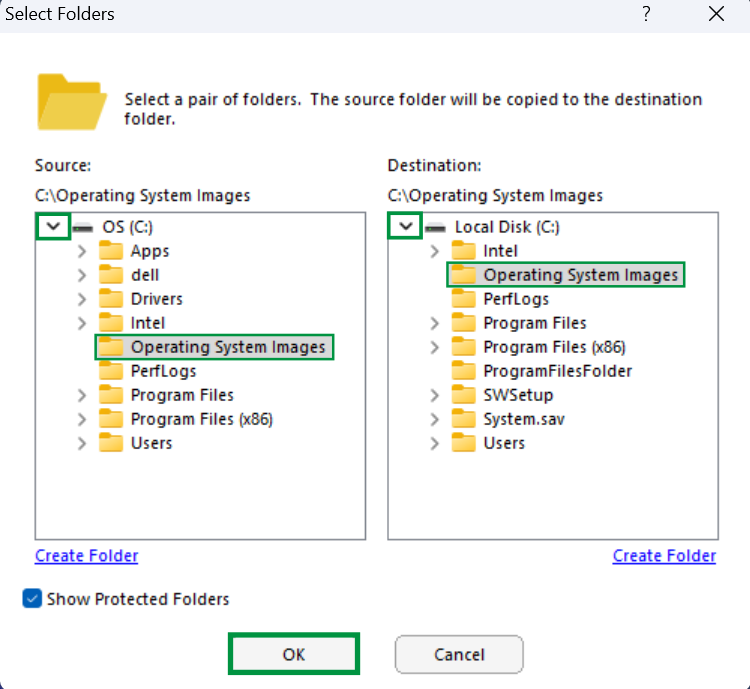
- Once you've found the folders needed, click OK
- With your selected folders ready, click Next
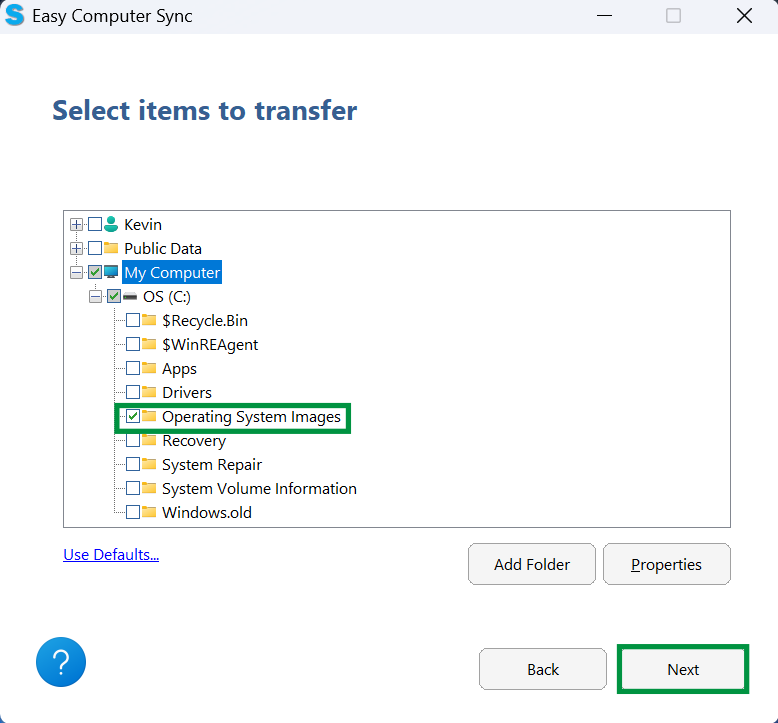
- Confirm the folder is ready for transfer, then click Next to begin
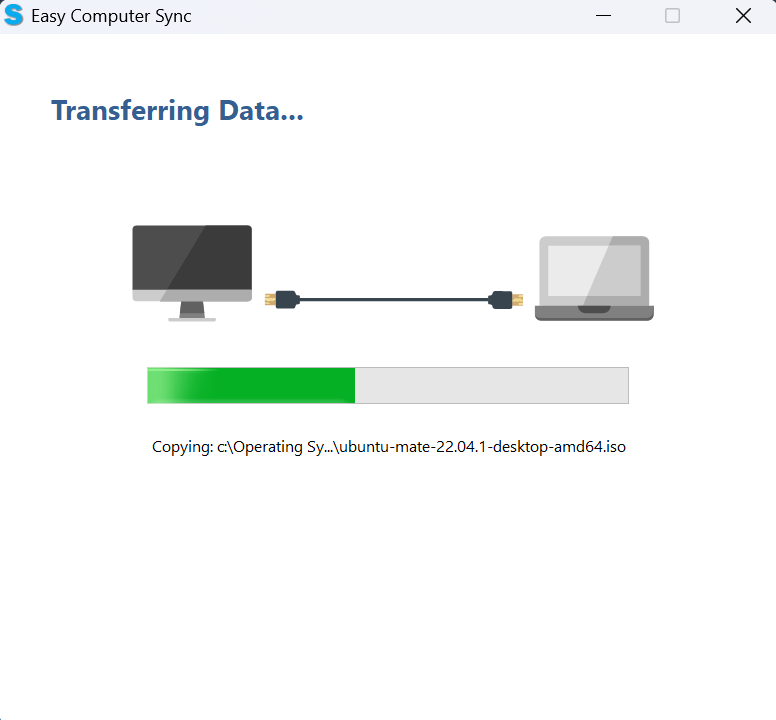
- Wait while the progress bar fills up green as files are transferred
- When the transfer finishes, click View Log to see a log with further information (optional)
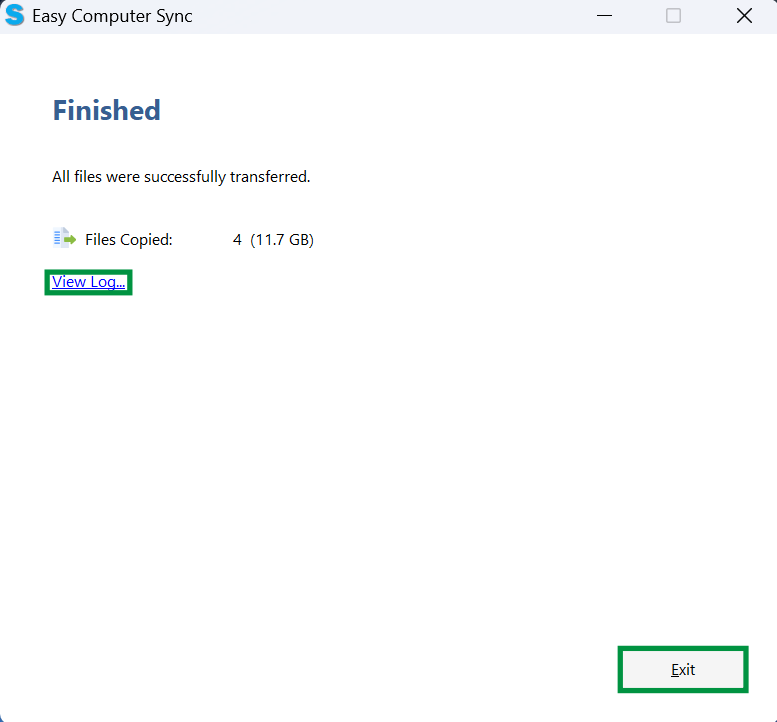
- Click Exit when finished
Expected Result
The progress bar fills completely and the final screen shows the number of files sent and the amount of data transferred. The transferred files appear in the folders with the same name on the new computer (for example, files from Pictures on the old computer appear in Pictures on the new computer).
If the Issue Persists
If you still have questions or the transfer doesn't complete, feel free to reach out to us directly at: support@plugable.com. We hope this was helpful!