
Originally authored by: Bernie Thompson, July 5, 2011
Updated 2024-07-11 by Pat P.
Updated 2026-03-04 by Sam R.
The Plugable USB to Serial adapter (PL2303-DB9) can be installed on Windows 7 by downloading the recommended Prolific driver, running the installer, and then connecting the device. While Windows 7 may detect the adapter automatically, manual installation ensures the correct driver is used.
How to Install the Prolific Driver on Windows 7
- Download the driver from the Plugable driver page
- Unzip the downloaded folder to your desktop or another accessible location
- Double-click the installer file to begin the installation process
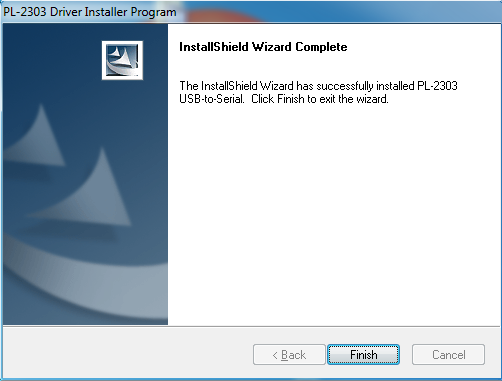
- Follow the prompts to complete the setup (no specific configuration questions are required):
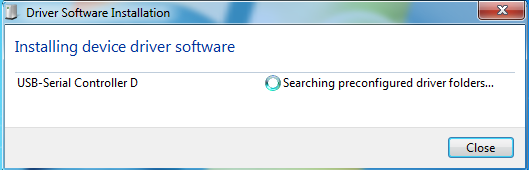
- Connect the USB to Serial adapter to the computer. A pop-up similar to this should appear:
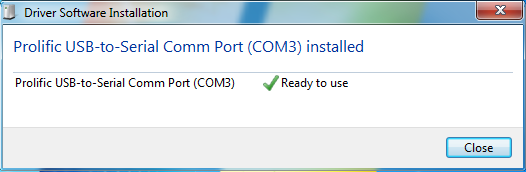
- Wait for the Windows notification confirming the device is ready to use:
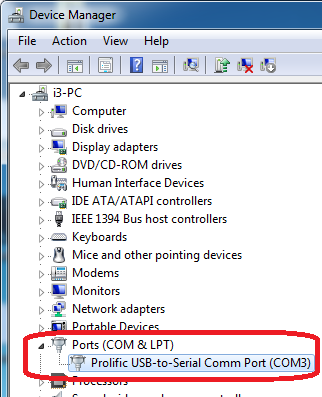
- Verify the installation by opening the Device Manager and looking for the adapter's entry under Ports (COM & LPT):
Installing the drivers after a fresh installation of Windows 7 in 2024
Windows 7 SP1 installation media does not include support for Windows 7's latest driver signing functionality and requires installing the following updates from Microsoft manually before installing the Prolific drivers, or running Windows Update:
After installing these updates the installation process should proceed normally.
Applicable To
PL2303-DB9
